Setting
Setting
The Setting page manages OOS Controller system configurations, user account provisioning, permission controls, as well as on-premise specific features such as networking, activity logs, backups, and firmware upgrades.
OOS Controller comes in two deployment editions: Cloud and On-premise.
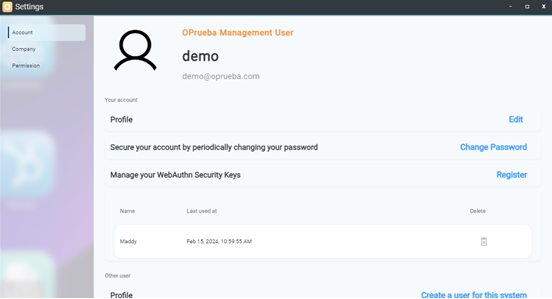
- Cloud Version (Management User): Provides access to Account, Company, OOS Logo, Permission, and Report mode pages.
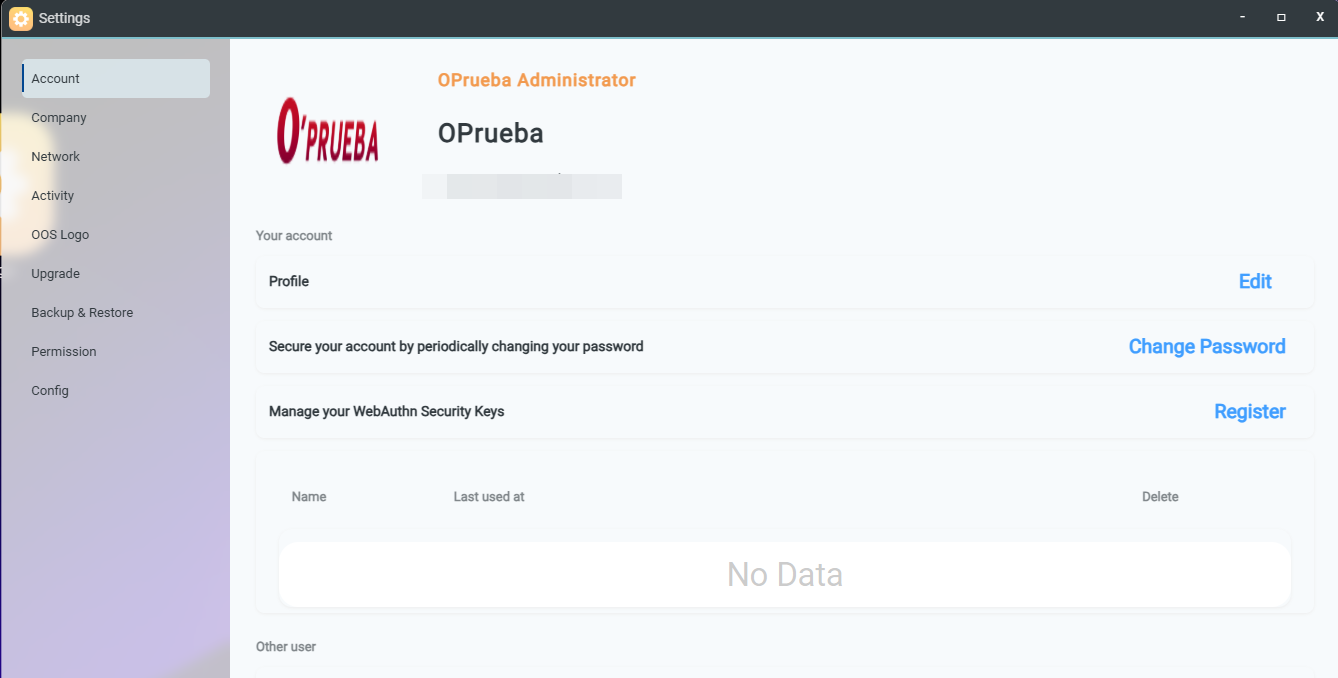
- On-premise Version (Administrator User): Provides full access to Account, Company, Network, Activity, OOS Logo, Upgrade, Backup & Restore, Permission, and Report mode pages.
Account Types and Permissions Matrix
| Account / APP | Cloud Management | Cloud Standard | On-premise Administrator | On-premise Management | On-premise Standard |
|---|---|---|---|---|---|
| Applications | P | Self-defined on Permission page | P | P | Self-defined on Permission page |
| Auth Connect | P | Self-defined on Permission page | P | P | Self-defined on Permission page |
| Backup | P | Self-defined on Permission page | P | P | Self-defined on Permission page |
| Clients | P | Self-defined on Permission page | P | P | Self-defined on Permission page |
| Diagnose | P | Self-defined on Permission page | P | P | Self-defined on Permission page |
| Inventory | P | Self-defined on Permission page | P | P | Self-defined on Permission page |
| Mission | P | Self-defined on Permission page | P | P | Self-defined on Permission page |
| Notification | P | Self-defined on Permission page | P | P | Self-defined on Permission page |
| Provision | P | Self-defined on Permission page | P | P | Self-defined on Permission page |
| SD-WAN | P | Self-defined on Permission page | P | P | Self-defined on Permission page |
| Dashboard | P | Self-defined on Permission page | P | P | Self-defined on Permission page |
| Log | P | Self-defined on Permission page | P | P | Self-defined on Permission page |
| Message | P | Self-defined on Permission page | P | P | Self-defined on Permission page |
| Statistics | P | Self-defined on Permission page | P | P | Self-defined on Permission page |
| Schedule | P | Self-defined on Permission page | P | P | Self-defined on Permission page |
| ToDo | P | Self-defined on Permission page | P | P | Self-defined on Permission page |
| Security | O | O | P | O | O |
| License | P | Self-defined on Permission page | P | P | Self-defined on Permission page |
| Setting | P | Self-defined on Permission page | P | P | Self-defined on Permission page |
| Account | P | Self-defined on Permission page | P | P | Self-defined on Permission page |
| Company | P | Self-defined on Permission page | P | P | Self-defined on Permission page |
| Network | O | O | P | O | O |
| Activity | O | O | P | O | O |
| OOS Logo | P | P | P | P | P |
| Upgrade | O | O | P | O | O |
| Backup & Restore | O | O | P | P | P |
| Config-Report mode | P | P | P | P | P |
| Config-SMTP | P | O | P | O | O |
Creating a New Management User
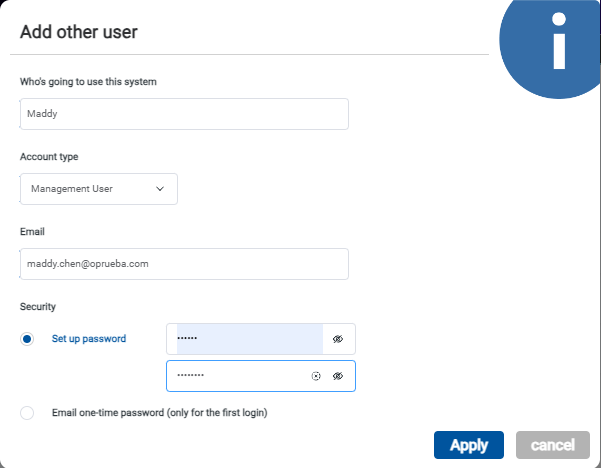
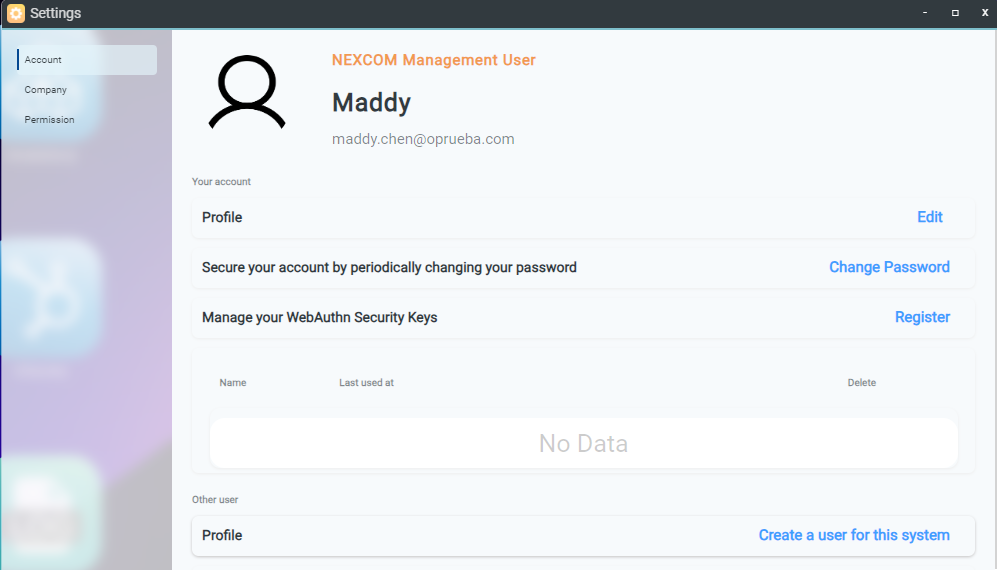
- Go to the Setting > Account page.
- Click Create a user for this system.
- Type the User name.
- Select Management user as the Account Type.
- Type the E-mail address.
- Set a password or select Email one-time password.
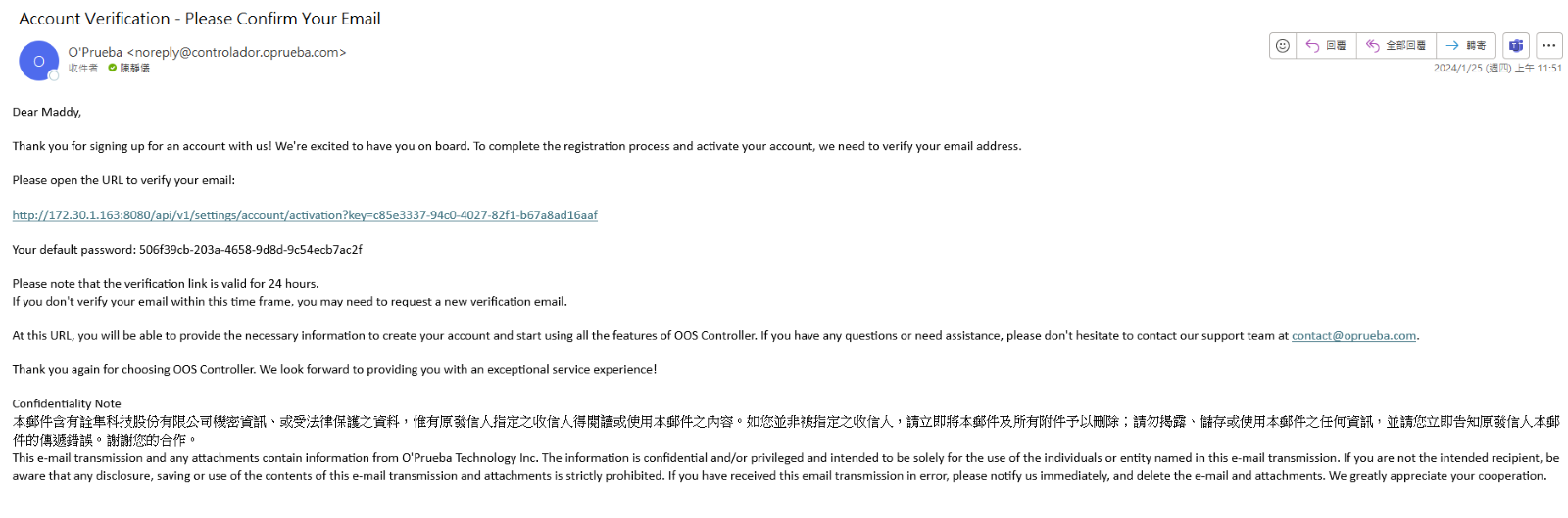
- Log in using the newly created credentials.
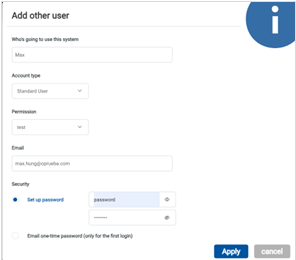
Creating a New Standard User
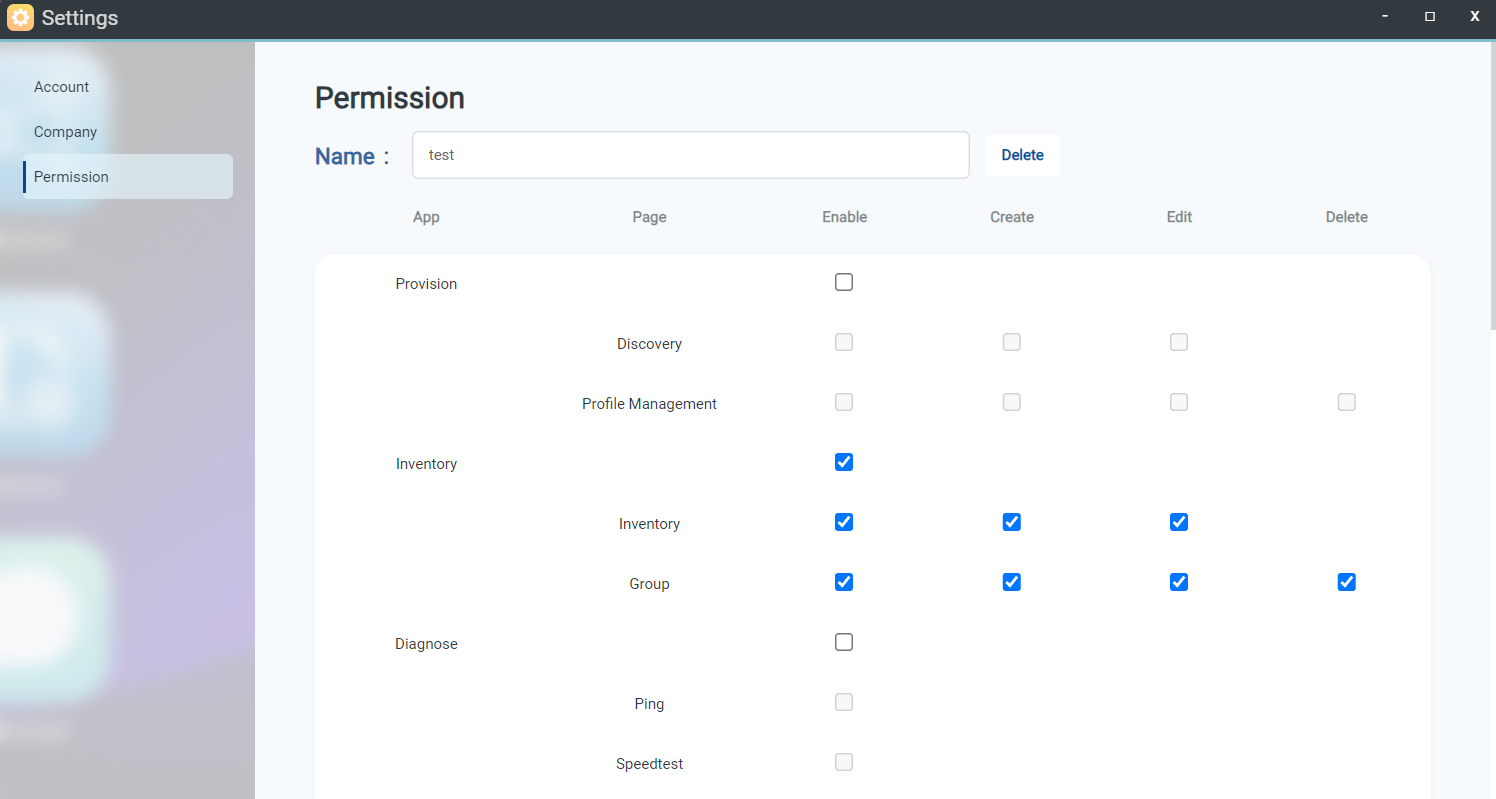
- Go to the Setting > Permission page.
- Click the Add button.
- Enter a permission profile name and select accessible Apps.
- Click Apply to save.
- Go to the Setting > Account page.
- Click Create a user for this system.
- Enter the user name.
- Select Standard user as the Account Type.
- Select the created Permission profile.
- Enter the user's email address.
- Enter password or select Email one-time password.
- Click Apply.
- Log in with the standard user account to access assigned Apps according to permission policies.
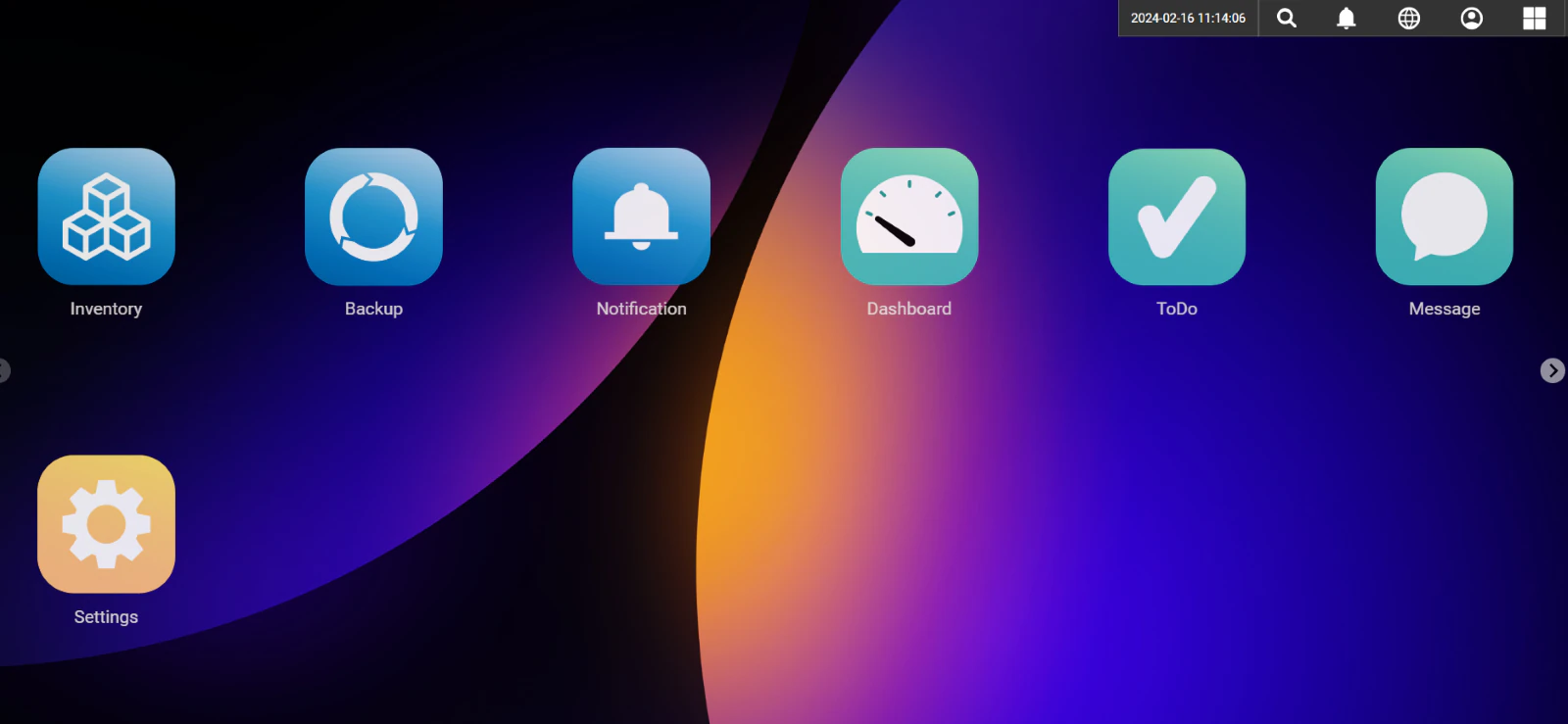
!NOTE Cloud edition provides the Management user account by default.
On-Premise Administrative Functions (Administrator Account)
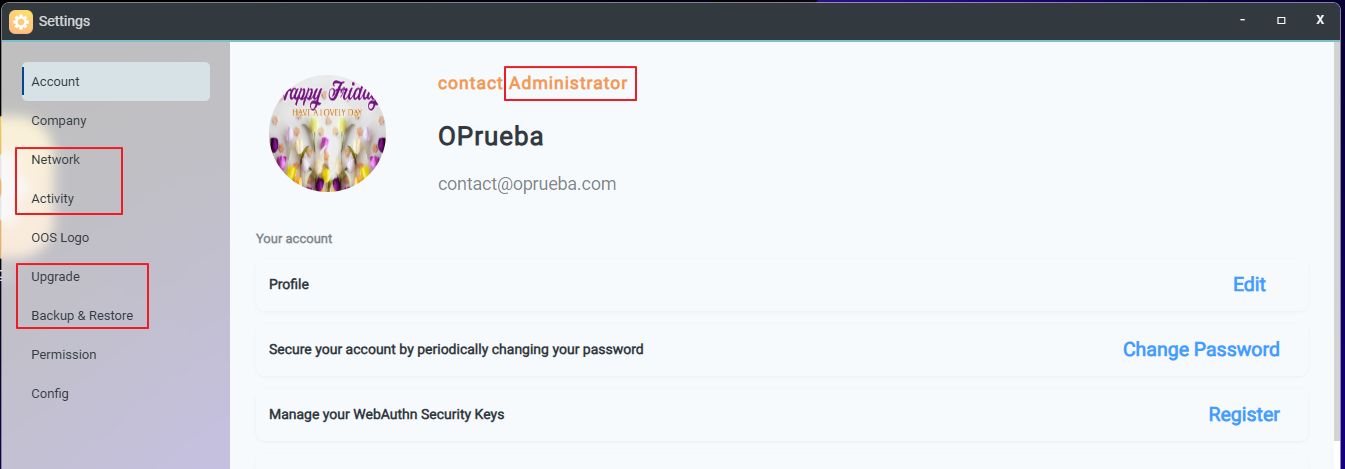
In the On-Premise edition, logging in with the Administrator account enables access to Network, Activity, Upgrade, and Backup & Restore settings.
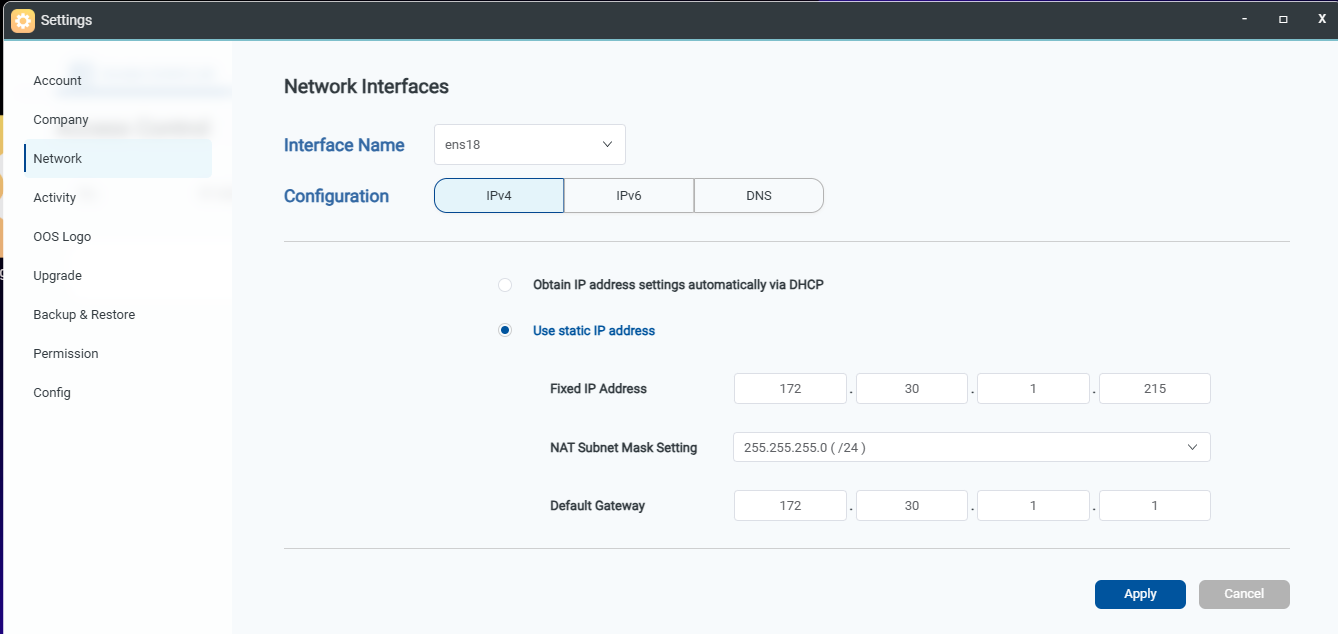
Networking
Configures IPv4, IPv6, and DNS settings for OOS Controller.
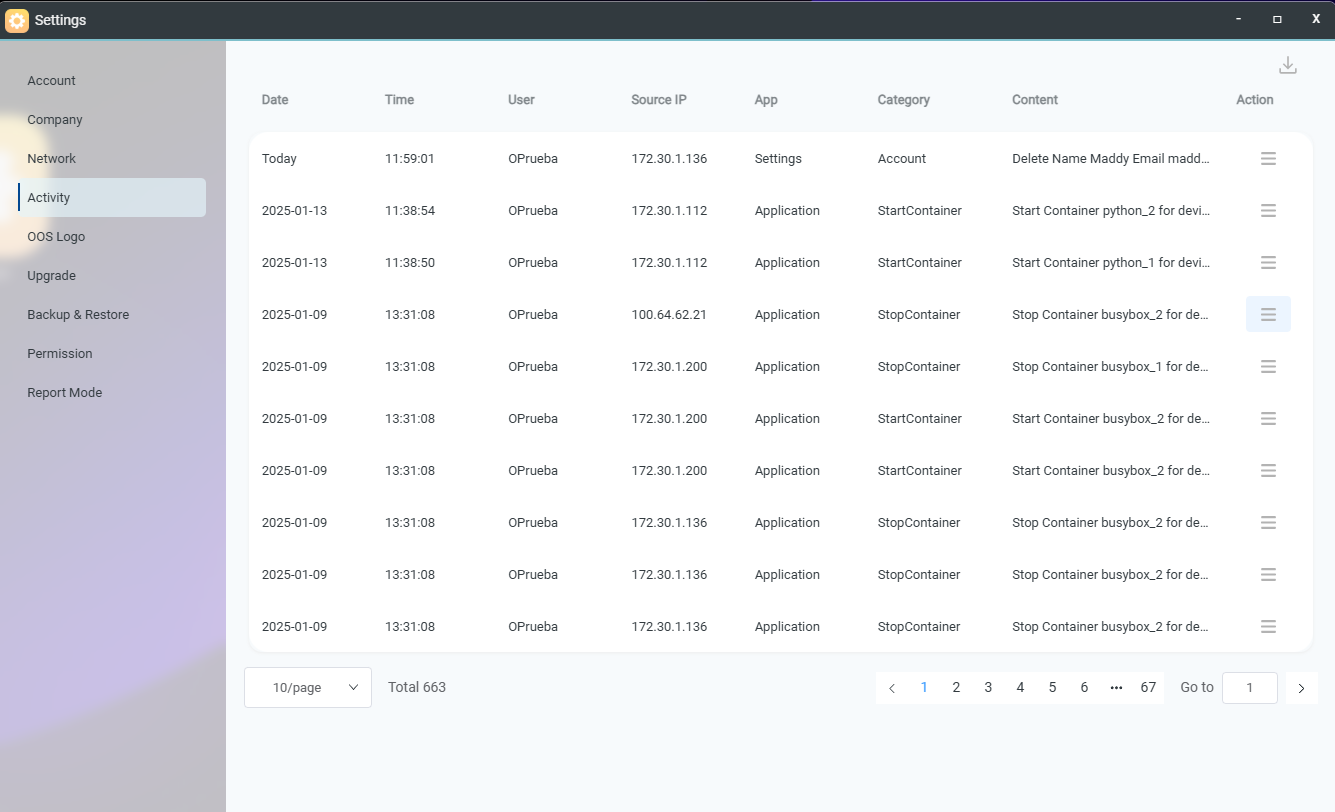
Activity
Displays controller activity logs, including security events, application operations, setting modifications, account events, backup/restore operations, and firmware upgrades.
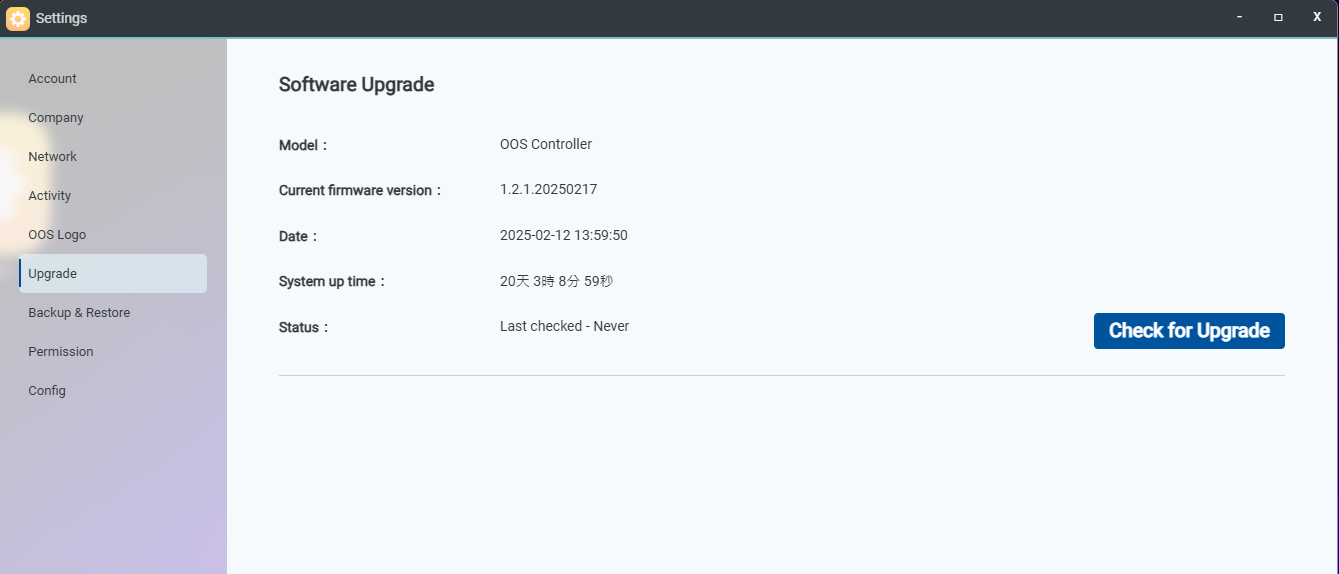
Firmware Upgrade
Displays the current firmware version, update timestamp, and system uptime. Click Check for Upgrade to search for available updates and perform direct online firmware upgrades.
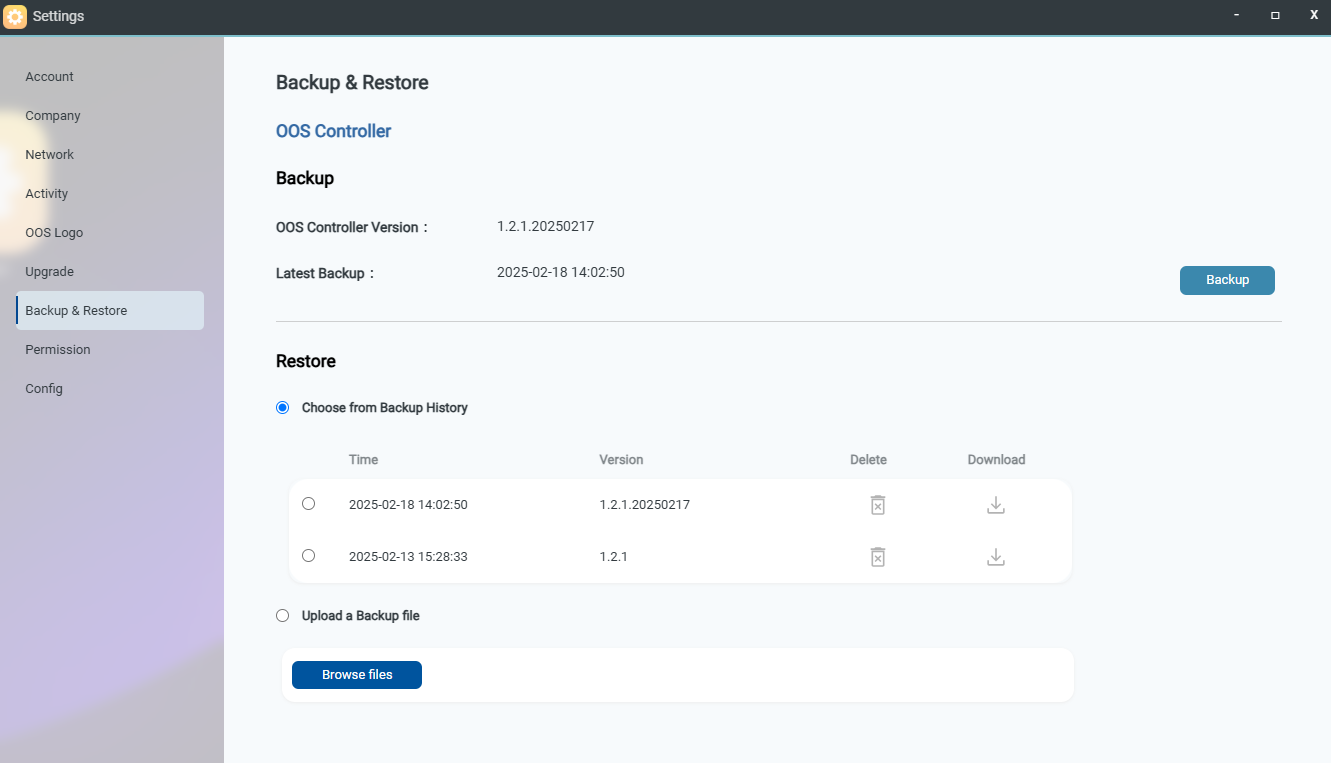
Backup & Restore
Allows backing up OOS Controller system data. Click Backup Now to generate a backup file (up to 4 backup files can be stored). The Restore feature allows restoring system state from stored backups or uploaded files.
Config Report Mode
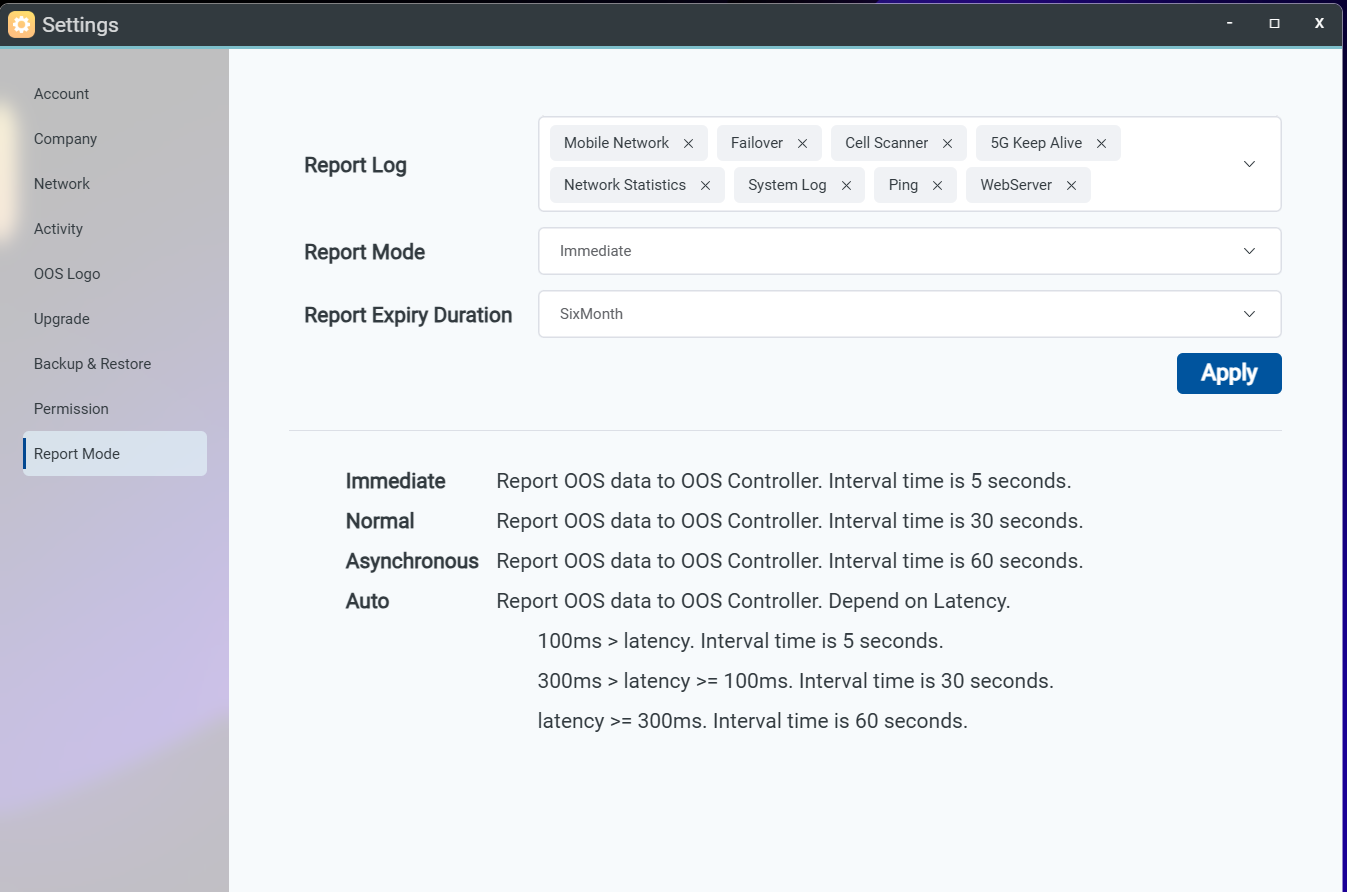
- Report Log: Selects OOS log categories and customizes telemetry transmitted to the controller.
- Log Retention Period: Schedules log compression routines. Compressed logs are retained for up to one year and automatically purged afterward.
- Report Mode: Defines telemetry transmission frequency to OOS Controller:
- Immediate: Sends data every 5 seconds.
- Normal: Sends data every 30 seconds.
- Asynchronous: Sends data every 1 minute.
- Auto: Dynamically adjusts transmission interval based on network latency.