Provision
Provision OOS devices to OOS Controller through automatic discovery or a Controller Key, and manage provisioning profiles.
Provision discovers OOS devices and supports bulk deployment and flexible configuration. OOS Controller provides two discovery methods:
- Auto Discover: The Controller can discover OOS devices automatically when they are in the same IP domain.
- Key Discover: When the device and Controller are connected across the internet or an intranet, use a Controller Key to locate the device.
Provision an OOS Device with Key Discover
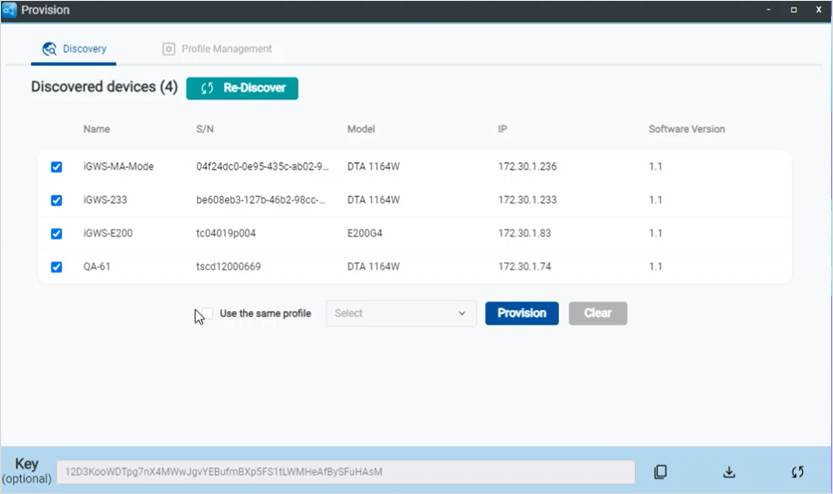
- Go to Provision > Discovery.
- Copy the Key value.
- Paste the Key into the OOS device using either of the following methods.
Method 1: Configure the Key on the Sign-in Page
If you have not signed in to the device, paste the Key on its sign-in page.
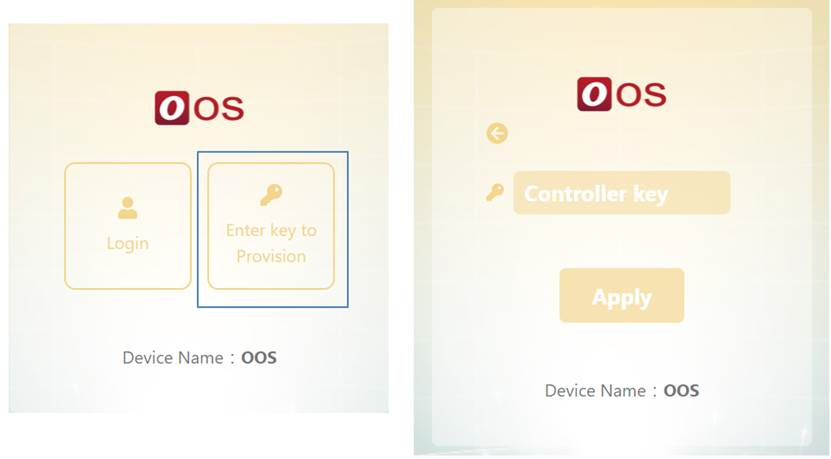
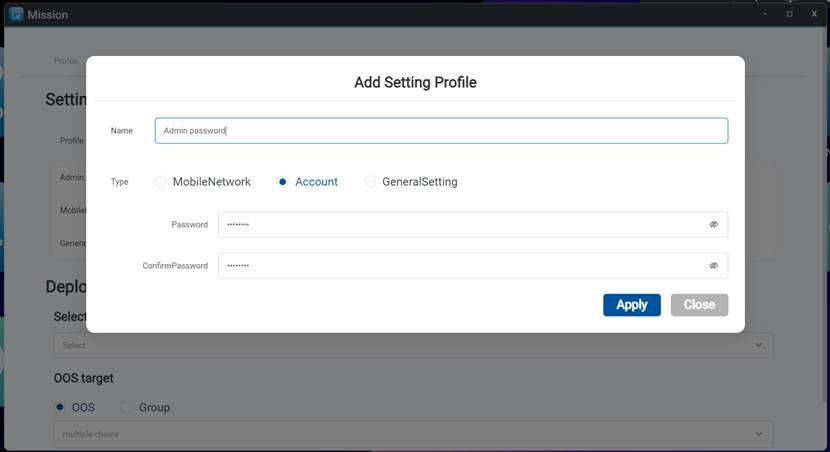
!NOTE When provisioning from the OOS sign-in page, change the administrator password from Mission > OOS.
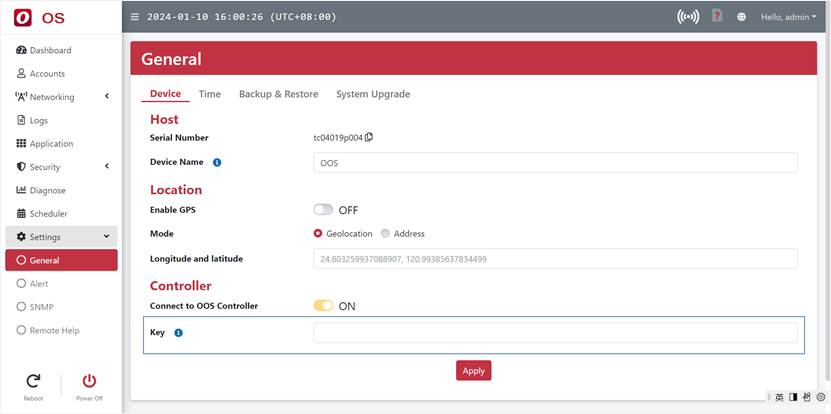
Method 2: Configure the Key in Device Settings
- Sign in to OOS, then go to Settings > General > Device.
- Paste the Key into the Controller field.
!WARNING TODO: In the source document, Method 2 jumps from Step 2 to Step 4 and does not provide Step 3. Confirm whether the official procedure is missing an action.
- Go to Provision > Discovery, click Re-discover, and wait for discovery to finish.
- Select the devices.
- To use the same profile, select the corresponding checkbox.
- Select a profile.
- Click Provision.
- Enter an IP address if required.
- Change the device name if required.
- Select a group if required.
- Click Apply.
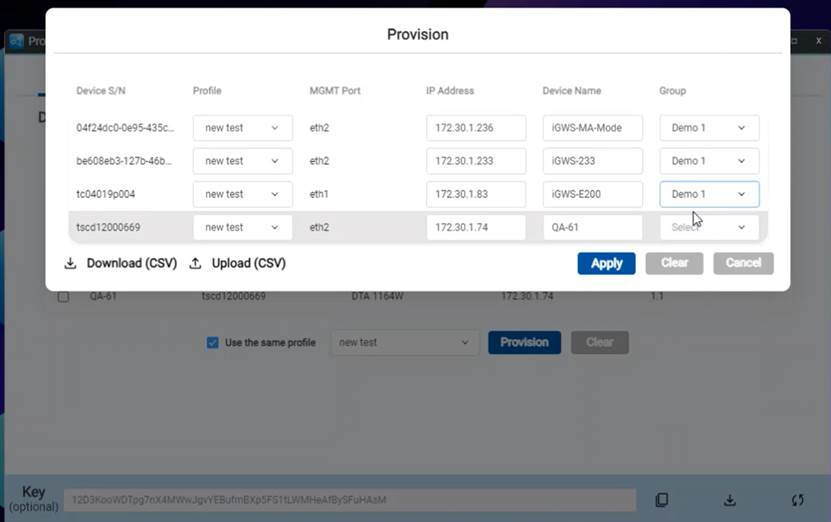
After a few minutes, the device is provisioned into Inventory and can be managed there. A notification under the bell icon in the upper-right corner also indicates the provisioning status.
Profile Management
Profile Management lets you configure mobile network, WAN, and DHCP settings. You can configure selected settings or all of them. During provisioning, OOS Controller applies the configuration to each OOS device according to its assigned profile.
Create a Profile That Does Not Change OOS Settings
To connect an OOS device to OOS Controller without changing its OOS settings:
- Go to Provision > Profile Management.
- Select Profile > Customize.
- Enter a profile name.
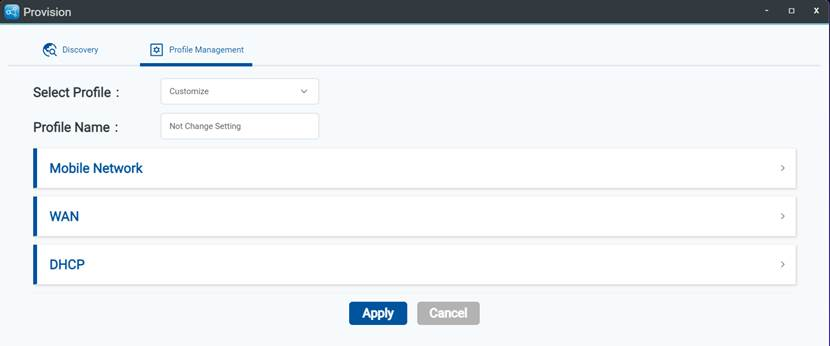
- Turn off the Mobile network, WAN, and DHCP toggles.
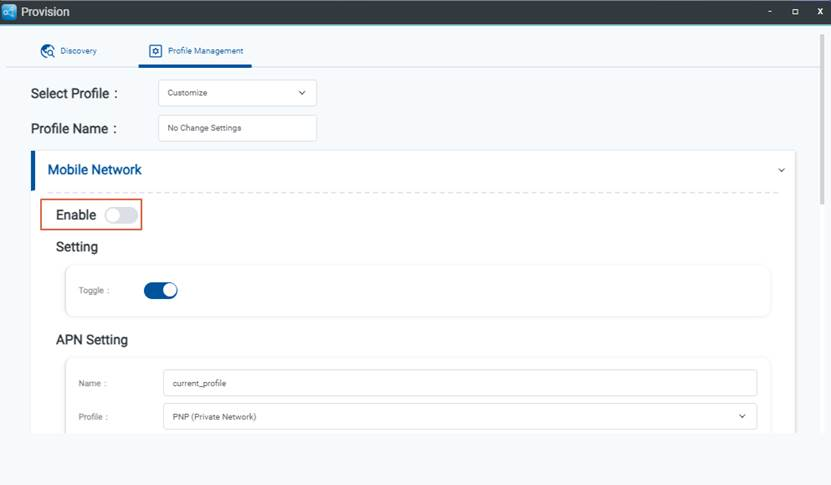
- Click Apply.