Inventory
Inventory provides OOS device details, connection status, interface status, device grouping, and Jump to Device access.
The Inventory page provides OOS device information, including OOS-to-controller connection status, OOS interface connection status, device name, Jump to Device mode, IP address, group, uptime, and messages. The Signal page displays mobile network signal information. OOS devices can be grouped for better organization.
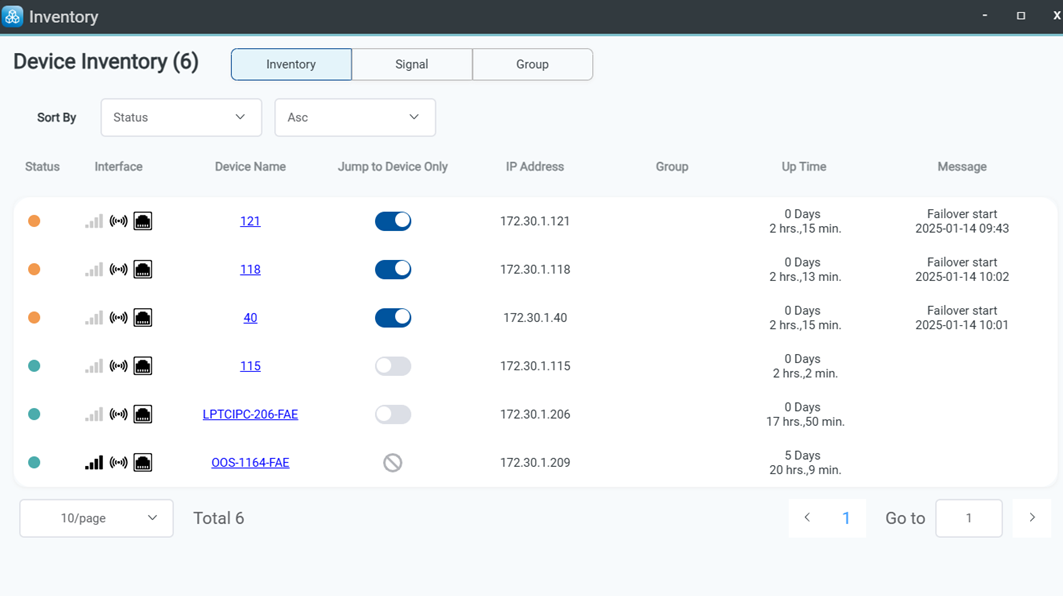
Note: When the "Jump to Device" feature is enabled, access to the OOS device is restricted to the controller only (even from the LAN network), preventing direct login via its IP address.
Clicking "Device Name" displays the real-time status of the OOS device.
Clicking the "Jump to Device" button allows direct access to the OOS device.
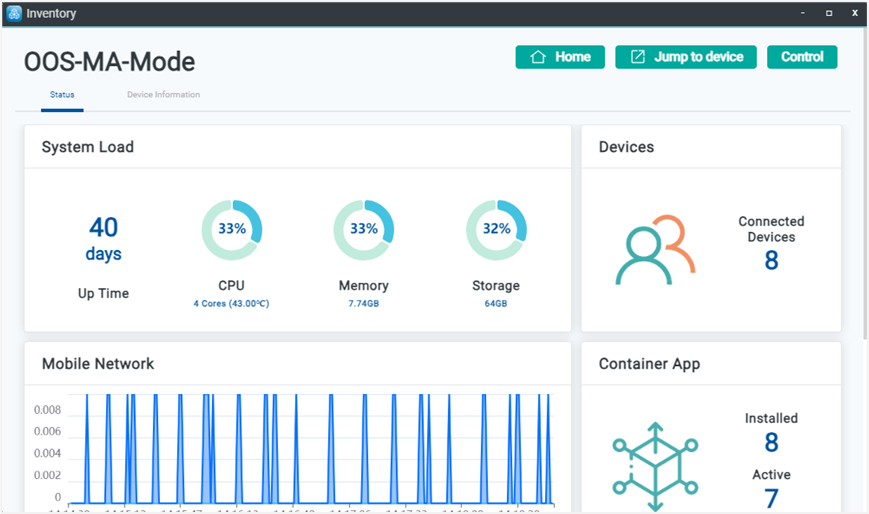
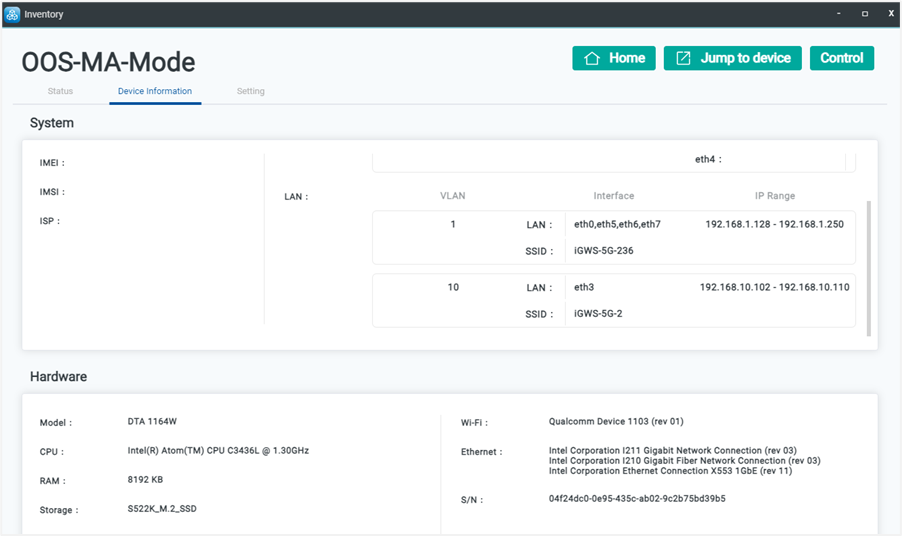
Device information shows system, WAN, LAN, and hardware details.
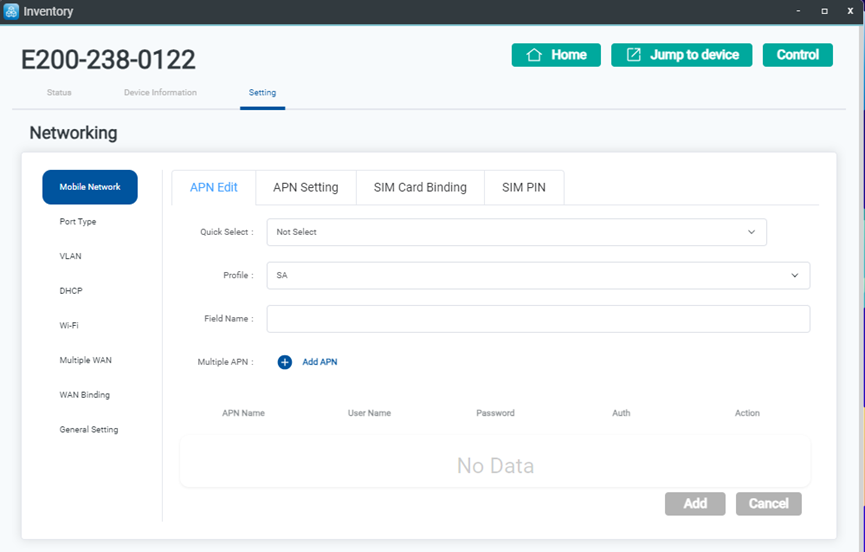
The setting page displays the network settings of the OOS device and allows modifying network parameters, including Mobile Network, Port Type, VLAN, DHCP, Wi-Fi, Multiple WAN, WAN Binding, and General Settings.
The buttons are described in the following table:
| Item | Description |
|---|---|
| Back | Go back to the Inventory list. |
| Jump to Device | Jump to the OOS device login page. |
| Leave Controller | Leave the OOS controller (remove the OOS device from the Inventory list). |
| Reboot | Reboot the OOS device. |
| Idle | Place the OOS device into idle mode and terminate all client connections. Idle mode can be unlocked by the OOS controller. |
| Shutdown | Shutdown the OOS device. |