Notification
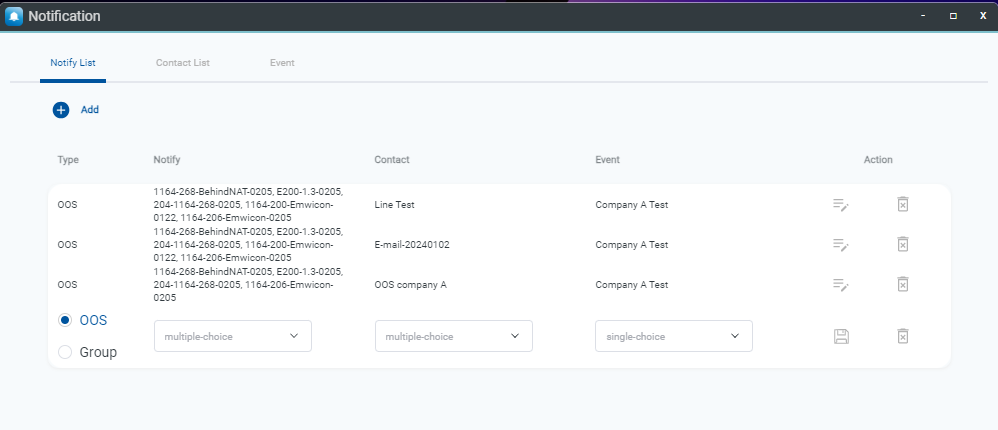
Notification supports custom alert messaging by binding Contact Lists and Events into Notify Lists.
The Notification feature allows users to customize notification messages. Users configure "Contact List" and "Event" rules and bind them into the "Notify List". The Contact List supports preferred notification methods (E-mail, SMS, Line), while the Event page specifies which notifications to receive.
Contact List
You can receive notifications via E-mail or SMS.
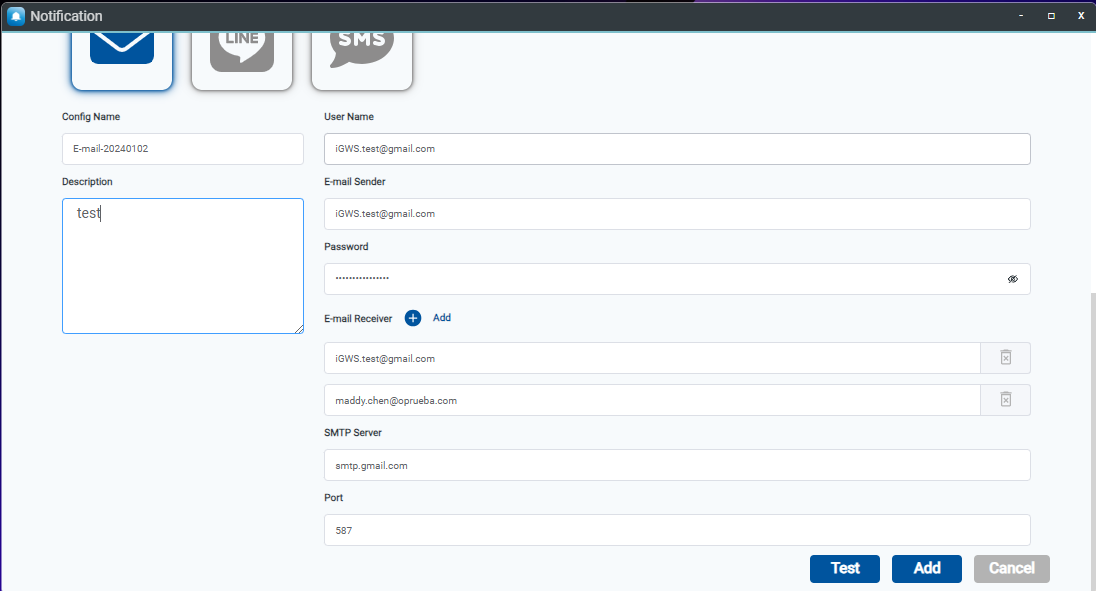
Create E-mail Contact List
- Step 1: Go to the Notification > Contact List page.
- Step 2: Click the Add button.
- Step 3: Select the E-mail icon.
- Step 4: Type Config Name and Description.
- Step 5: Type User Name (E-mail sender name).
- Step 6: Type the email address in the E-mail Sender field.
- Step 7: Type the password.
- Step 8: Type the email address in the E-mail Receiver field.
- Step 9: Type the SMTP Server address.
- Step 10: Type the SMTP Server Port.
- Step 11: Click the Test button to verify that a test email is received.
- Step 12: Click the Add button to save the E-mail contact list.
| Name | Indicators |
|---|---|
| E-mail Sender | Your email mailbox address used by OOS to send emails. |
| Password | Password for authenticating with the SMTP server. |
| SMTP server | SMTP server address provided by your email service provider or IT administrator. |
| Port | SMTP server port. |
| Test | Send a test E-mail. |
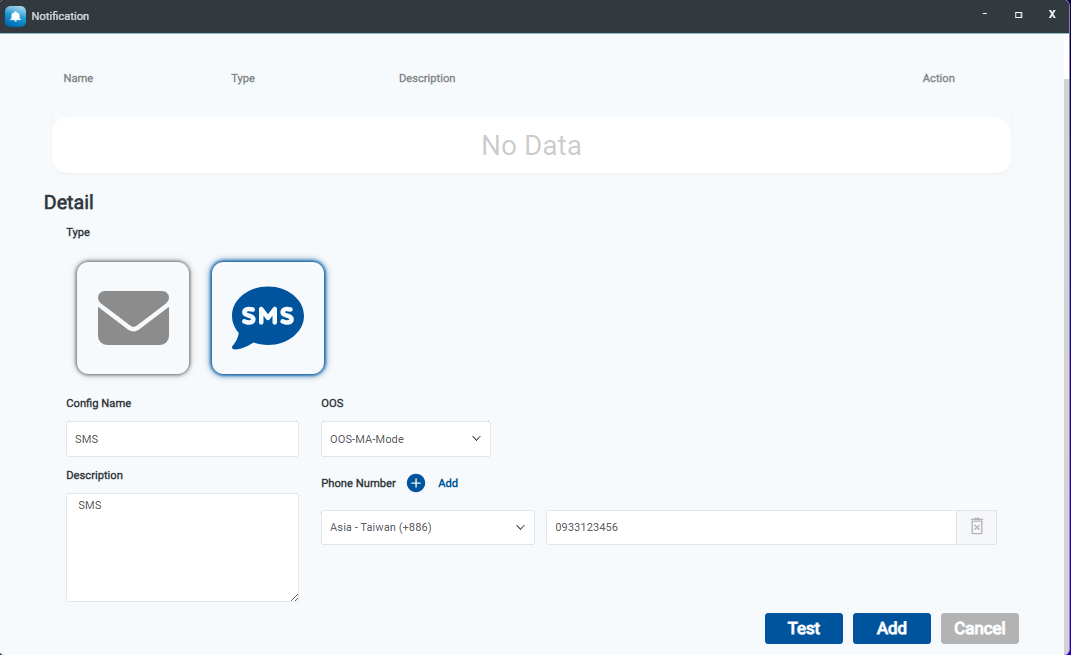
Create SMS Contact List
- Step 1: Go to the Notification > Contact List page.
- Step 2: Click the Add button.
- Step 3: Select the SMS icon.
- Step 4: Type Config Name and Description.
- Step 5: Select OOS devices equipped with a SIM card.
- Step 6: Add the recipient phone number.
- Step 7: Click the Test button to test receiving SMS messages.
- Step 8: Click the Add button to save the SMS contact list.
Event
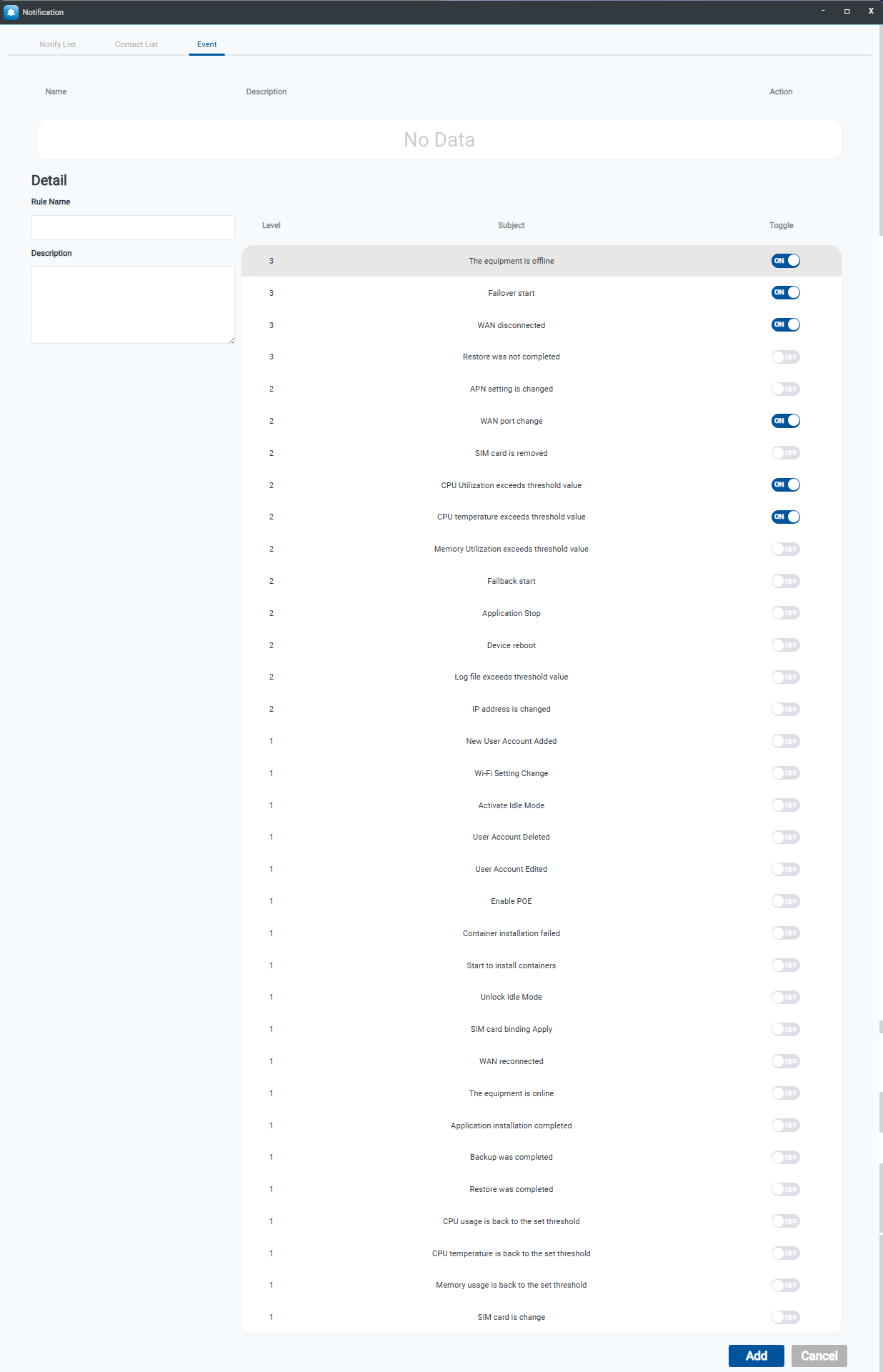
The Events page allows users to customize notification events across three severity levels. For CPU, memory, and temperature thresholds, users can configure individual events for each OOS device.
Create Event List
- Step 1: Go to the Notification > Event page.
- Step 2: Click the Add button.
- Step 3: Type Rule Name and Description.
- Step 4: Select the messages you want to receive and enable the toggle.
- Step 5: Click the Add button.
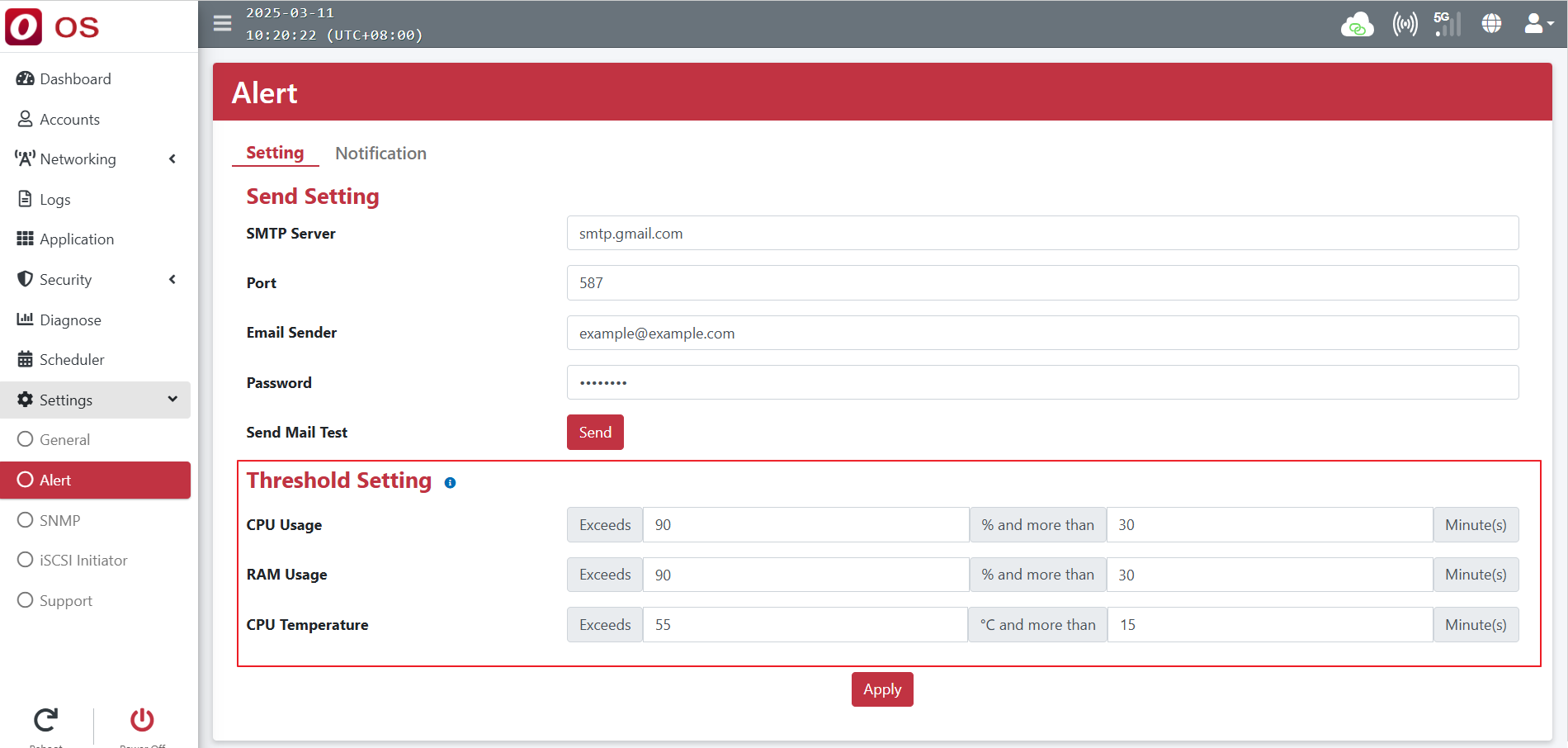
Threshold Setting
Log in to the OOS device and go to Setting > Alert > Setting to configure threshold values.
Notify List
Once the "Contact List" and "Event" are configured, bind them on the Notify List page. When a relevant notification is triggered, alerts are automatically sent to users.
- Step 1: Go to the Notification > Notify List page.
- Step 2: Click the Add button.
- Step 3: Select Notify devices.
- Step 4: Select Contact list.
- Step 5: Select Event.
- Step 6: Click the Save icon.