Diagnose
Diagnose supports Ping, Speedtest, Traceroute, and iPerf network testing tools, as well as Cell Scanner base station scanning.
Diagnose supports Ping, Speedtest, Traceroute, and iPerf tools to inspect network status. Cell Scanner helps scan nearby mobile network base stations.
Ping
Ping tests the reachability of a host on the network and measures the round-trip time (RTT) for messages sent from the originating host to a destination host.
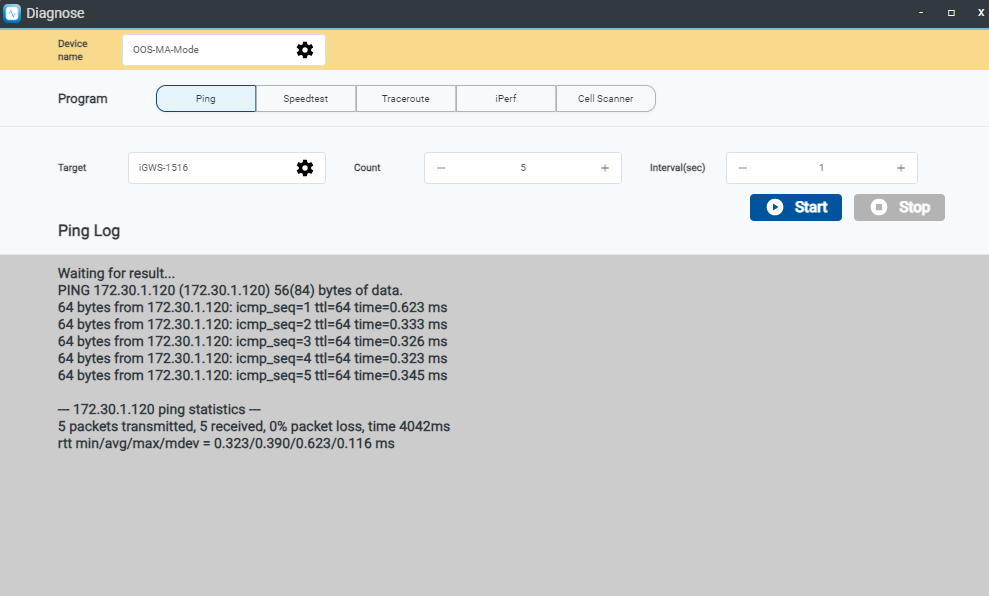
- Step 1: Go to the Diagnose > Ping page.
- Step 2: Click the Device Name icon. In the pop-up "Select Device" dialog box, select the device and click Apply.
- Step 3: Click the Target icon. In the pop-up "Target" dialog box, select the device and click Apply.
- Step 4: Alternatively, enter the IP address (such as
1.1.1.1) or domain name (such asgoogle.com) in the Target field. - Step 5: Set the Count number to
5. - Step 6: Set Interval (sec) to
1. - Step 7: Click the Start button.
- Step 8: View the Ping Log.
Speedtest
Speedtest measures the speed and performance of the Internet connection. It evaluates download and upload speeds, providing insights into overall connectivity performance.
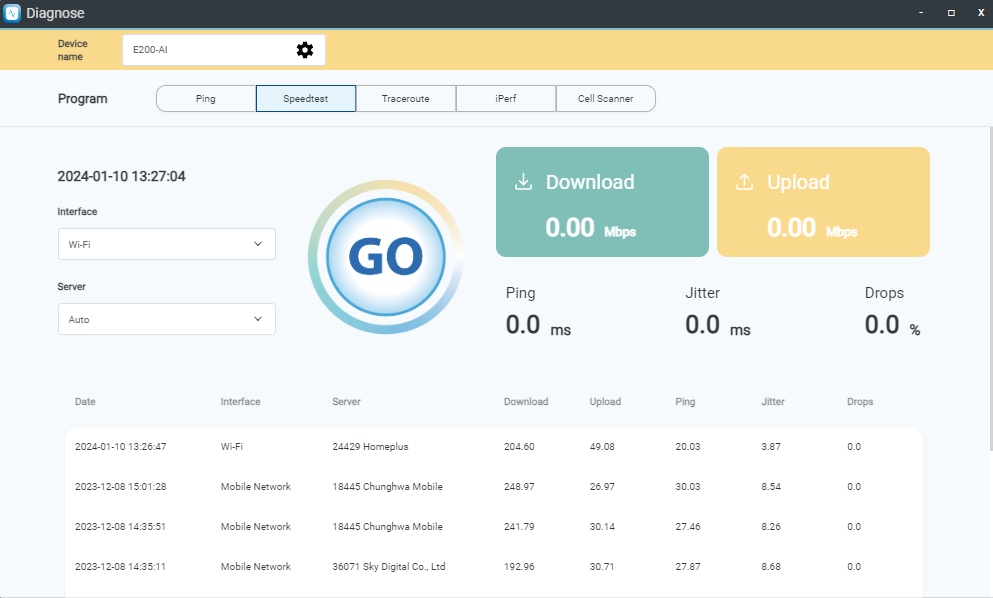
- Step 1: Go to the Diagnose > Speedtest page.
- Step 2: Click the Device Name icon. In the pop-up "Select Device" dialog box, select the device and click Apply.
- Step 3: Select the network interface from the Interface drop-down menu.
- Step 4: Select the test server from the Server drop-down menu.
- Step 5: Click the Go button.
Traceroute
Traceroute traces packets from your computer to an Internet host, displaying the number of hops required to reach the host and the latency of each hop. Traceroute shows route paths and measures transit delays across an IP network.
- Step 1: Go to the Diagnose > Traceroute page.
- Step 2: Click the Device Name icon. In the pop-up "Select Device" dialog box, select the device and click Apply.
- Step 3: Click the Target icon. In the pop-up "Target" dialog box, select the device and click Apply.
- Step 4: Alternatively, type the IP address (such as
1.1.1.1) or domain name (such asgoogle.com) in the Target field. - Step 5: Set Traceroute Max TTL to
5. - Step 6: Click the Start button.
iPerf
iPerf evaluates network performance by measuring data transfer speed between clients and servers. With iPerf, you can select OOS devices as clients or servers, or enter external server addresses for testing.
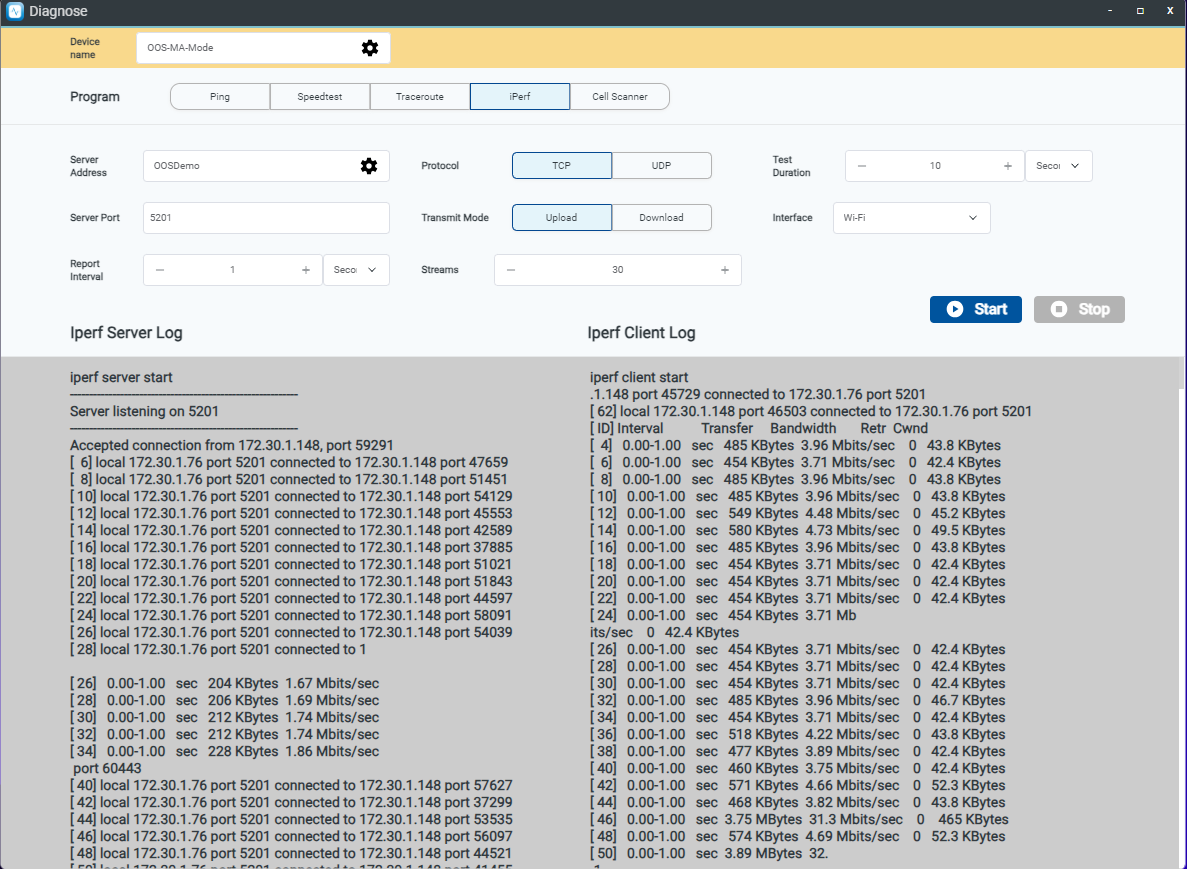
- Step 1: Go to the Diagnose > iPerf page.
- Step 2: Click the Device Name icon. In the pop-up "Select Device" dialog box, select the device and click Apply. Set up the device as an iPerf client.
- Step 3: Click the Server Address icon. In the pop-up "Server Address" dialog box, select the device and click Apply to configure it as an iPerf server.
- Step 4: Alternatively, enter an IP address (such as
172.30.1.X) in the Server Address field to set up as an iPerf server. - Step 5: Set Server Port to
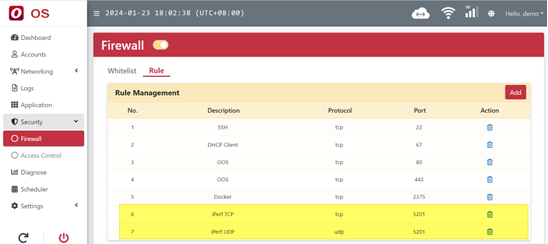
5201(add a firewall rule allowing this port on the OOS device). - Step 6: Select the Protocol.
- Step 7: Select the Transmit Mode.
- Step 8: Set the Test Duration time.
- Step 9: Select the Interface.
- Step 10: Adjust Report Interval and Streams.
- Step 11: Click Start.
Note: To perform iPerf testing, log into the OOS system, go to Security > Firewall > Rule, and add a firewall rule allowing the required port.
Cell Scanner
The Cell Scanner feature scans nearby base stations.
Note: To execute the Cell Scanner feature, the OOS device must have a mobile network module, and the mobile network toggle must be turned on.
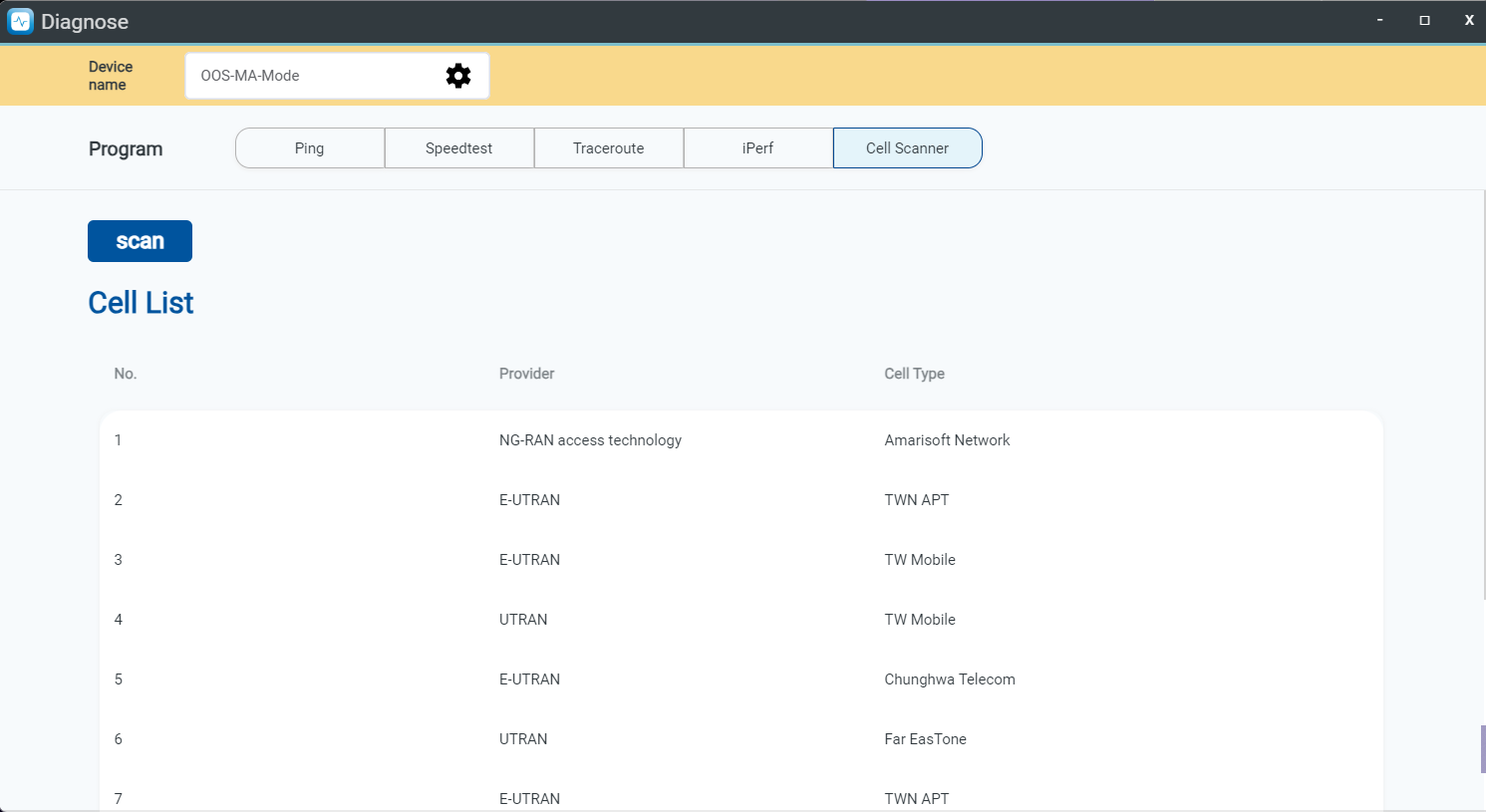
- Step 1: Go to the Diagnose > Cell Scanner page.
- Step 2: Click the Device Name icon. In the pop-up "Select Device" dialog box, select the device and click Apply.
- Step 3: Click the scan button.
- Step 4: Wait approximately 90 to 120 seconds for the base station list to appear.