Getting Started
Guide to OOS Controller account activation, login, WebAuthn security keys, and password reset.
Activate Your Account and Sign In
After confirming the number of OOS devices managed by the Controller and the license period, provide O'Prueba with the following company information:
- Company name
- Contact person's name, email address, and phone number
- Company registration number and address
The system sends a registration link to the contact person's email address.
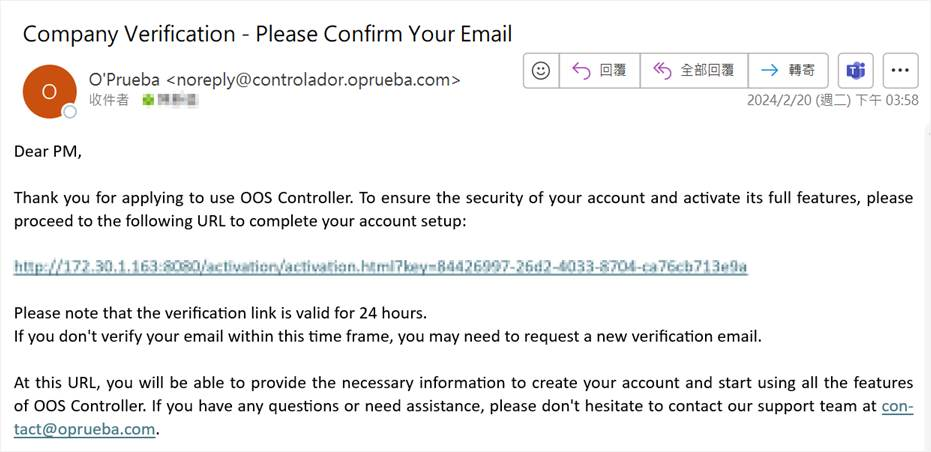
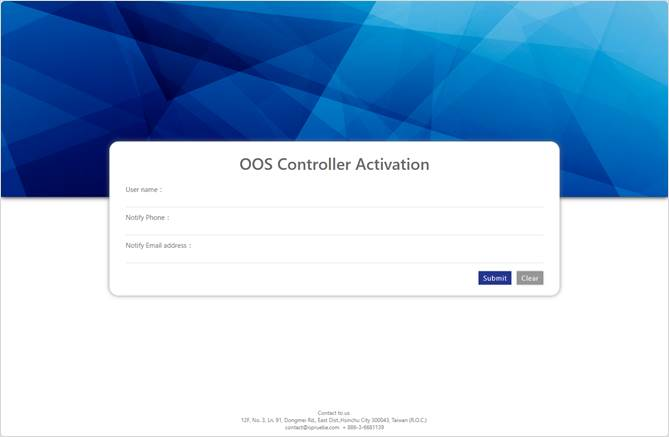
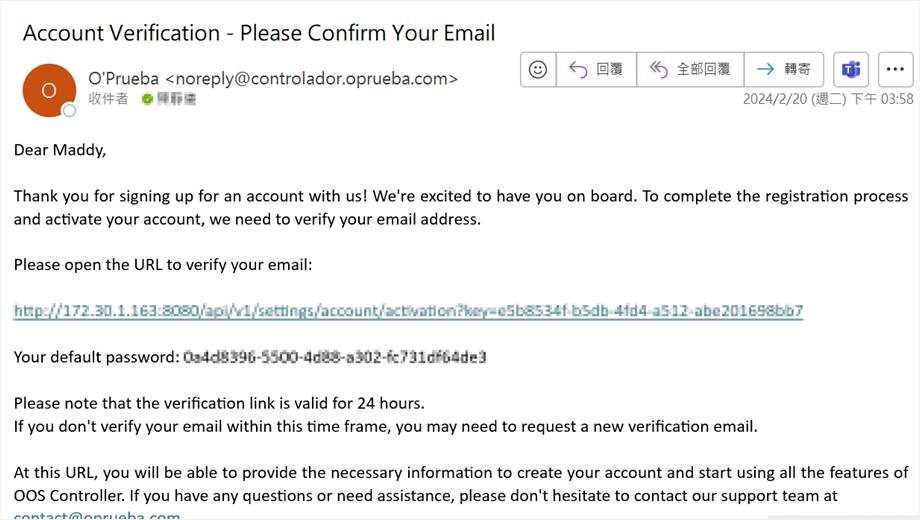
Share this link with the people who will use OOS Controller. After a user registers, the system sends an activation password to their email address.
The user receives the login password in their email inbox.
Sign in with the email address used during registration.
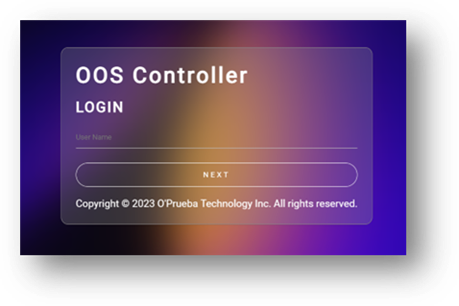
Select Login with password, then enter the password received by email.
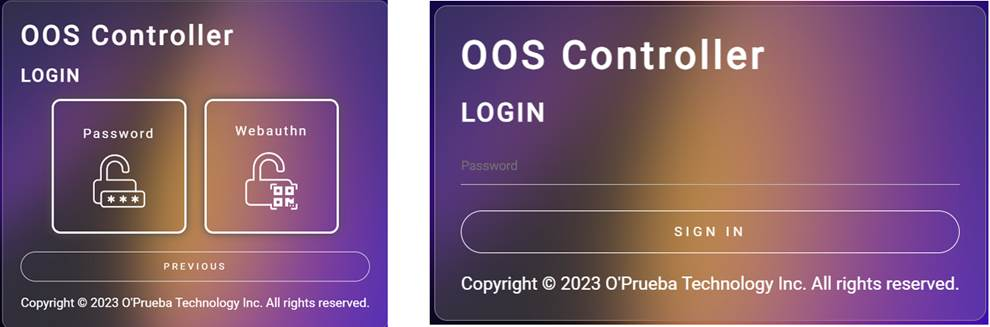
After signing in, go to Settings > Account to change the password or add other users.
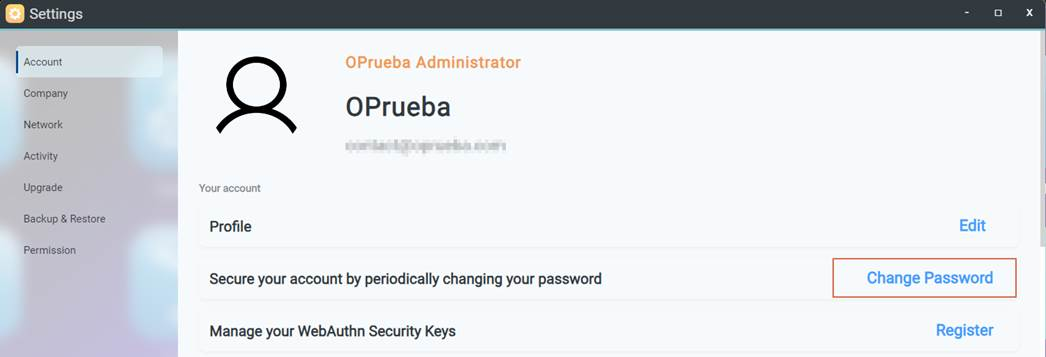
Create a WebAuthn Security Key
!NOTE WebAuthn (Web Authentication) requires access to OOS Controller through an HTTPS URL.
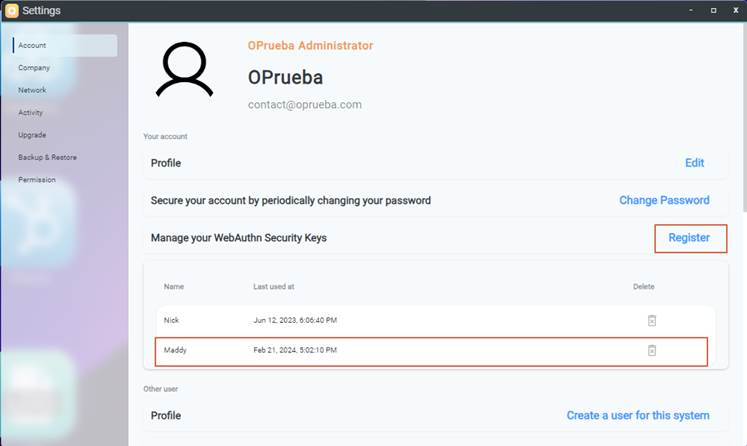
- Go to Settings > Account.
- In Manage WebAuthn Security Keys, click Register.
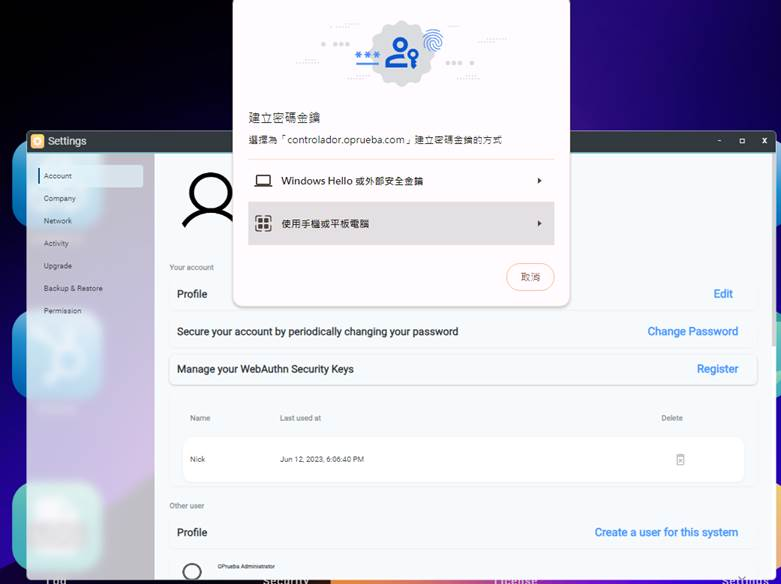
- Select WebAuthn (Web Authentication) on your mobile device or tablet.
- Scan the QR code with your mobile device or tablet.

- Click Continue.
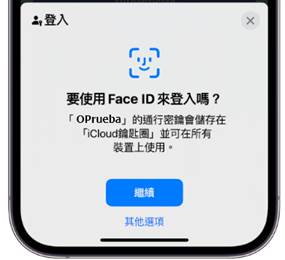
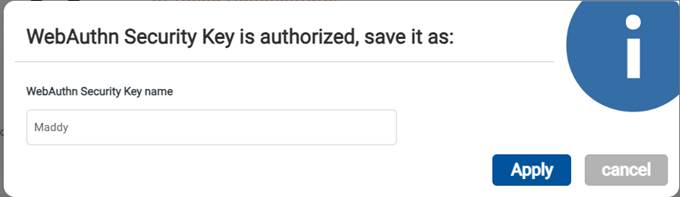
- Enter a name for the security key, then click Apply.
- The registered security key appears in the WebAuthn list.
On subsequent visits, you can sign in through WebAuthn by scanning with an authenticated mobile device or tablet.
Reset a Forgotten Password
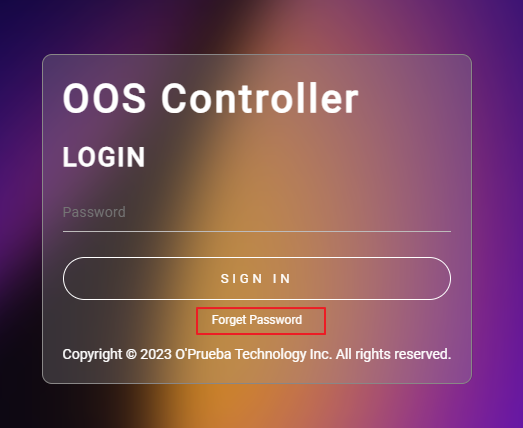
- On the sign-in page, click Forget password.
- Open the password-reset email sent by the system.
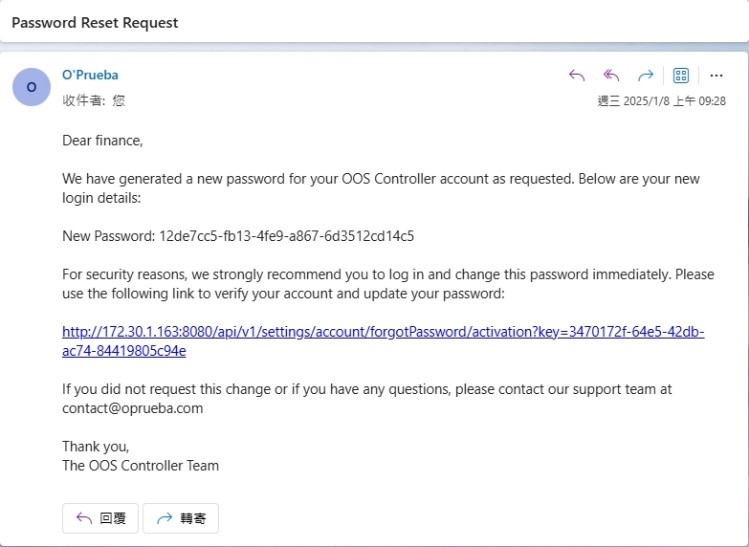
- Click the link in the email and reset the password.