oosVersion 2.1
APN Edit
Guide to configuring and saving APN profiles for public and private networks in OOS.
APN Edit
An APN (Access Point Name) serves as the gateway between a cellular network and the Internet. On this page, you can configure and save APN profiles for public and private networks.
Currently, most public network APNs are configured for NSA (Non-Standalone) mode, while the majority of private networks are configured for SA (Standalone) mode. However, certain private networks also utilize NSA configurations.
!NOTENotification: The APN Edit page is used strictly for building and saving the APN Quick Select profile files. To apply changes and activate the connection, you must navigate to the APN Setting page.
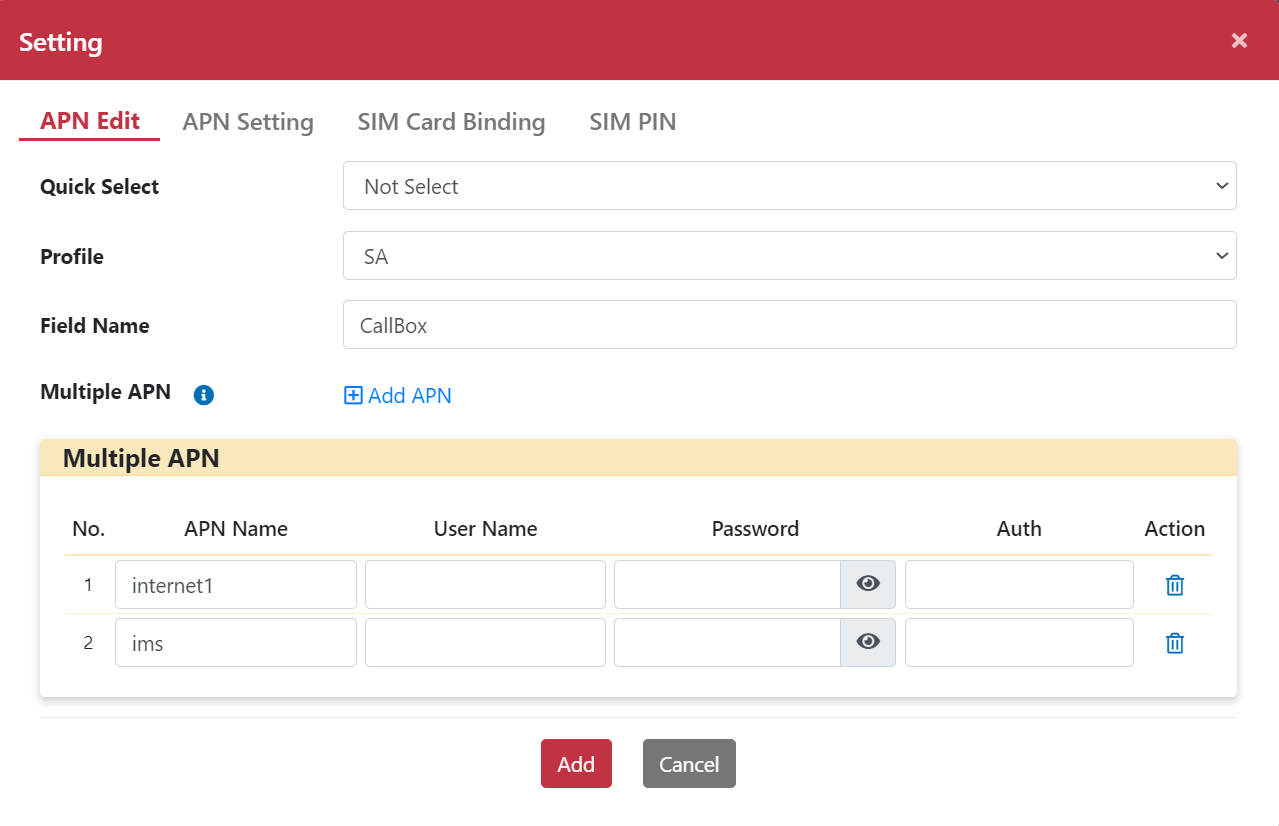
Setting Up Private Network APN (SA Mode)
- Go to Networking > Mobile Network.
- Click the "Setting" button to pop up the Setting dialog box.
- Select Not Select in the Quick Select drop-down menu.
- Select SA in the mode drop-down menu.
- Enter the Field Name.
- Click the "Add APN" button to add multiple APNs.
- Enter APN Name.
- Enter Username (if required).
- Enter Password (if required).
- Enter Auth type (if required).
- Click the "Add" button. The profile will be saved under the Quick Select drop-down menu.
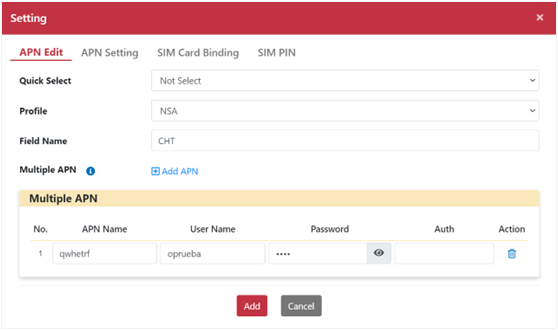
Setting Up Public Network APN (NSA Mode)
- Go to Networking > Mobile Network.
- Click the "Setting" button to pop up the Setting dialog box.
- Select Not Select in the Quick Select drop-down menu.
- Select NSA in the mode drop-down menu.
- Enter the Field Name.
- Click the "Add APN" button to add multiple APNs.
- Enter APN Name.
- Enter Username (if required).
- Enter Password (if required).
- Enter Auth type (if required).
- Click the "Add" button. The profile will be saved under the Quick Select drop-down menu.