SIM PIN
Guide to managing SIM PIN protection, Auto Unlock settings, and manual unlocking in OOS.
SIM PIN Management
Inserting a PIN-protected SIM card requires entering the correct PIN code to unlock the SIM card for cellular connectivity. Inserting a SIM card without PIN protection automatically unlocks the card for immediate connection.
!CAUTIONImportant Warning: Entering an incorrect PIN code three consecutive times will lock the SIM card. Contact your Internet Service Provider (ISP) for PUK assistance if locked.
Auto Unlock Setting
Enabling Auto Unlock allows the system to supply the pre-configured PIN code automatically upon boot or card insertion.
- Go to Networking > Mobile Network.
- Click the "Setting" button to pop up the Setting dialog box.
- Select the SIM PIN tab.
- Enable Auto Unlock.
- Enter the PIN code.
- Click "Apply".
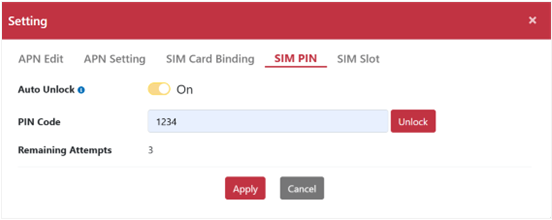
!NOTENote: If there is only 1 remaining attempt left, the Auto Unlock feature will be disabled automatically to prevent accidental SIM lockout. You will need to enter the PIN code manually.
Manual Unlock Procedure (Unlock Manually)
When Auto Unlock is disabled or manual PIN entry is required:
- Go to Networking > Mobile Network.
- Click the "Setting" button to pop up the Setting dialog box.
- Select the SIM PIN tab.
- Enter the PIN code.
- Click the "Unlock" button to unlock the SIM card.