Forwarding
Overview of OOS forwarding functions, including Port Types, WAN Binding, and Service Function Chain management.
Forwarding
OOS provides comprehensive network forwarding management features, consisting of three primary modules:
- Port Types: Define Ethernet ports and Wi-Fi interfaces as either WAN or LAN ports to delineate feature support for each network interface.
- WAN Binding: Bind different WAN connections to specific VLANs to achieve network slicing and data isolation, supporting both Active-Active (load balancing) and Active-Backup (failover) modes.
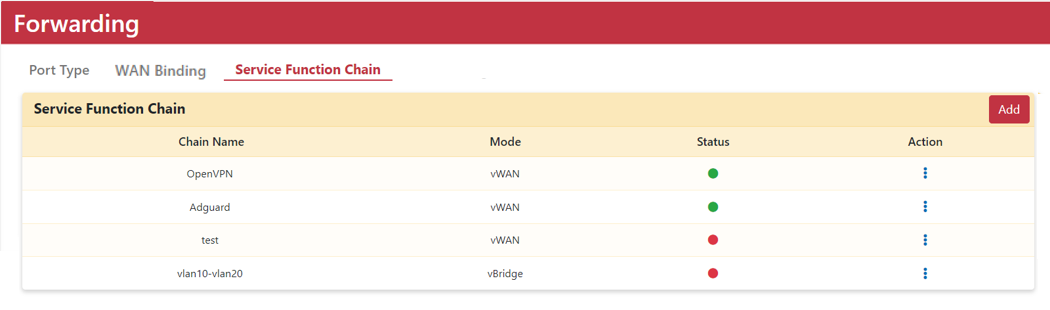
- Service Function Chain (SFC): Leverage Virtual Network Functions (VNF) containers to sequentially process network traffic across vWAN and vBridge topologies.
1. Port Types
Users can configure the port type of Ethernet ports and Wi-Fi interfaces as either WAN or LAN. The Mobile Network interface defaults to WAN and its port type cannot be changed.
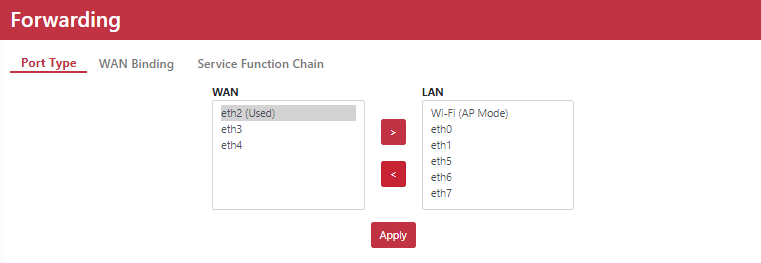
!NOTENotification: It is recommended to reserve at least one Ethernet port on both WAN and LAN to ensure access to the OOS GUI via WAN and LAN management interfaces.
Port Type Feature Support Matrix
| Port Type | WAN Setting | Multiple WAN | NAT | Port Forwarding External Interface | VLAN |
|---|---|---|---|---|---|
| WAN | Supported | Supported | Supported | Supported | Not Supported |
| LAN | Not Supported | Not Supported | Not Supported | Not Supported | Supported |
| Port Type | DHCP Server | WAN Binding | Speedtest | Wi-Fi AP Mode | Wi-Fi Client Mode |
|---|---|---|---|---|---|
| WAN | Not Supported | Supported | Supported | Not Supported | Supported |
| LAN | Supported | Supported | Not Supported | Supported | Not Supported |
Wi-Fi Interface Mode Switching
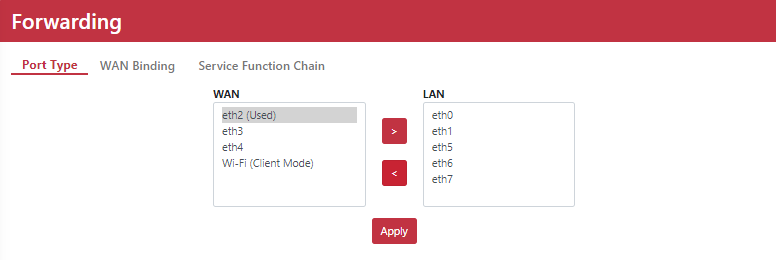
- Wi-Fi set to WAN: Client mode is automatically enabled.
- Wi-Fi set to LAN: AP mode is automatically enabled.
Wi-Fi Client Mode Configuration
Connecting to a target SSID can be performed using two methods:
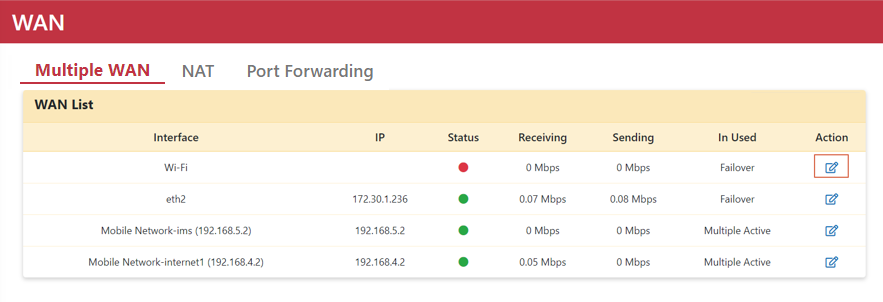
Method 1: Via Multiple WAN Settings
- Go to Networking > WAN > Multiple WAN.
- Click the "Edit" icon to pop up the "WAN Setting" dialog box.
- Select an SSID and enter the password to associate and obtain an IP address.
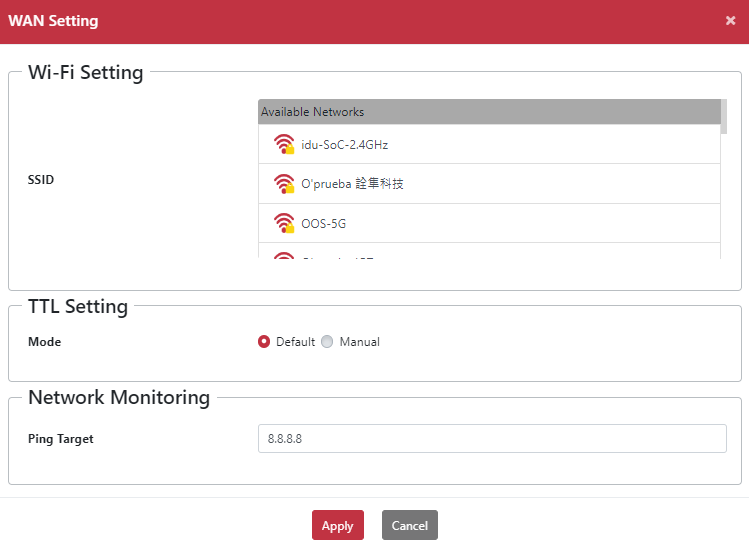
Method 2: Via Wi-Fi Settings
- Go to Networking > Wi-Fi.
- Click the "Setting" button.
- Select an SSID and enter the password to associate and obtain an IP address.
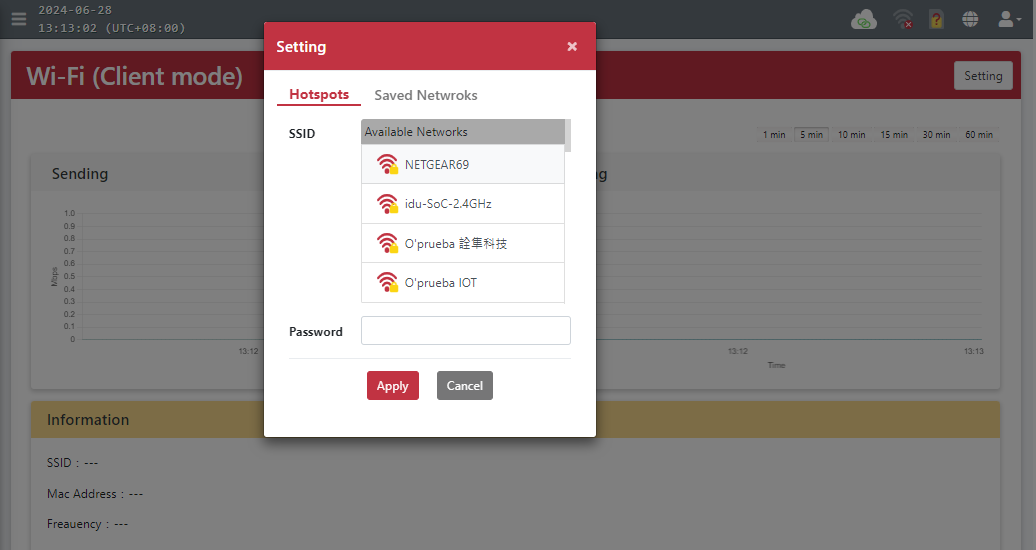
After associating, connection information can be viewed on the Wi-Fi (Client Mode) page.
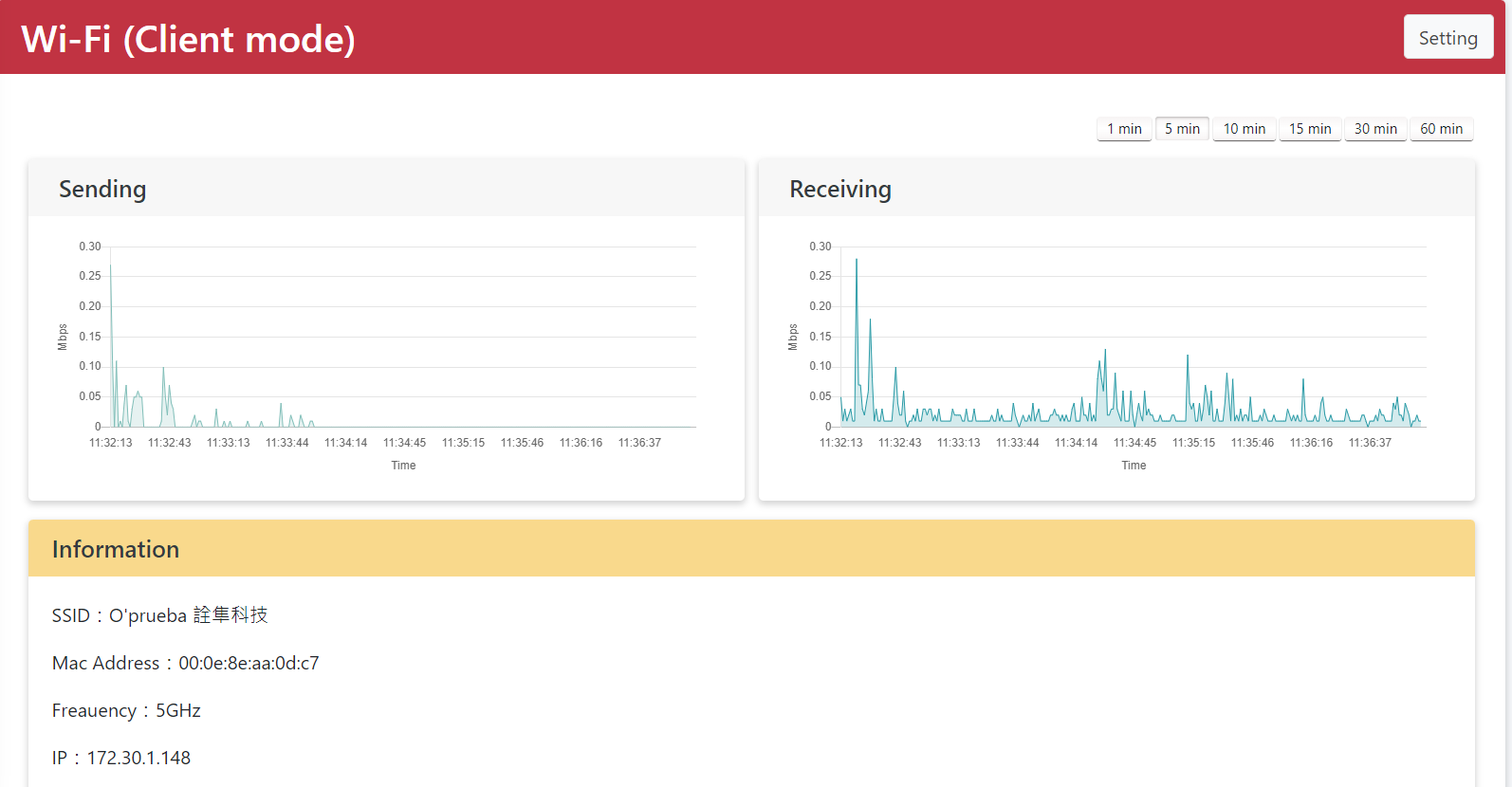
Wi-Fi AP Mode Configuration
When Wi-Fi is set as LAN, AP mode is automatically enabled and the Wi-Fi service starts running for client association.
Configuration Steps:
- Go to Networking > Forwarding > Port Type.
- Move Wi-Fi (Client Mode) from WAN to LAN.
- Click the "
>" icon. - Click "Apply".
- Go to Networking > Wi-Fi to display the Wi-Fi (AP mode) management interface.
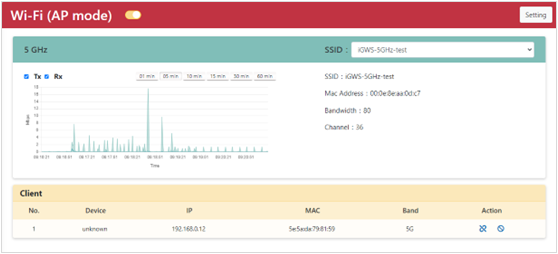
2. WAN Binding
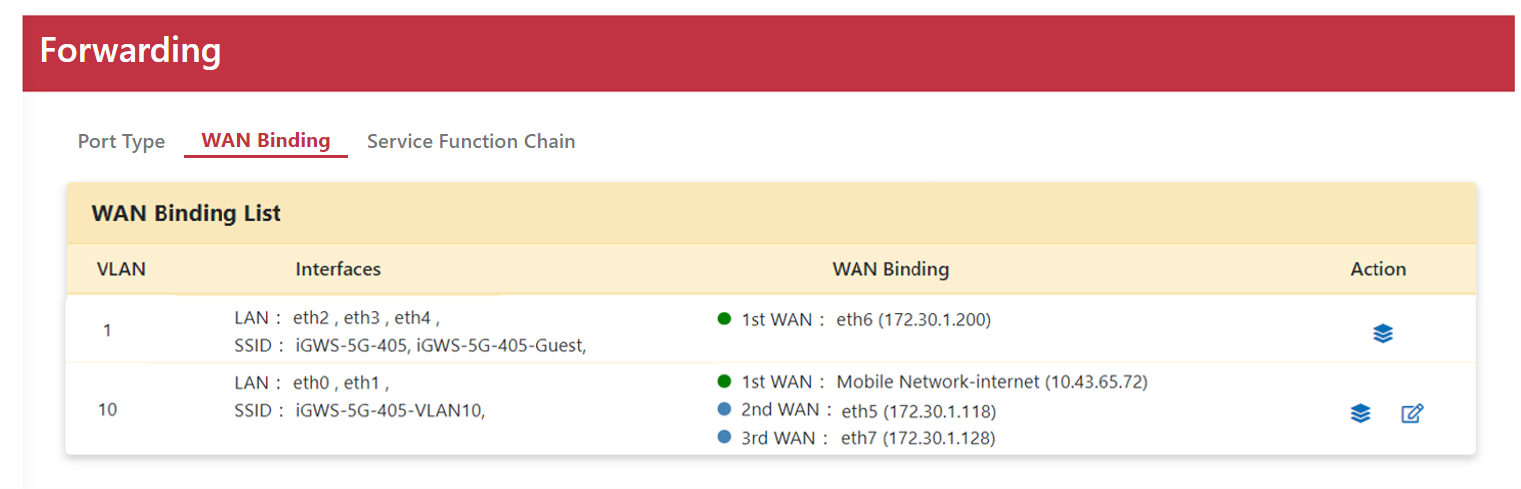
The WAN Binding page allows users to bind WAN connections to specific VLANs, ensuring data isolation and achieving network slicing.
- VLAN 1: Supports Active-Active WAN mode, allowing simultaneous activation of multiple WAN connections for load balancing.
- VLANs other than VLAN 1: When two or more WAN connections are available, Active-Backup (Failover) mode can be configured. The primary WAN (1st WAN) remains active while backup WANs take over if the primary connection fails.
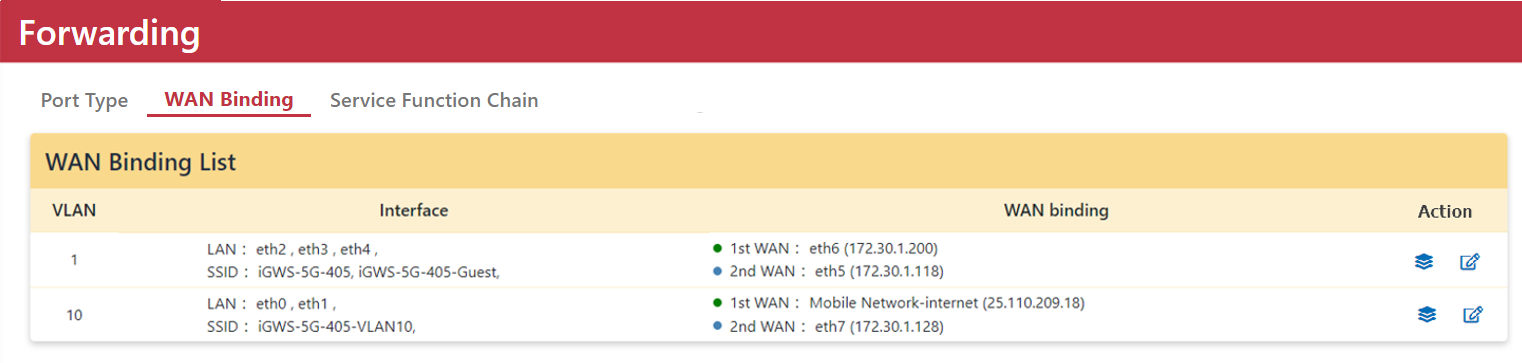
WAN Status Icons Legend
 Green: Connected WAN
 Blue: Standby WAN
 Gray: Loading
 Red: Disconnected WAN
Binding Modes Description
- Multiple-Active Mode: Click "Edit" to configure Multiple-Active rules. Traffic uses the Primary WAN by default, except where specific rules apply. Round-robin load balancing can be enabled across heterogeneous WAN links.
- Active-Backup (Failover) Mode: Configure priority orders for WAN links. Traffic flows through the 1st WAN and fails over to backup links in sequence upon network issues. Failback to the 1st WAN can be enabled once recovered.
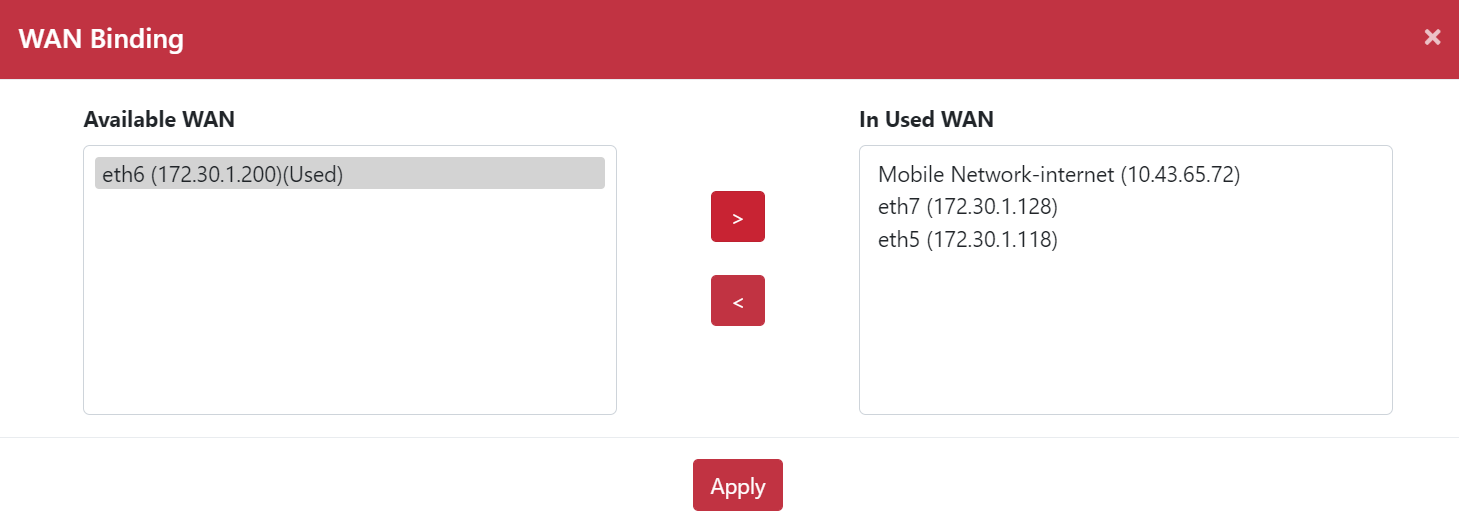
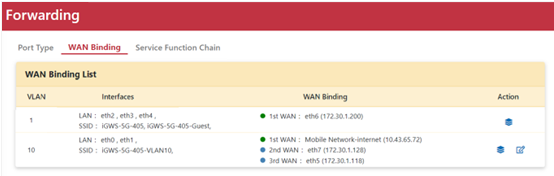
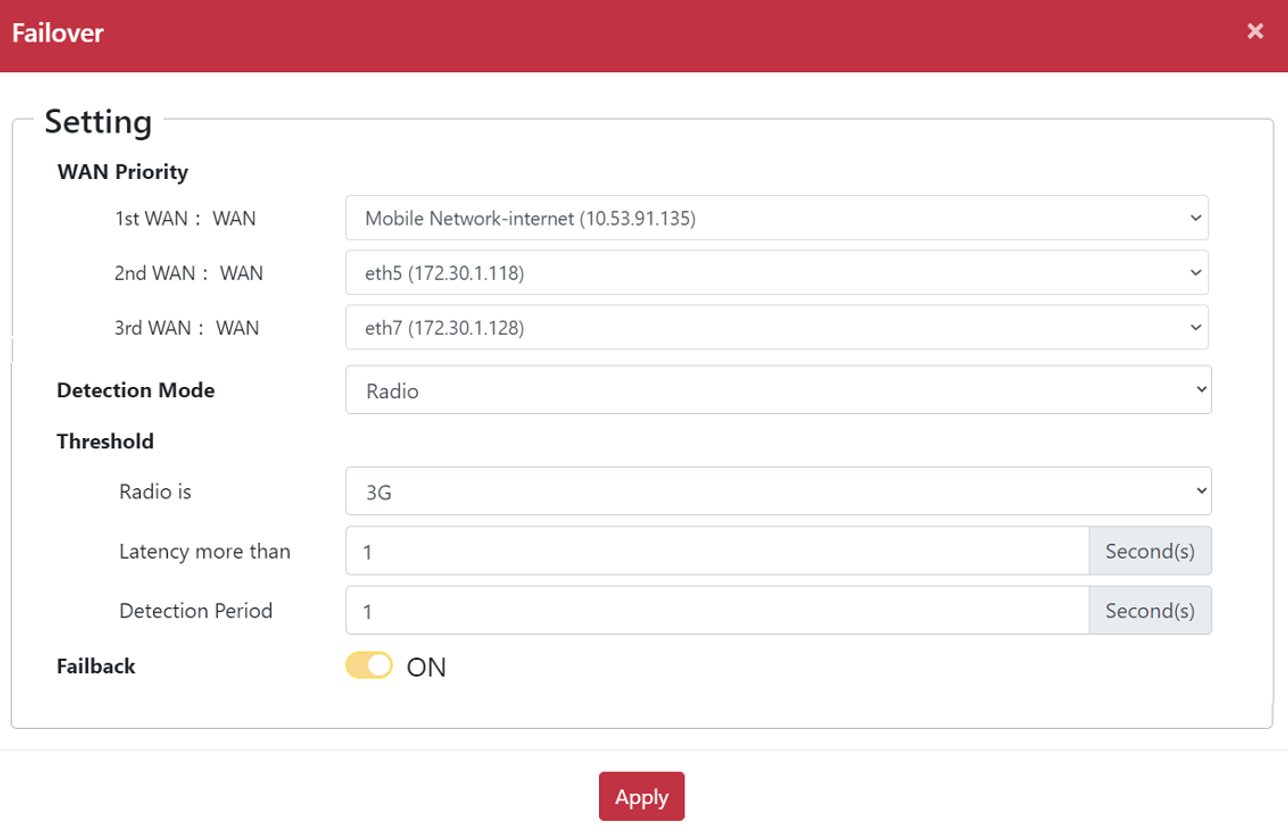
3. Service Function Chain (SFC) Management
Virtual Network Functions (VNFs) construct Service Function Chains to process packets sequentially through lightweight container nodes.
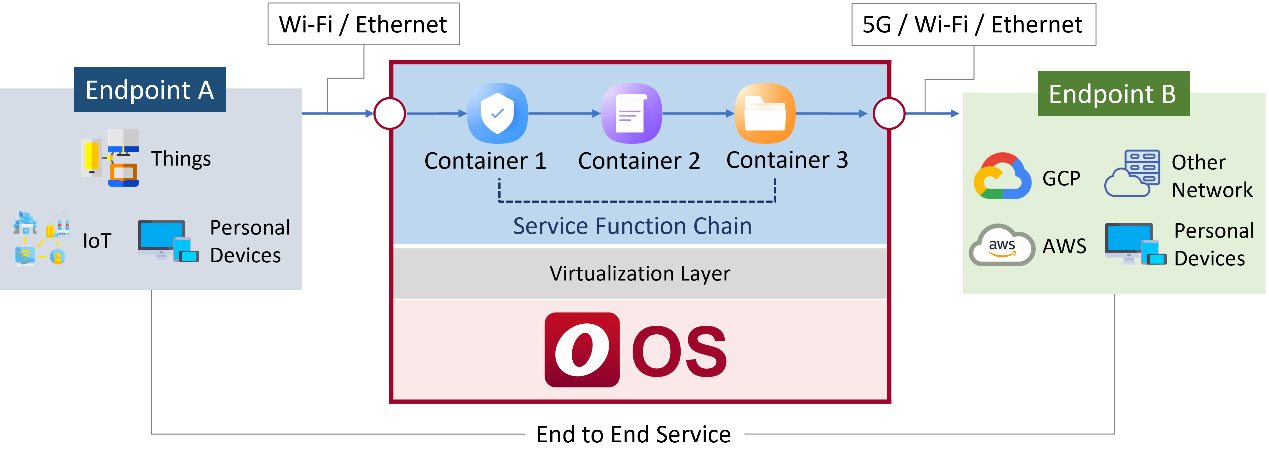
SFC provides two operation modes:
- vWAN mode: Connects one or more containers in series, passing packets from Container 1 to Container 2 up to Container N.
- vBridge mode: Enables container-based bridging between distinct VLANs.