oosVersion 2.1
Logs
Overview of OOS logging capabilities, including Syslog server configuration, log levels, and log export.
Syslog (System Logging Protocol) is used for logging system messages from devices across the network. It categorizes messages into distinct severity levels, enabling administrators to filter and prioritize logs based on importance.
Adding a Syslog Server and Setting Log Levels
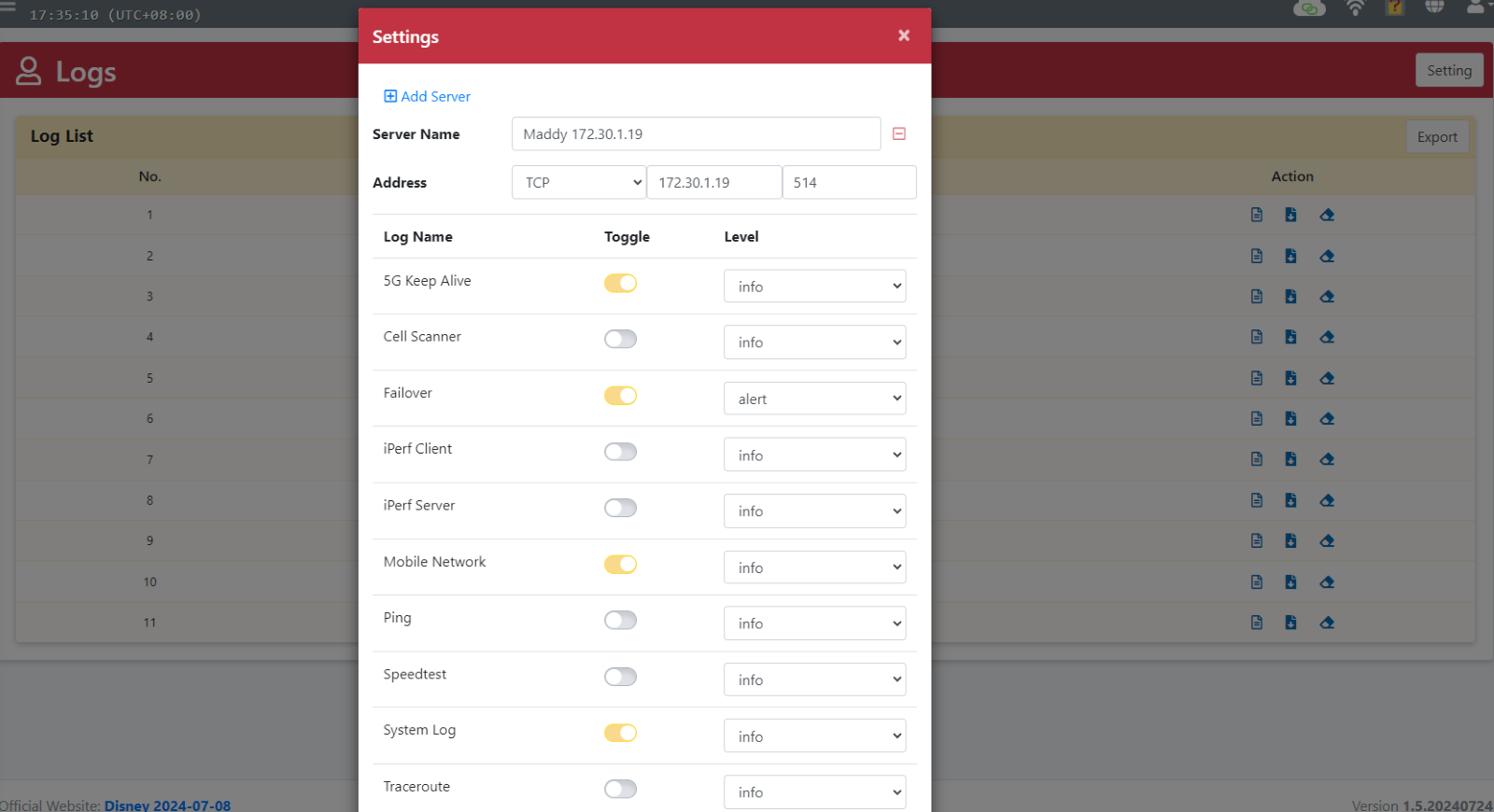
- Step 1: Navigate to the Logs page and click the "Setting" button.
- Step 2: Enter Server Name, Server IP Address, and Port.
- Step 3: Toggle on log items and select the desired log level for each item.
- Step 4: Click the "Apply" button.
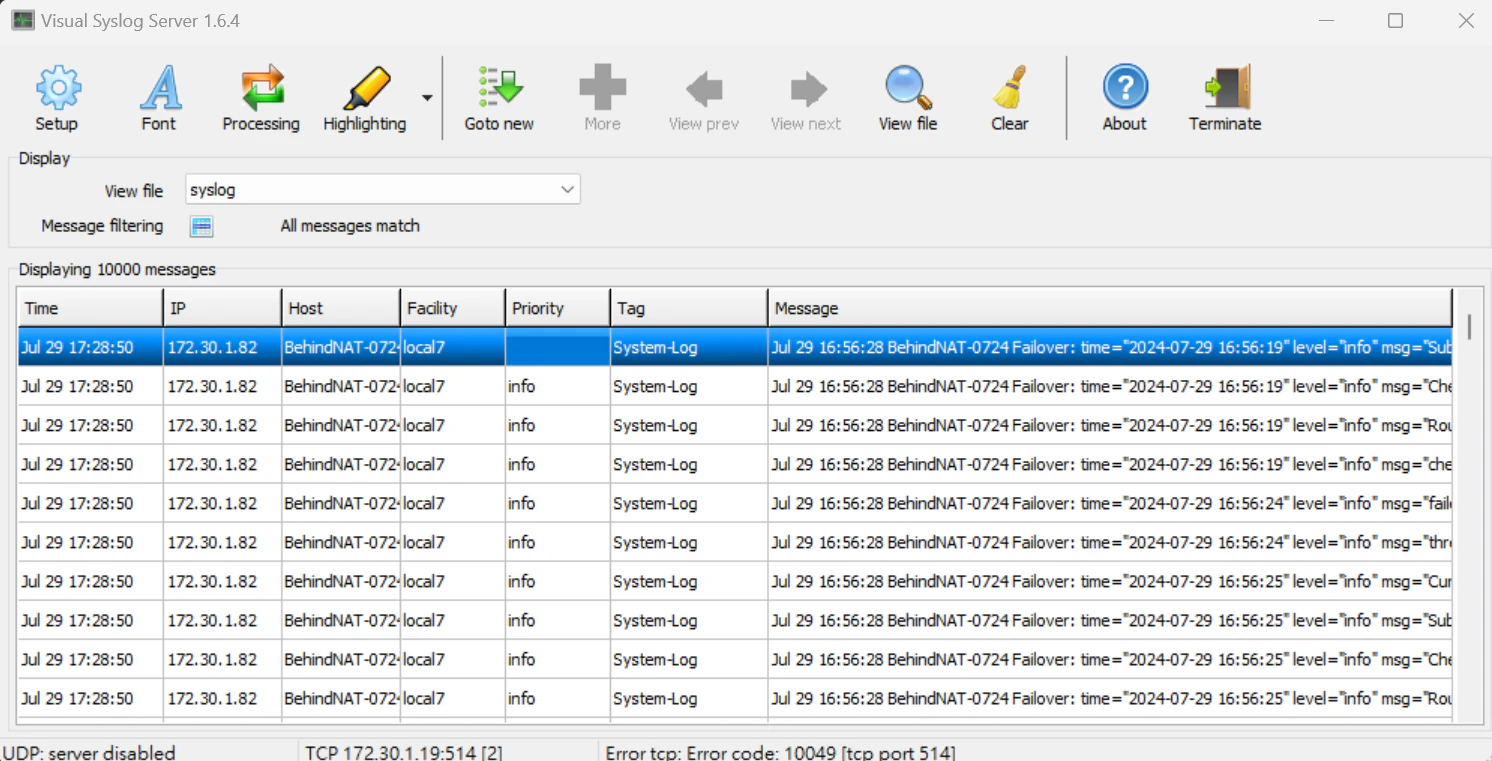
- Step 5: The Syslog server configuration results are displayed:
Syslog Severity Levels
| Number | Level | Description |
|---|---|---|
| 0 | Emergency | System is unusable. |
| 1 | Alert | Immediate action is needed. |
| 2 | Critical | Critical conditions. |
| 3 | Error | Error conditions. |
| 4 | Warning | Warning conditions. |
| 5 | Notice | Normal but significant conditions. |
| 6 | Informational | Informational messages. |
| 7 | Debug | Debug-level messages. |
Viewing Logs and Troubleshooting
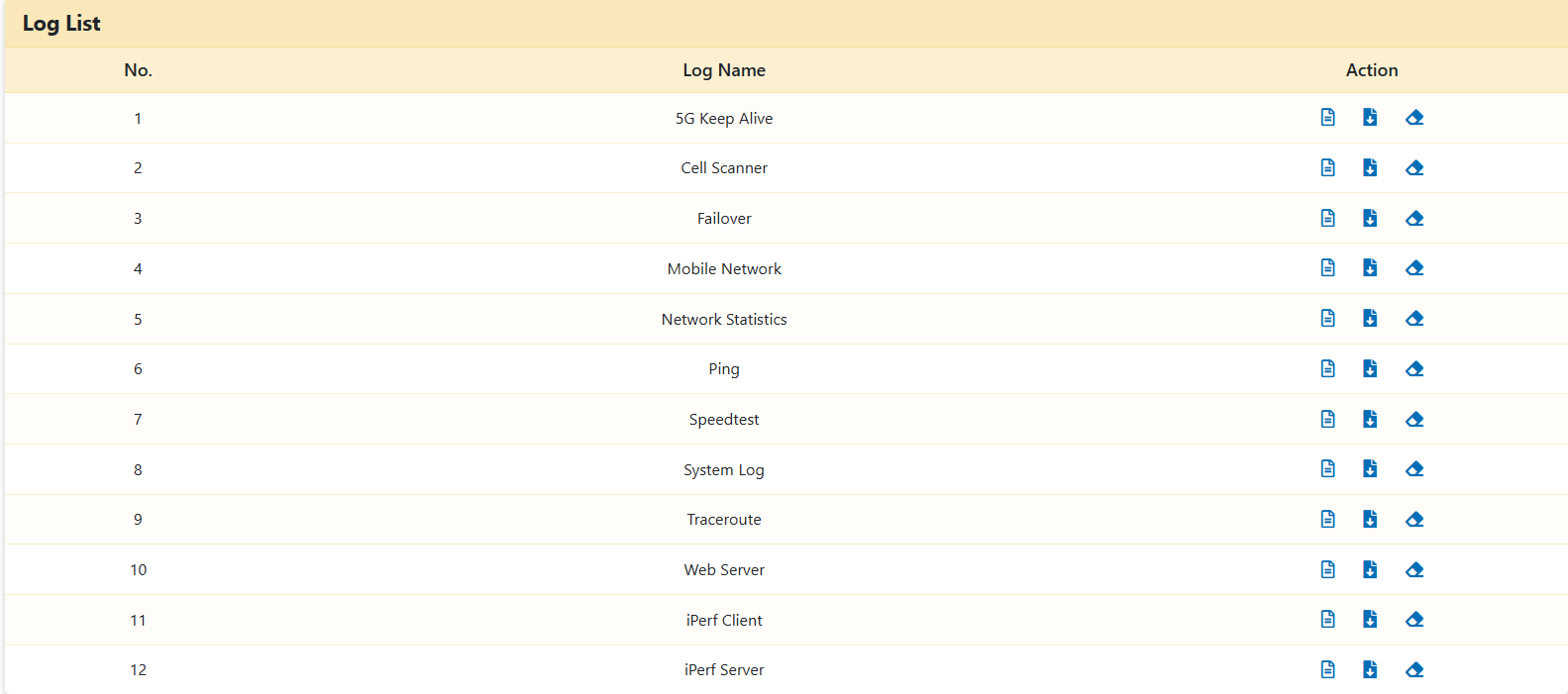
System logs provide essential information for analyzing OOS health status and are critical for troubleshooting. Users can monitor both real-time and historical log entries, as well as clear log history as needed.
Exporting and Downloading Logs
- Step 1: Navigate to the Logs page.
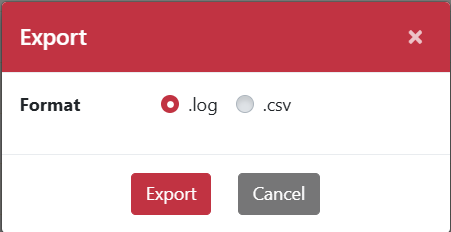
- Step 2: Click the "Download" icon to open the "Export" dialog box.
- Step 3: Click the "Export" button.
- Step 4: The specified log file will be downloaded to your local device.