oosVersion 2.1
WAN Binding
Guide to configuring WAN Binding in OOS, binding WAN connections to specific VLANs, and setting up Active-Active or Active-Backup failover modes.
WAN Binding
The WAN Binding feature allows users to bind different WAN connections to specific VLANs, ensuring data integrity and achieving network slicing.
- VLAN 1: Users can select Active-Active WAN mode to enable multiple WAN connections simultaneously for traffic load distribution.
- VLANs other than VLAN 1: When two or more WAN connections are available, Active-Backup (Failover) mode can be configured. In this mode, the primary WAN (1st WAN) remains active while backup WANs serve as hot standbys when the primary WAN is unavailable or experiences degradation.
Binding WAN Connections and Configuring WAN Priority
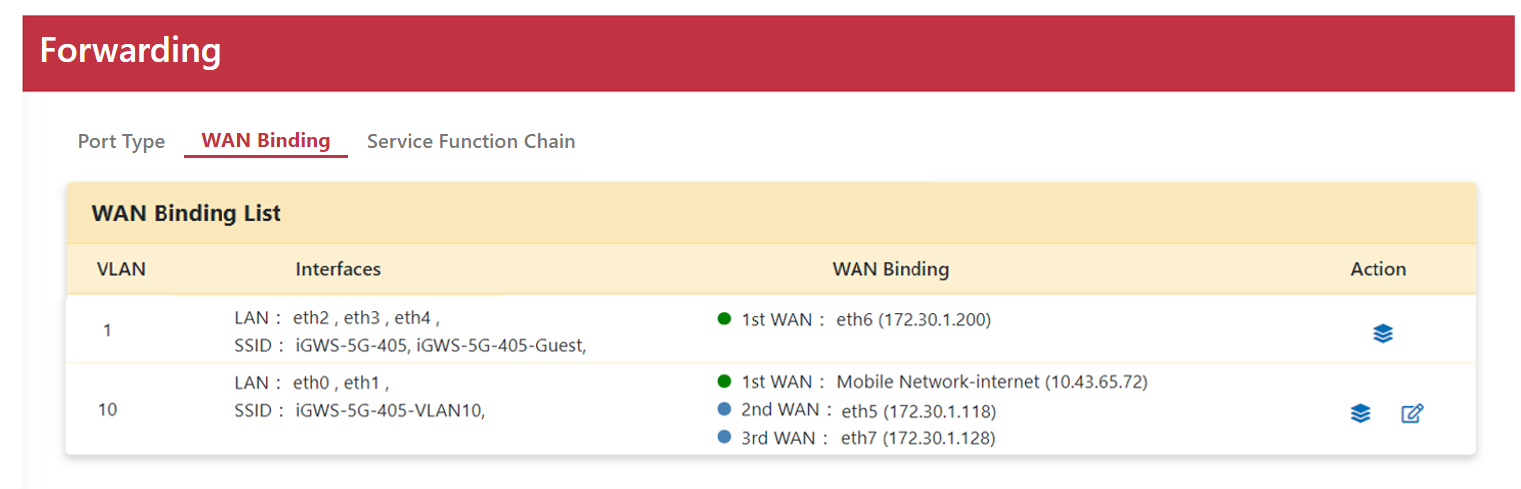
- Go to Networking > Forwarding > WAN Binding.
- To bind WANs under VLAN 1, click the "Bind" icon in the Action column.
- Select
eth5andeth6from Available WAN to In Used WAN. - Click "Apply".
- To bind WANs under VLAN 10, click the "Bind" icon in the WAN Binding column.
- Select
Mobile Network-internetandeth7from Available WAN to In Used WAN. - Click "Apply".
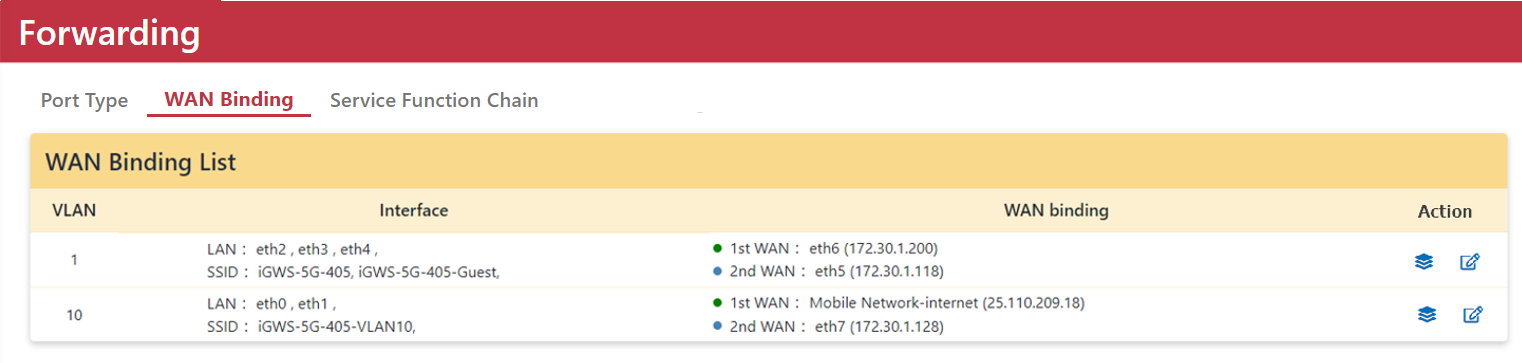
Status Icons & Mode Descriptions
Status Icons
 Green Icon: Connected WAN
 Blue Icon: Standby WAN
 Gray Icon: Loading WAN
 Red Icon: Disconnected WAN
Action Column Description
If only one WAN is bound, the "Bind" icon is displayed. If two or more WANs are bound, both "Bind" and "Edit" icons are displayed.
- Multiple-Active Mode: Clicking the "Edit" icon opens the Multiple-Active Rule table. By default, all traffic routes through the Primary WAN unless specified otherwise in the table. Load balancing using a round-robin algorithm can automatically select optimal WAN paths for outbound LAN traffic.
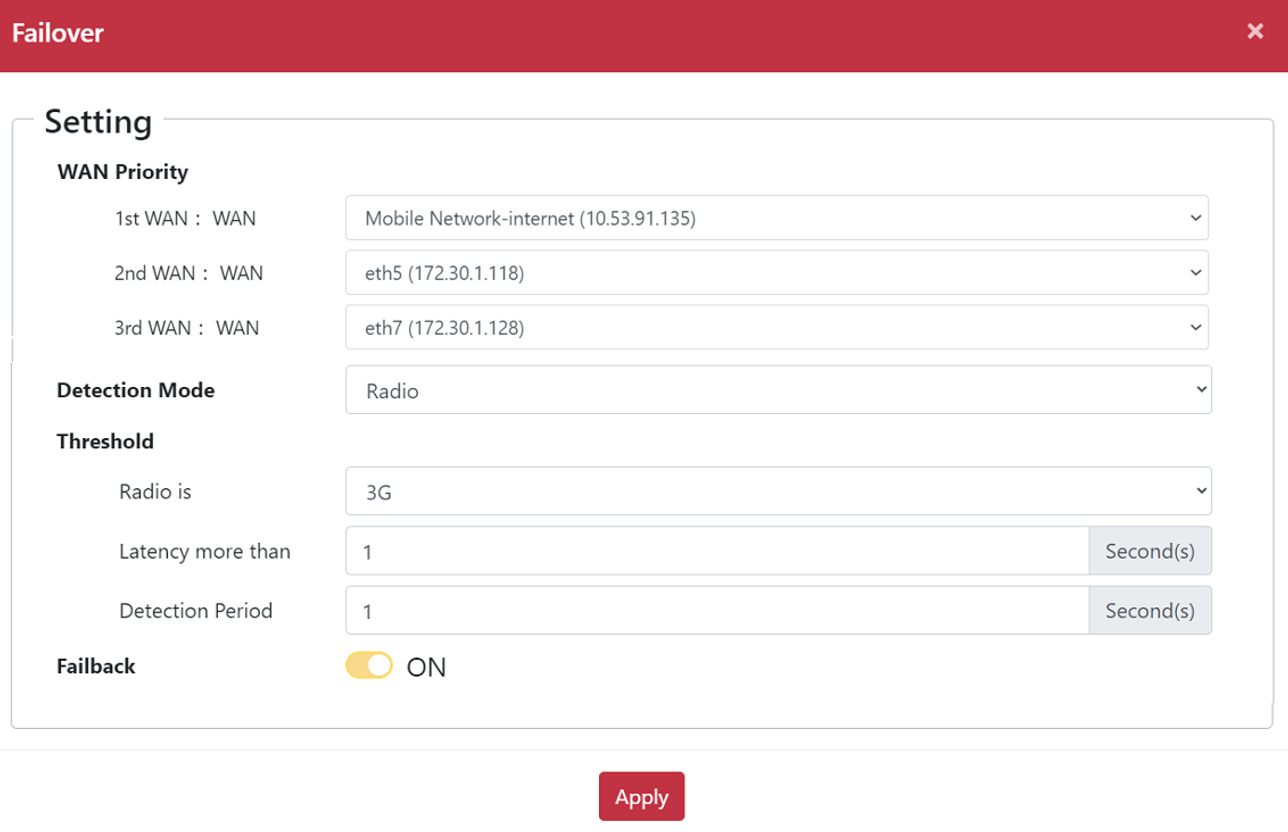
- Active-Backup (Failover Mode): Configures priority order across WAN interfaces. All traffic traverses the 1st WAN by default, failing over to backup WANs sequentially upon connection failure. Automatic failback to the primary WAN upon recovery can also be enabled.
!NOTE Failover mode is enabled automatically whenever two or more WAN connections are bound to the same VLAN.
Modifying WAN Binding Priority (Failover Mode)
- Go to Networking > Forwarding > WAN Binding.
- Click the "Edit" icon in the Action column.
- Move
Mobile Network-internet,eth7, andeth5from Available WAN to In Used WAN.
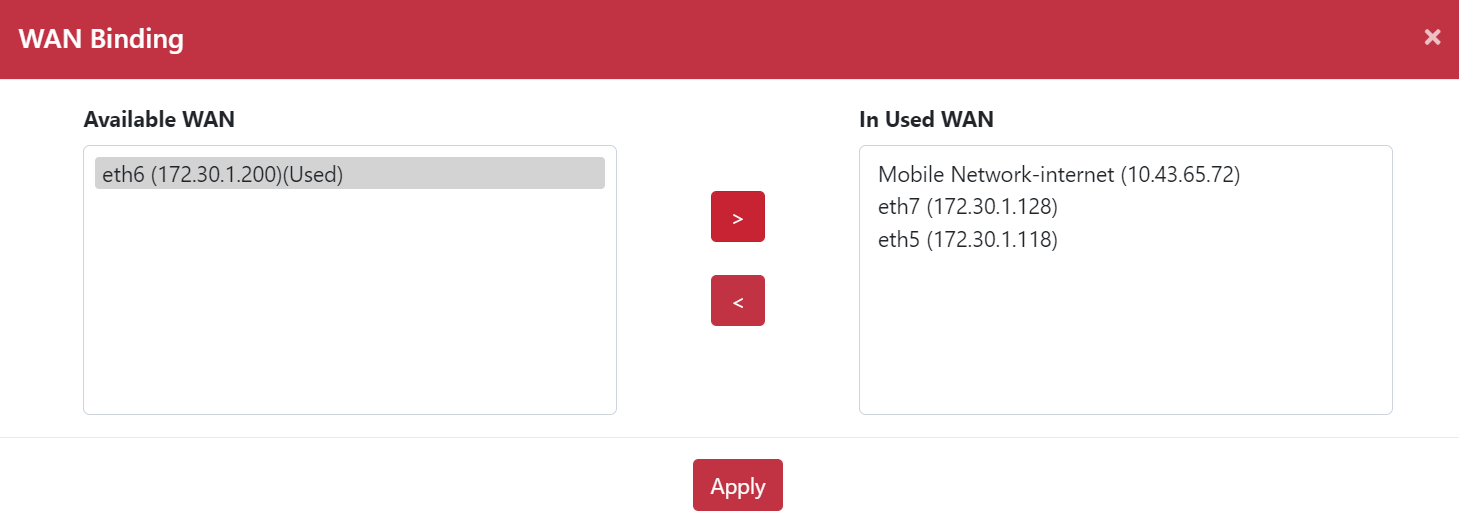
- Click "Apply".
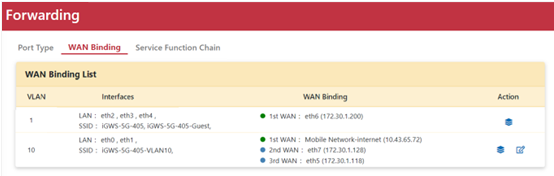
- Click the "Edit" icon in the Action column again.
- Assign WAN priority order:
- 1st WAN:
Mobile Network-internet - 2nd WAN:
eth5 - 3rd WAN:
eth7
- 1st WAN:
- Select Radio as the Detection Mode.
- Set the Threshold parameters:
- Radio:
3G - Latency more than:
1 second - Detection Period:
1 second
- Radio:
- Check Enable Failback.
- Enter the Ping Target IP address.
- Click "Apply".
- Go to Networking > Forwarding > WAN Binding List to confirm the created WAN Binding rule.