oosVersion 2.1
Port Forwarding
Port Forwarding
Port Forwarding redirects incoming service traffic on specified port ranges from the Internet to a target IP address in the local area network (LAN). By configuring port forwarding rules, external Internet clients can connect to designated applications or servers running behind the router.
Configuring Port Forwarding Rules
- Connect the target device or server to an OOS LAN port.
- Ensure the device obtains an IP address via OOS DHCP.
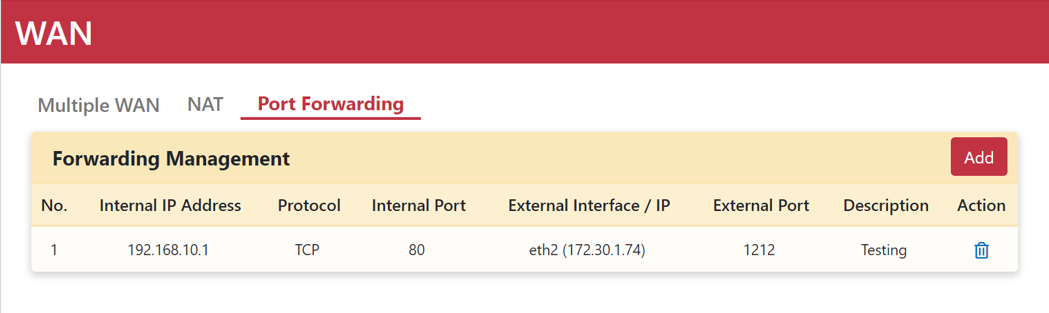
- Navigate to Networking > WAN > Port Forwarding.
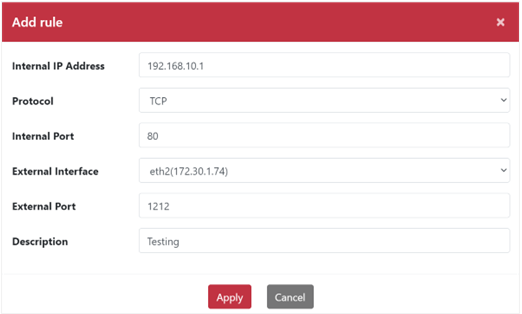
- Click Add to open the "Add rule" dialog box.
- Enter the target host IP address in the Internal IP Address field.
- Select TCP as the Protocol.
- Set the Internal Port to 80.
- Select the desired WAN interface from the External Interface drop-down menu.
- Set the External Port to 1212.
- Enter a Description.
- Click Apply.
- External users can access the LAN device or server via a web browser at
https://<OOS_WAN_IP>:1212.
Port Forwarding Parameter Reference
| Parameter | Description |
|---|---|
| Internal IP Address | IP address of the target device or server located behind NAT. |
| Protocol | Supported protocols: TCP, UDP, and TCP/UDP. |
| Internal Port | Single or range of internal service ports (Range: 1–65535). |
| External Interface | External WAN interface handling incoming traffic to access LAN services. |
| External Port | Single or range of external ports exposed to the Internet (Range: 1–65535). |
| Description | Rule name or brief descriptive note. |