oosVersion 2.1
Information for Hypervisor and Container
View and manage existing Hypervisor and Container applications from the Information page in OOS.
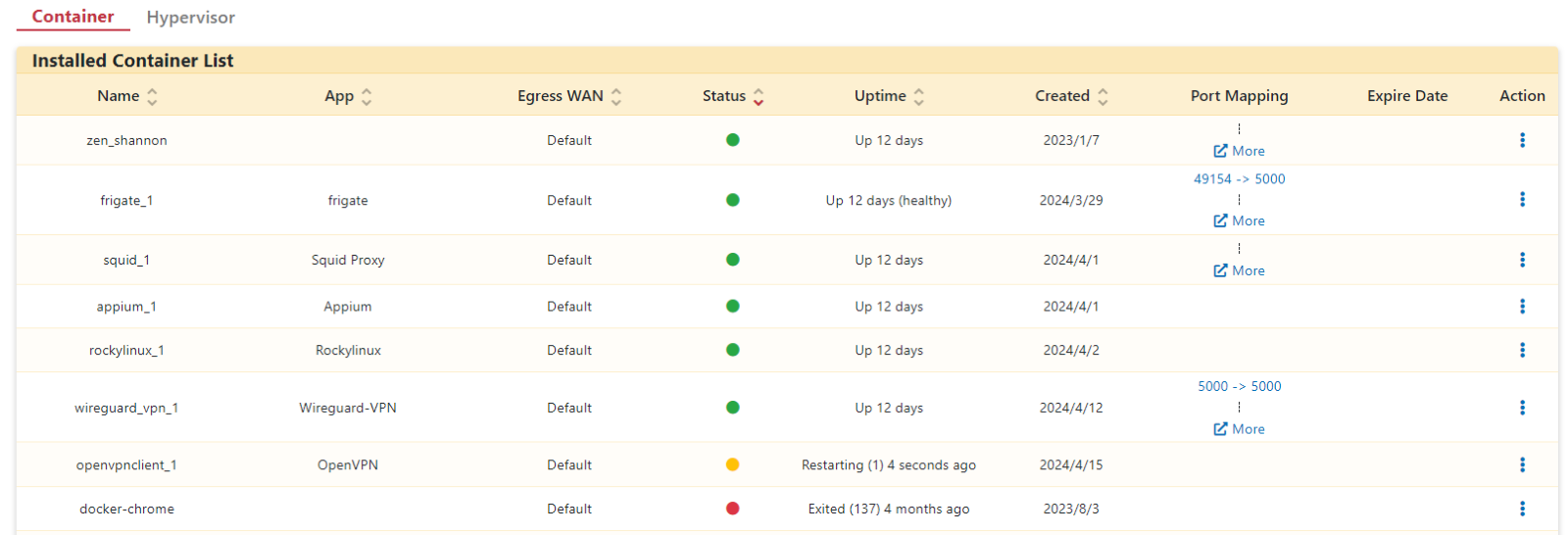
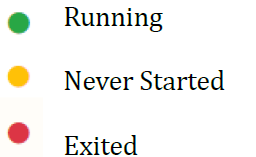
The Information page displays status and configuration details for both Hypervisors and Containers, allowing you to edit settings or control existing applications.
Managing Containers
Step 1. Go to the Application > Information page and select the Container tab.
Step 2. Click the Action field menu for the target application.

Available action items include:
- Edit: Modify settings for this container application.
- Stop / Start: Control the power state of the container application.
- Restart: Restart the container application.
- Re-deploy: Re-deploy the container application.
- Console: Access the container terminal console.
- Download Log: Download log files for the container application.
- Export Container: Export the container application as a backup file.
- Delete: Delete the container application.
Managing Hypervisors
Step 1. Go to the Application > Information page and select the Hypervisor tab.
Step 2. Click the Action field menu for the target application.
Available action items include:
- Edit: Modify settings for this hypervisor application.
- Stop / Start: Control the power state of the hypervisor application.
- Restart: Restart the hypervisor application.
- Start Projection / Stop Projection: Enable or disable direct display output via the HDMI or VGA port.
- Console: Access the hypervisor terminal console.
- Download Log: Download log files for the hypervisor application.
- Delete: Delete the hypervisor application.
