oosVersion 2.1
Add Hypervisor Template
Learn how to create and customize Hypervisor templates for installation via the App Store.
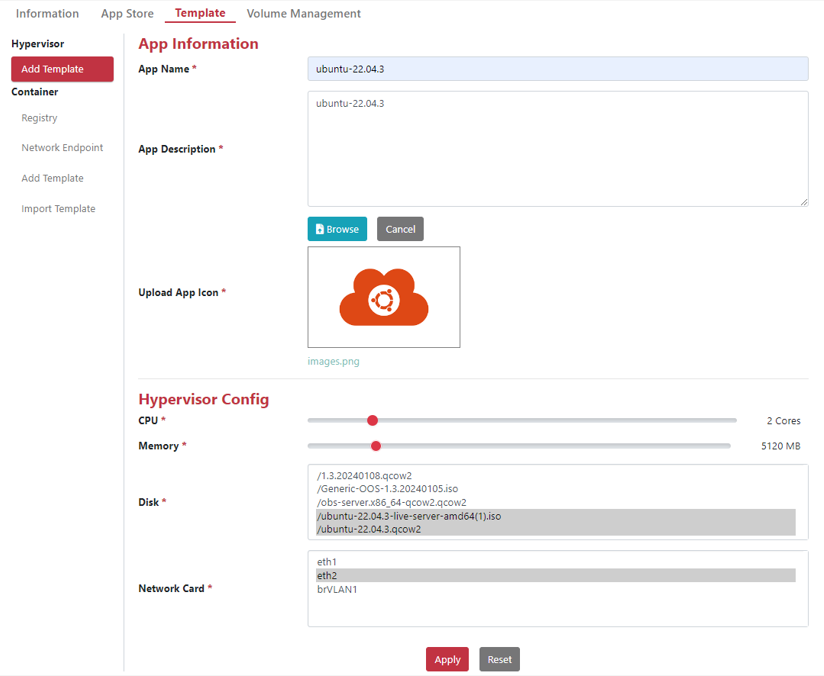
This page enables users to create custom Hypervisor templates, making them available for installation on the App Store page.
Step 1. Go to the Application > Template > Hypervisor page.
Step 2. Click the Add Template icon.
Step 3. Enter the App name.
Step 4. Enter the App Description.
Step 5. Select the OS Version.
Step 6. Browse and select the ISO image file.
Step 7. Browse and select the Disk Image file.
Step 8. Set the Disk Size.
Step 9. Click Upload App Icon and select an image for the Hypervisor App.
Step 10. Click the Apply button.
Step 11. The new Hypervisor App will now appear on the App Store page.