Application Direct Display Output
Configure direct application output via HDMI or VGA ports for Container or Hypervisor applications.
If the device features an HDMI or VGA port, users can configure the main application interface to display directly on an external monitor. This capability can be configured for either Containers or Hypervisors.
By default, the HDMI output runs a Chromium browser container pointing to the OOS login page. However, users can customize the HDMI output to display any target application interface.
Below are step-by-step instructions for configuring direct display output for Containers and Hypervisors.
Container Application HDMI Display Setup
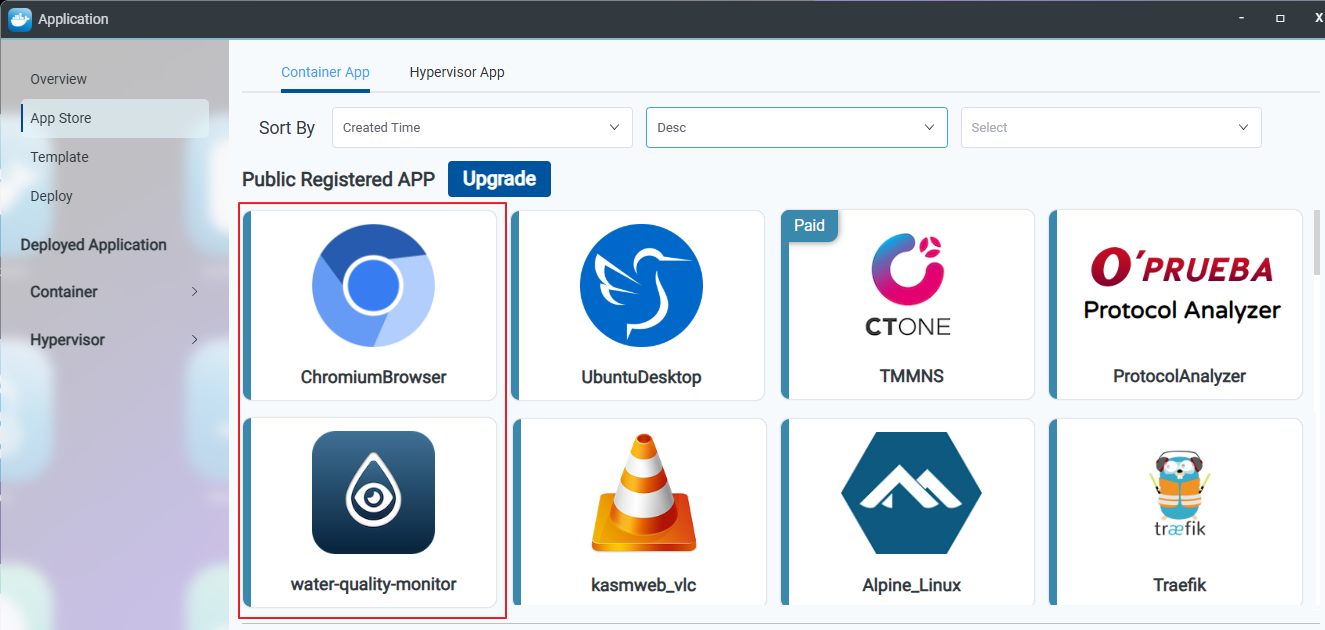
Step 1. Deploy the ChromiumBrowser and water-quality-monitor container applications from the Controller or App Store.
Step 2. Navigate to the Application > Information page, select Container, and click Edit from the Action column for the water-quality-monitor container.
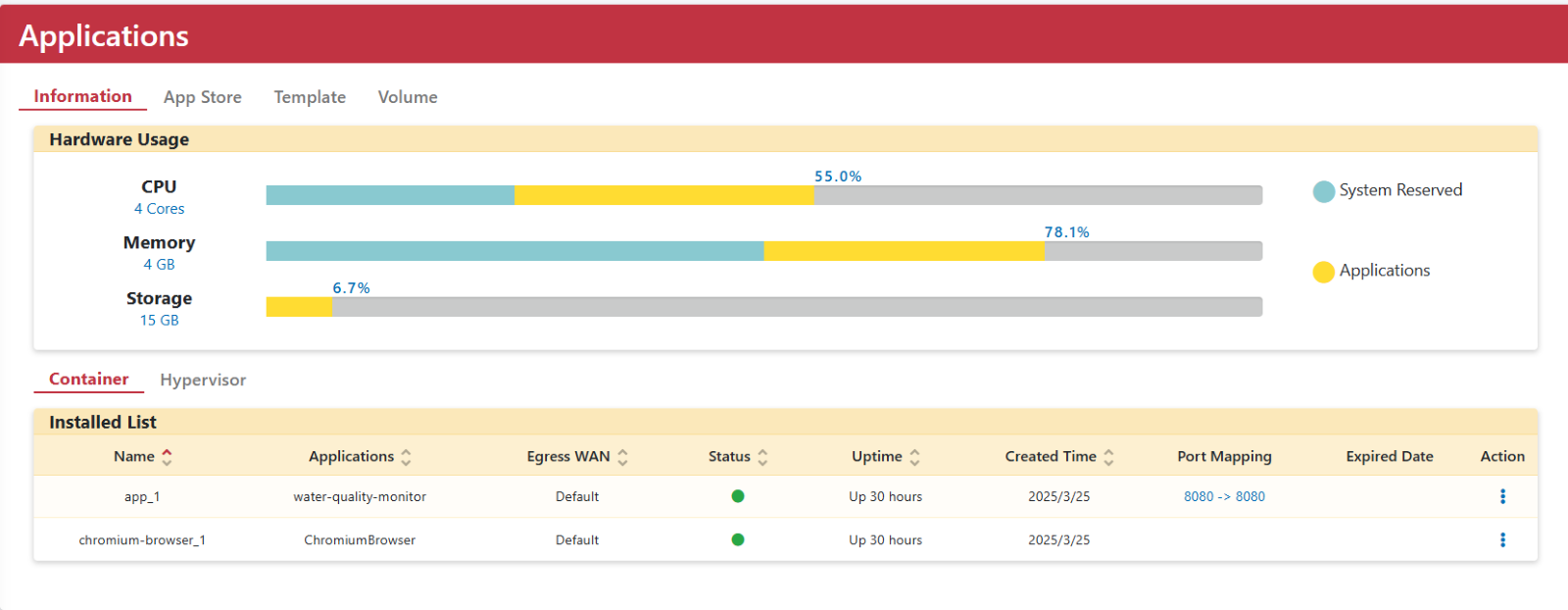
Step 3. Verify the container port number.

Step 4. Go back to Application > Information, select Container, and click Edit from the Action column for the ChromiumBrowser container.
Step 5. Under Environment Variables, locate the SERVICEURL variable and update its value to target port 8080 (e.g., http://172.17.0.1:8080).
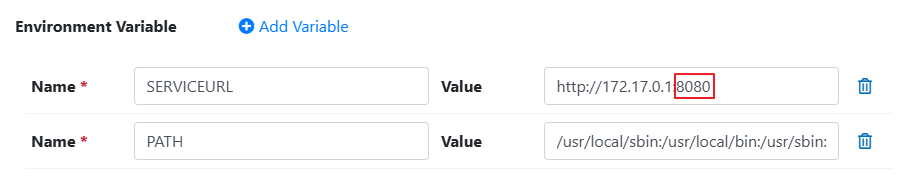
Step 6. Click the Apply button. Once configured, connect your display to the device's HDMI port to mirror the application output.
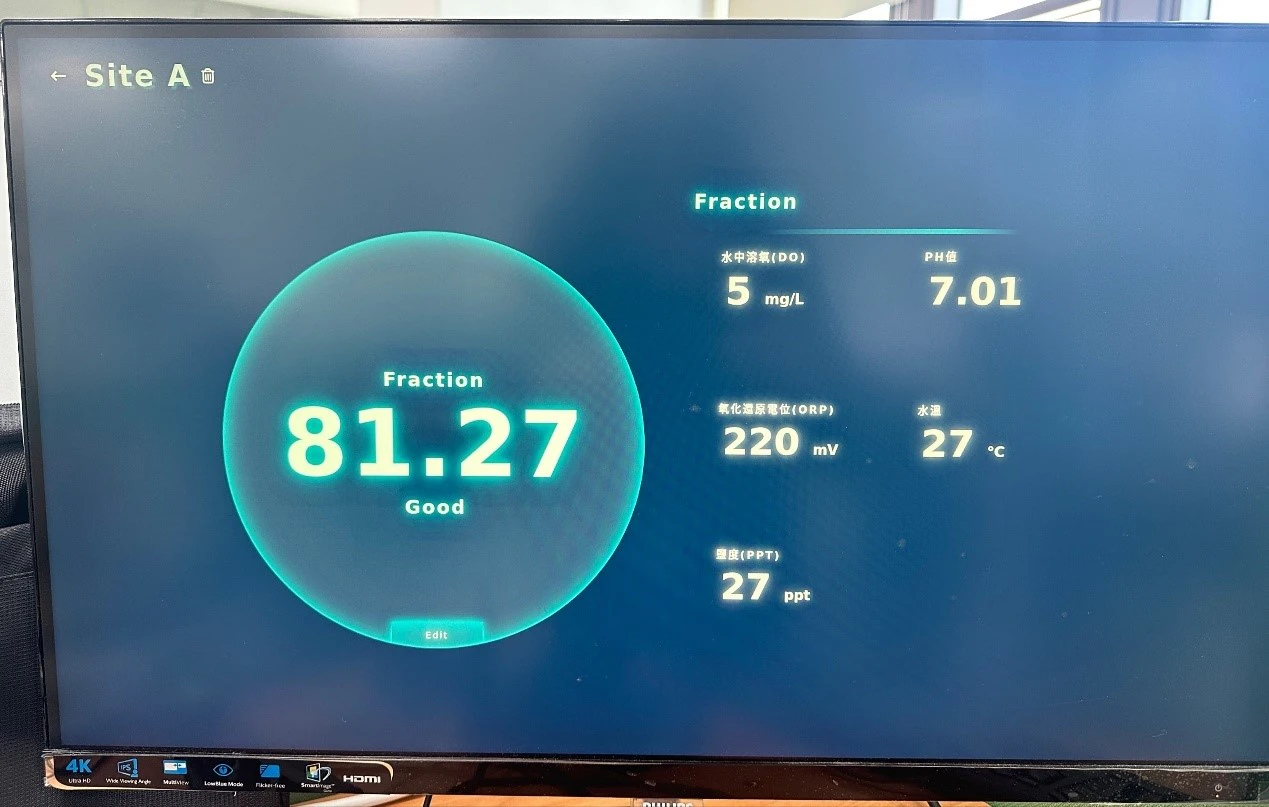
Hypervisor Application HDMI Display Setup
Once a virtual machine (VM) is set up, you can route its display output to an external screen via the graphical interface.
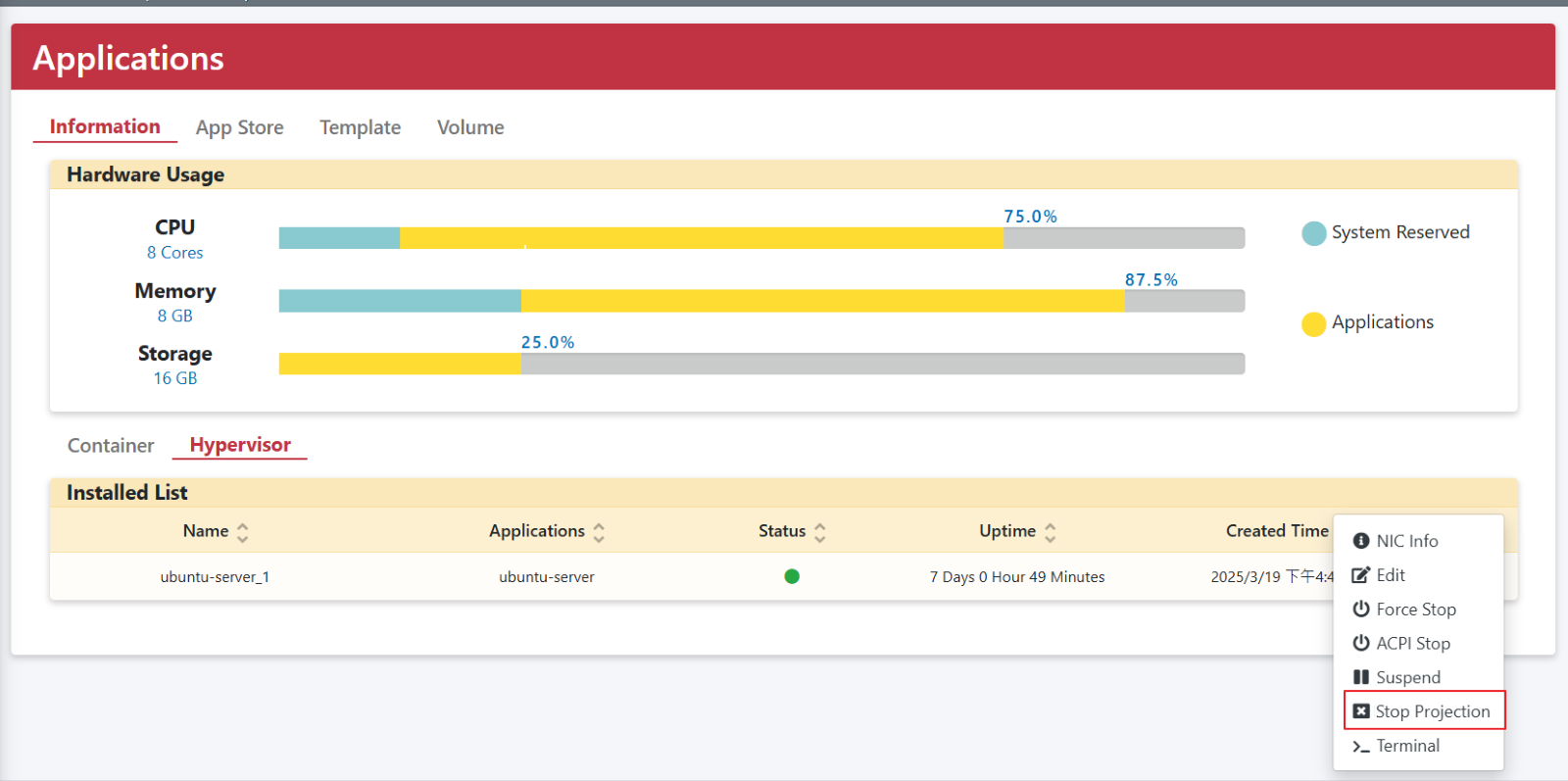
Step 1. Go to the Application > Information page, select Hypervisor, and click Edit from the Action column for the target VM (e.g., ubuntu-server).
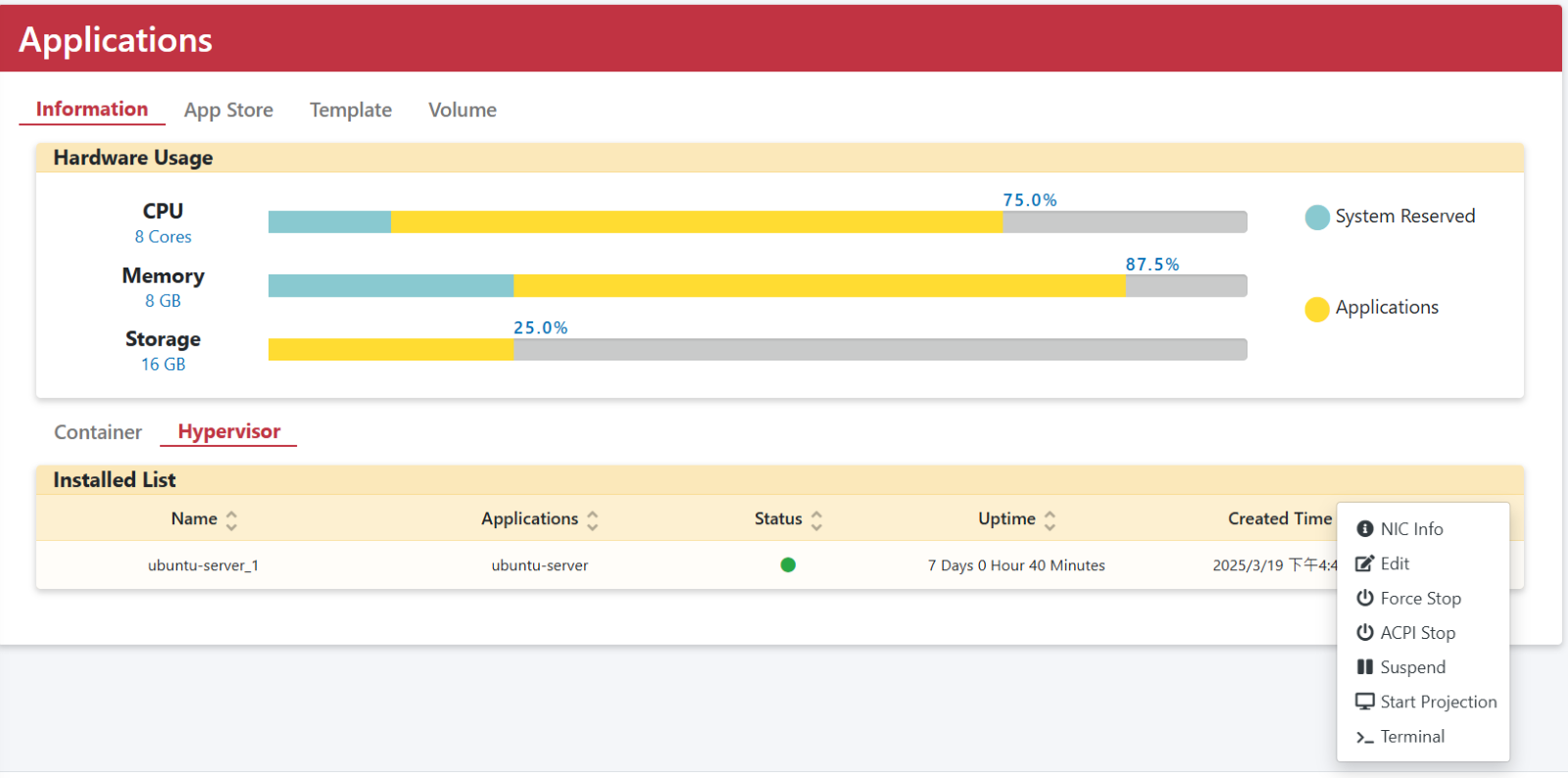
Step 2. Select Start Projection and connect your display to the device's HDMI port to directly project the VM interface.
To stop projection, go to Application > Information > Hypervisor, click Edit for ubuntu-server, and select Stop Projection (or uncheck Start Projection).