oosVersion 1.0
Mobile Connectivity
Troubleshooting mobile connectivity
Mobile Connectivity
The Mobile Network Is Not Working
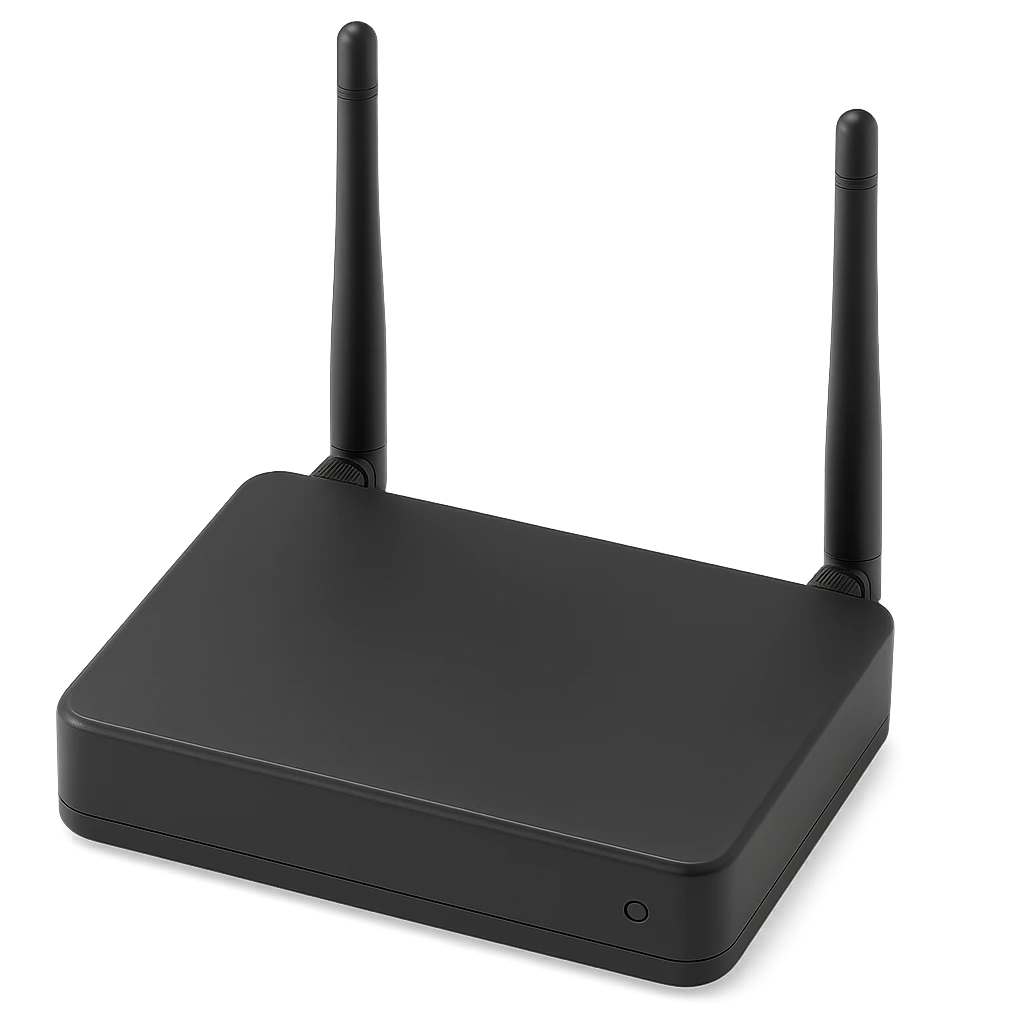
- Check the antenna installation. Some models require external antennas for reliable reception.
- Check the mobile-network status. The status icon indicates the current connection state.
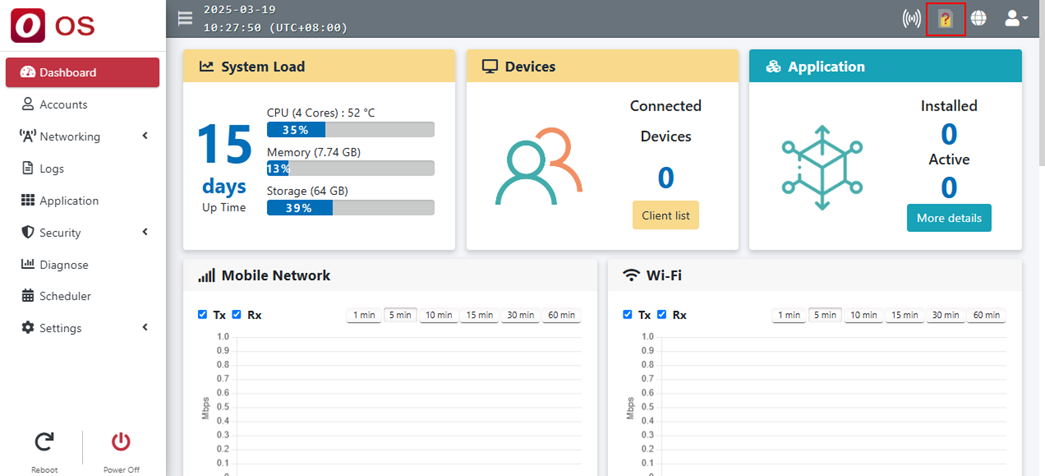
| State | Description |
|---|---|
| Connected | The mobile network is working. |
| SIM read but not connected | The SIM card was detected, but the device is not connected to the mobile network. |
| Signal but no IP | A mobile signal is available, but no IP address was obtained. |
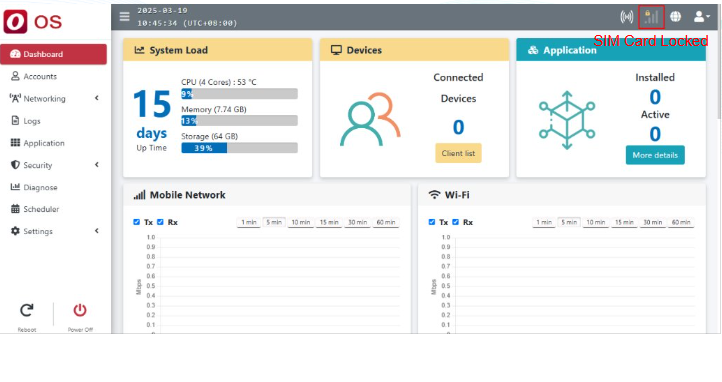
| SIM locked | The SIM card is locked. |
| SIM not inserted | No SIM card is inserted. |
!WARNING TODO: The source document did not preserve the five status icons. Add the correct icons before creating a visual icon reference.
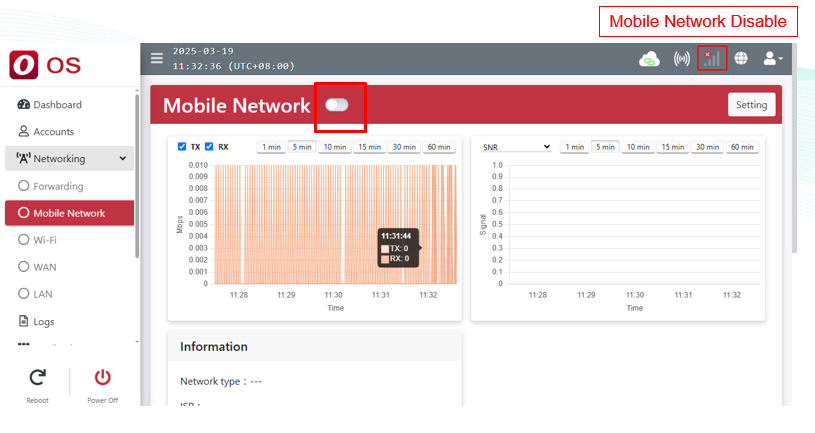
- If the status is Disabled, enable the mobile network manually.
- Make sure the SIM card is inserted correctly.
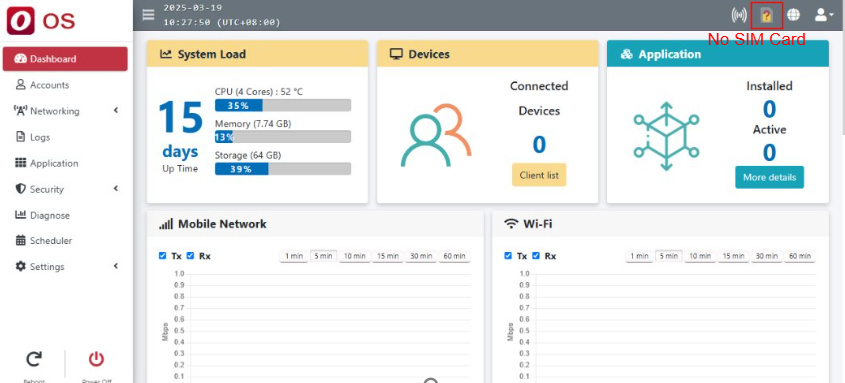
- If SIM Card Locked appears, unlock the SIM card.
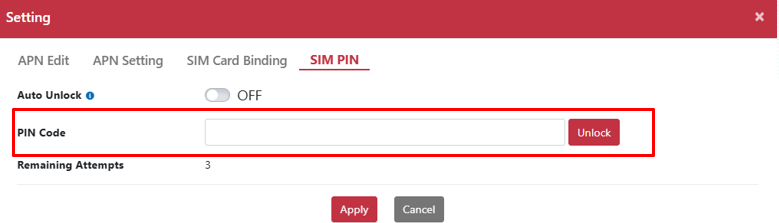
- Go to
Networking > Mobile Network > Setting > SIM PINand enter the correct PIN.
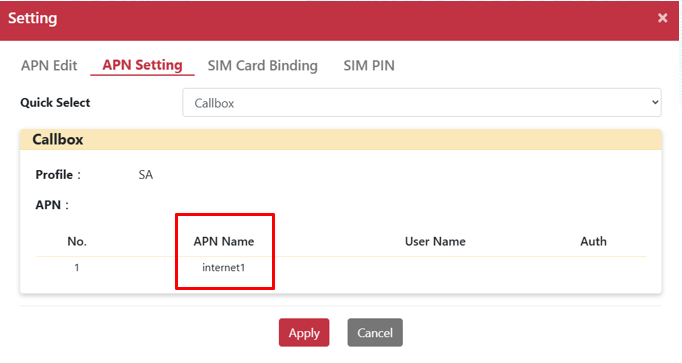
- Check
Networking > Mobile Network > Setting > APN Setting. For a public-network SIM, select NSA (Public Network). For a private 5G SIM, select SA Profile and verify the APN name.
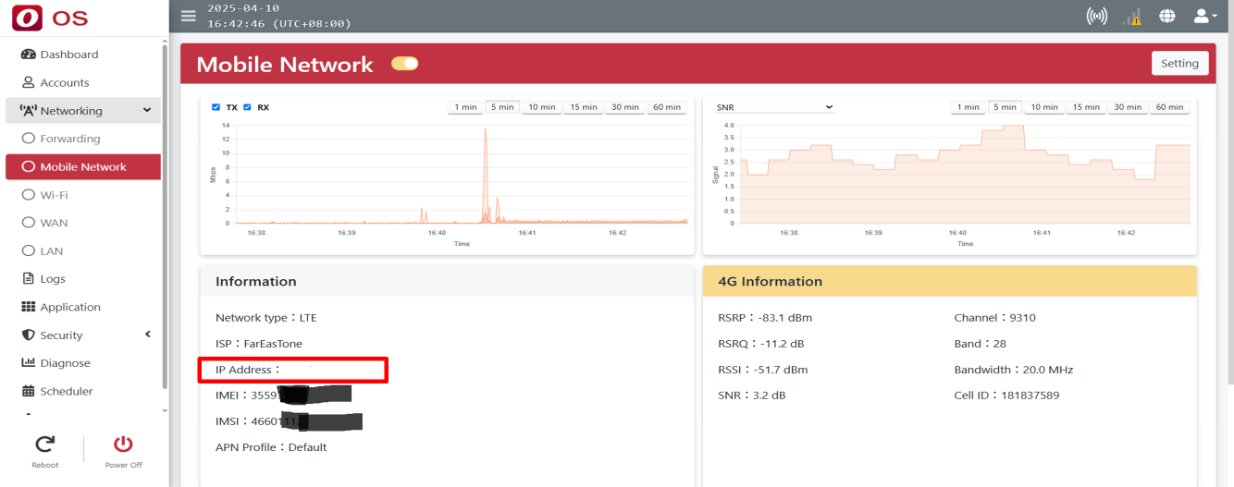
The Mobile Network Is Connected but Has No IP Address
- Verify the APN and SIM settings under
Networking > Mobile Network > Setting. - If they are correct and the issue continues, radio signal quality may be poor.
- Make sure the LTE antennas are firmly connected, and move the device to an area with better reception.
A Private 5G Network Is Unstable or Reports “UE Deregistration”
If OOS obtains an IP address from the 5G core and immediately releases it, or the core reports UE Deregistration, keepalive may be failing.
- Go to
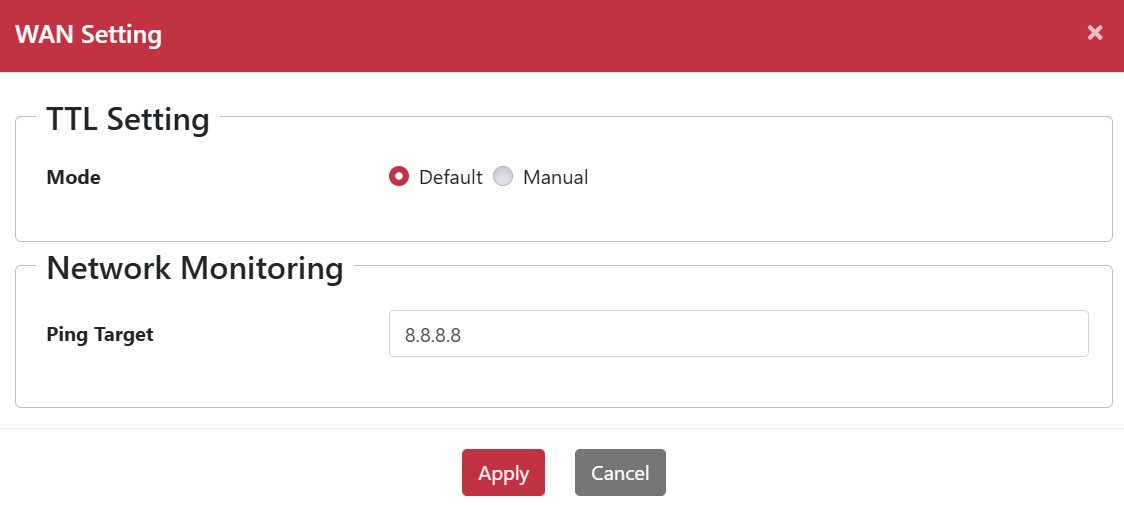
Networking > WAN > Multiple WAN > Interface > Actionand verify the Ping Target. - For a private 5G network, use the local 5G gateway IP.
- If the 5G network has internet access, you may instead use a public DNS server such as Google DNS at
8.8.8.8.