Inventory
Manage and monitor OrpheAgent device information, status, and connections within the OrpheLink Inventory.
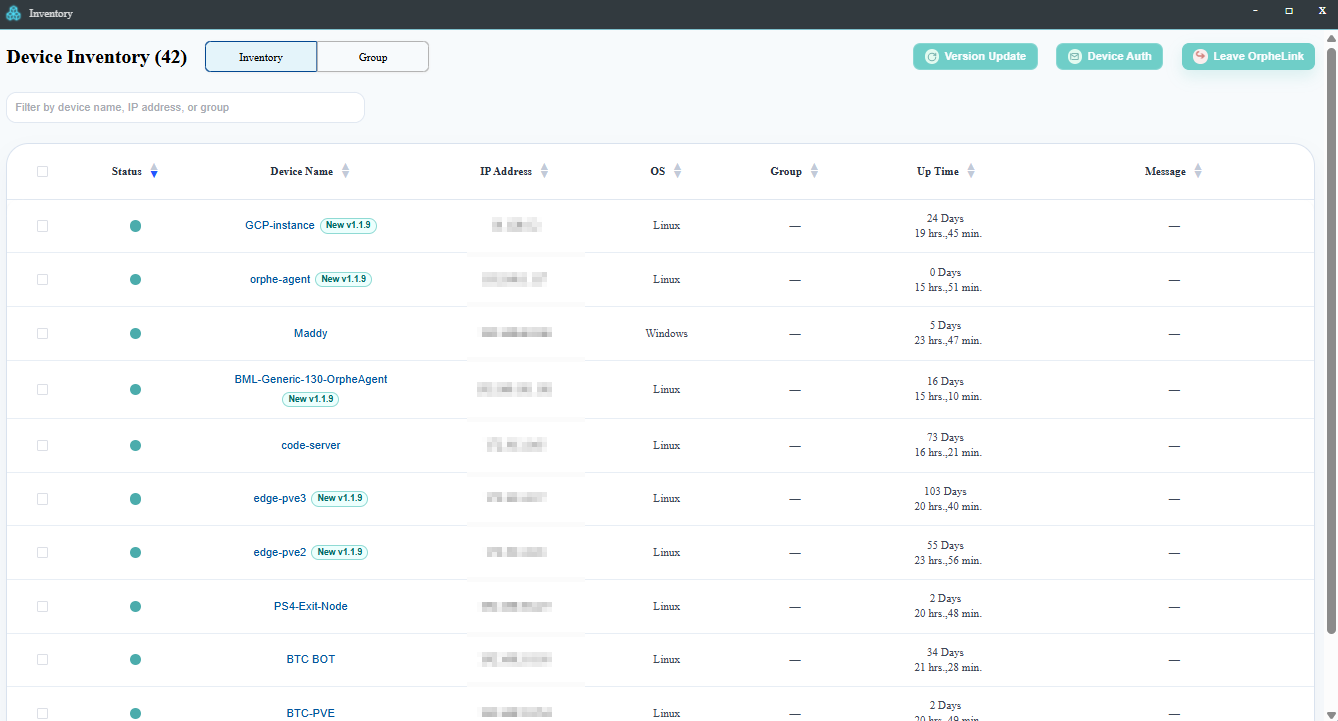
The Inventory section provides comprehensive information about OrpheAgent devices. This includes the OrpheAgent's connection status to OrpheLink, device name, IP address, group assignment, uptime, and system messages.
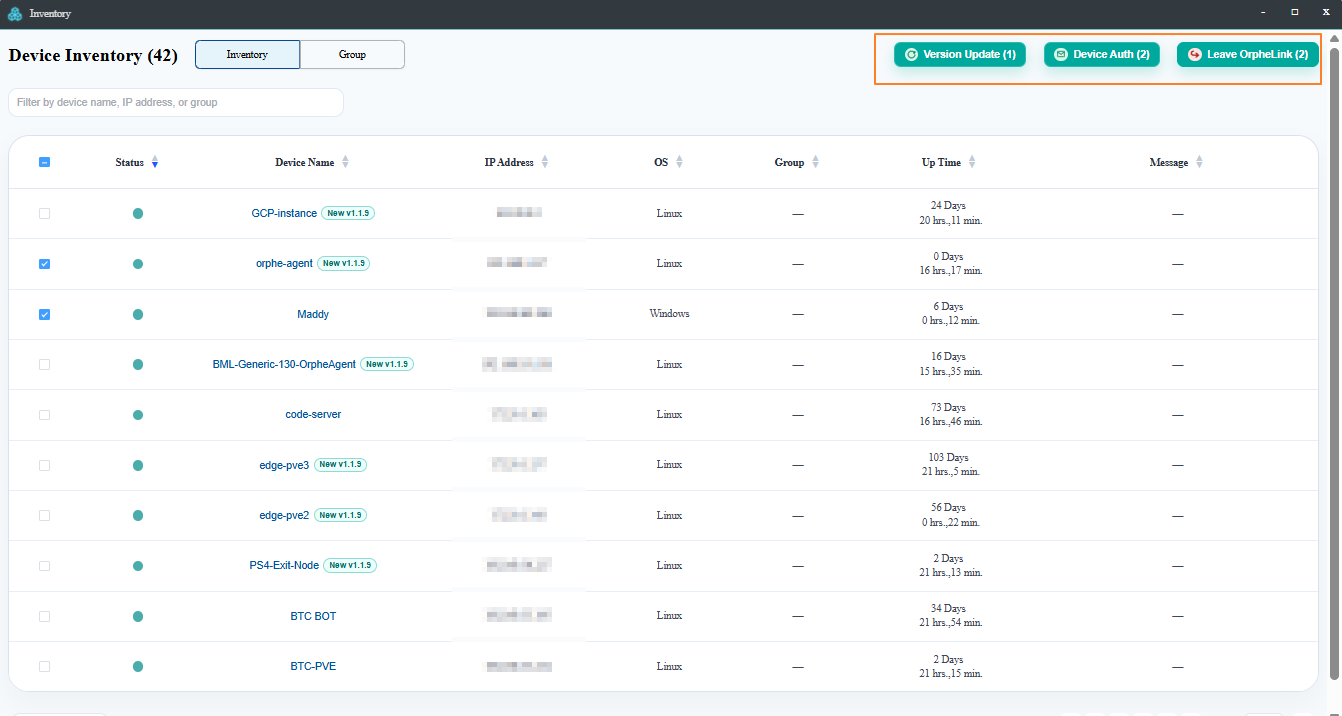
After selecting one or more devices in the Inventory list, use the controls in the upper-right corner to perform batch operations:
- Version Update: Update the software or firmware version on the selected devices.
- Device Auth: Assign an email address to the selected devices. The address must be verified before the devices can connect to other OrpheAgent instances and enable the data plane.
- Leave OrpheLink: Remove the selected devices from the OrpheLink system.
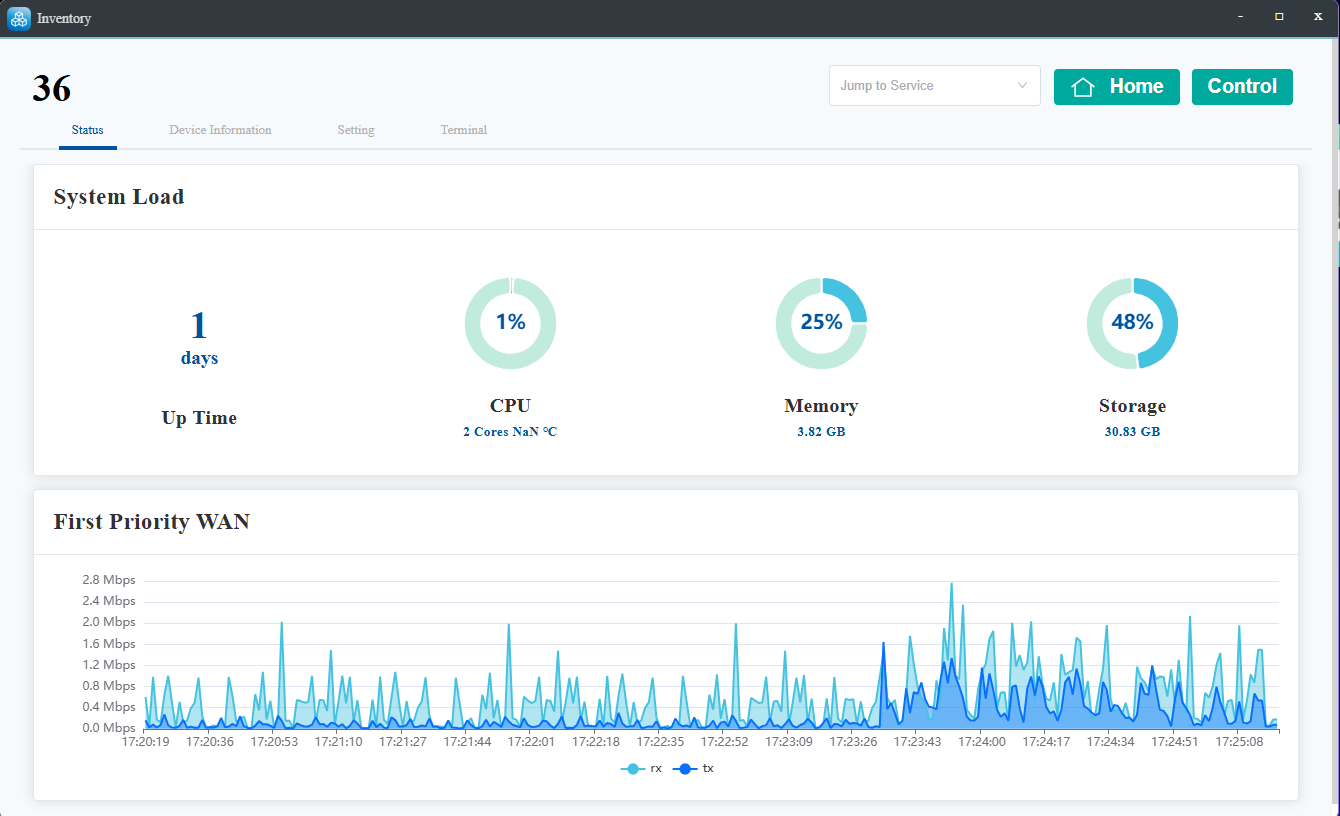
Clicking on a specific Device Name opens a detailed view of the OrpheAgent device's real-time status. This view includes system load metrics and a traffic chart monitoring the primary WAN network.
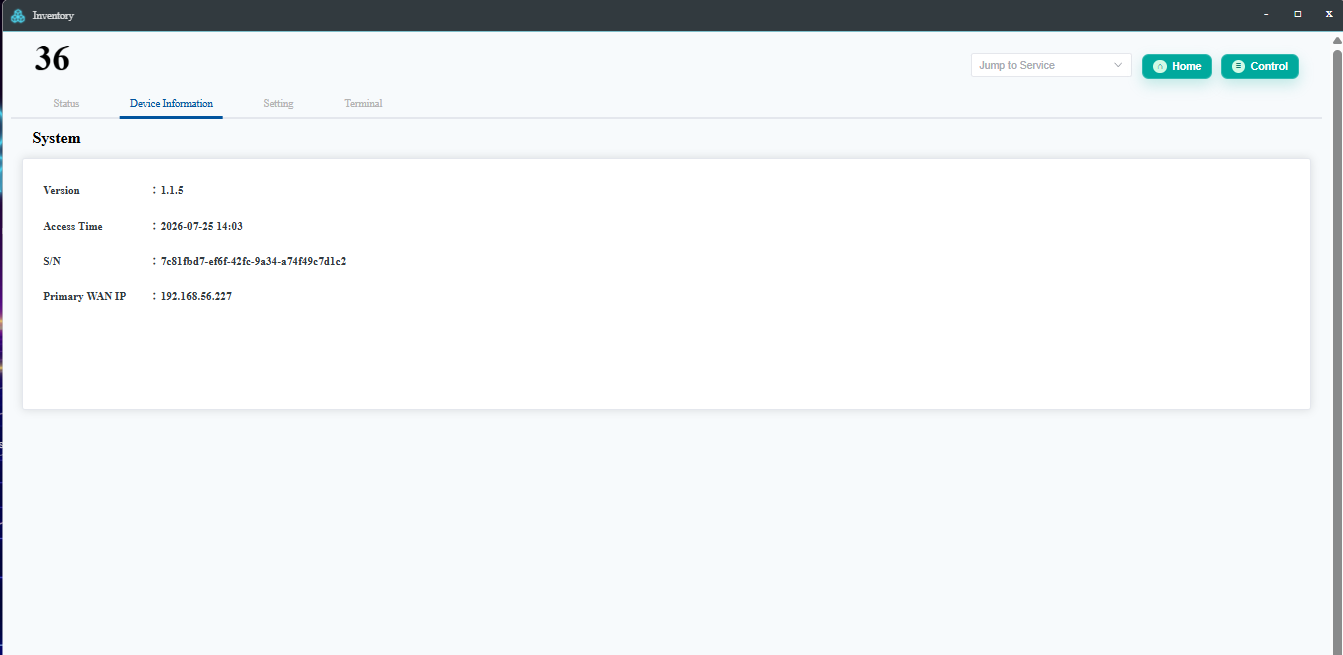
The device information section displays essential details, including the firmware version, last access time, software serial number, and WAN IP address.
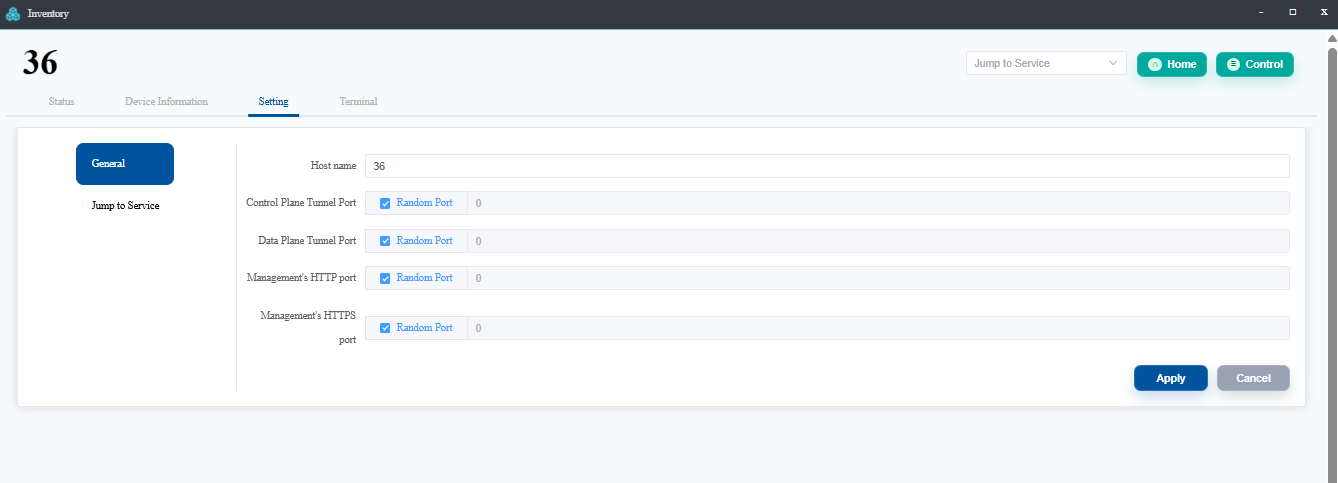
The Settings page allows you to modify General settings and Jump-to-Service configurations. General settings include the device name, OrpheLink tunnel port (for Controller connections), SD-WAN tunnel port (for peer-to-peer connections), and HTTP/HTTPS management ports.
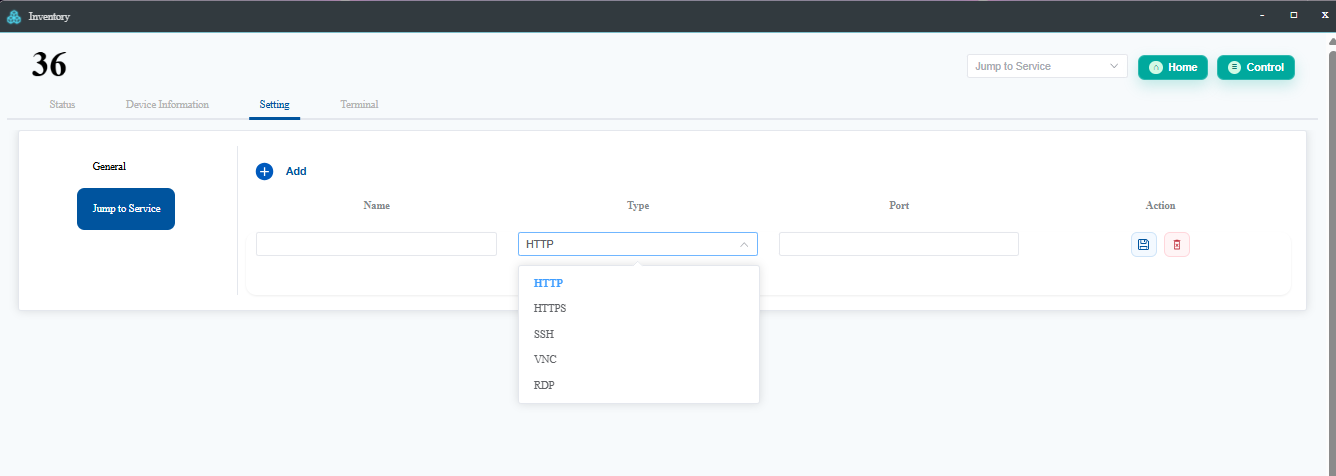
The Jump-to-Service settings enable quick access to application interfaces directly from the OrpheLink dashboard. Supported protocols include HTTP, HTTPS, SSH, VNC, and RDP.
!NOTE
- VNC (Virtual Network Computing): Allows you to remotely control another computer by sharing its screen in real-time.
- RDP (Remote Desktop Protocol): A Microsoft protocol that lets you access and control a Windows computer remotely, displaying its full desktop interface.
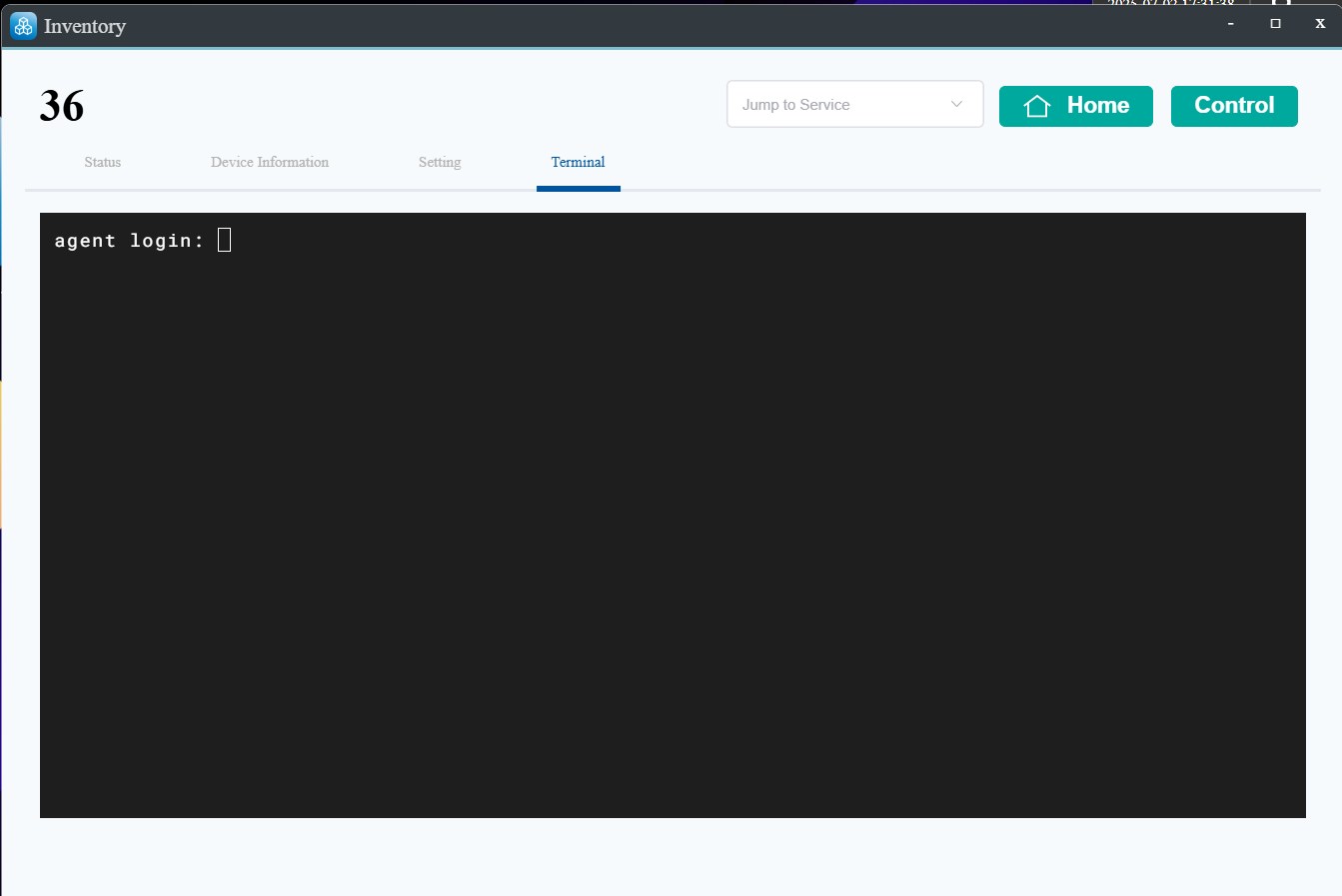
You can also access the device directly through the web terminal.
- For the Linux version of OrpheAgent, use the username and password you configured on the system.
- For the Container version of OrpheAgent, the default credentials are:
- Username:
orphe-agent - Password:
orphe-agent
- Username:
How to Set Up RDP (Remote Desktop) on Ubuntu/Linux
To access a Linux device using RDP via Jump-to-Service, follow these steps:
- Install RDP Server: Ensure an RDP server (such as
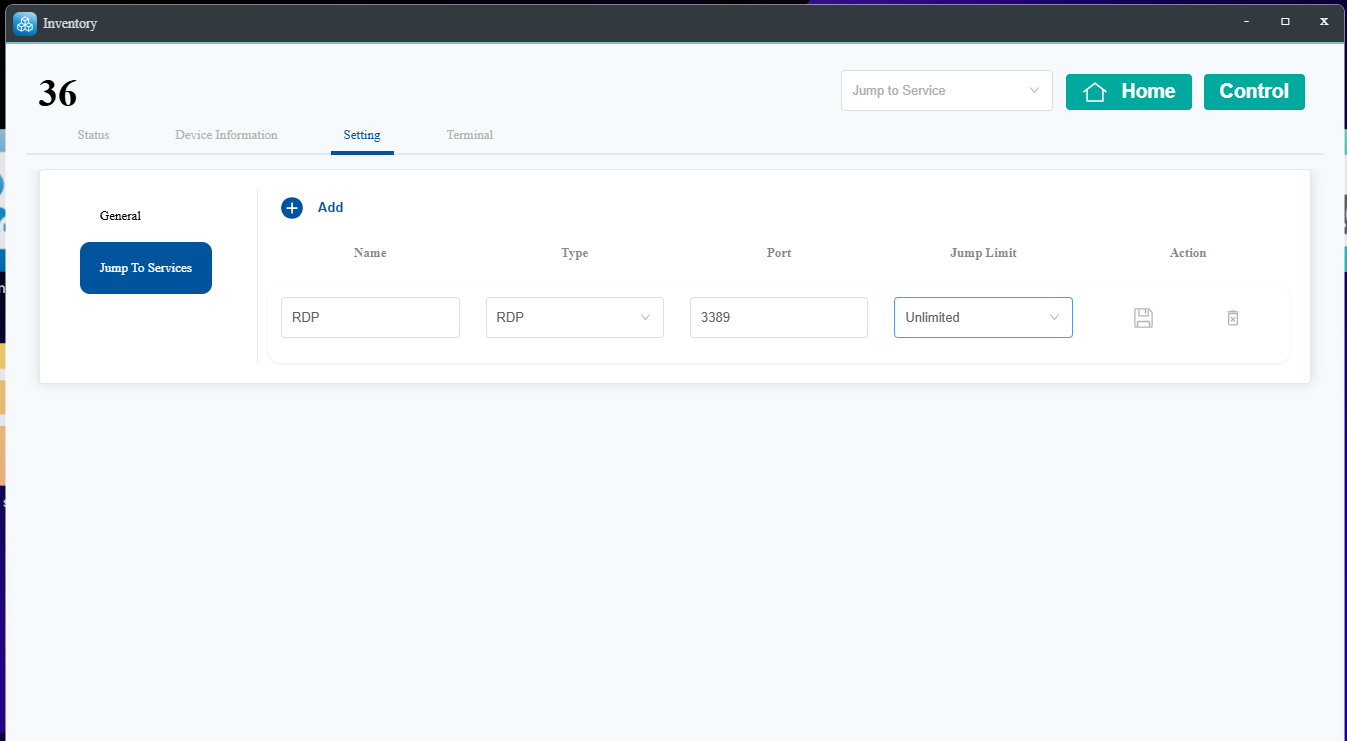
xrdp) is installed on your Ubuntu/Linux device. - Configure Jump-to-Service: On the OrpheLink Jump to Service page, select the RDP protocol and click Save.
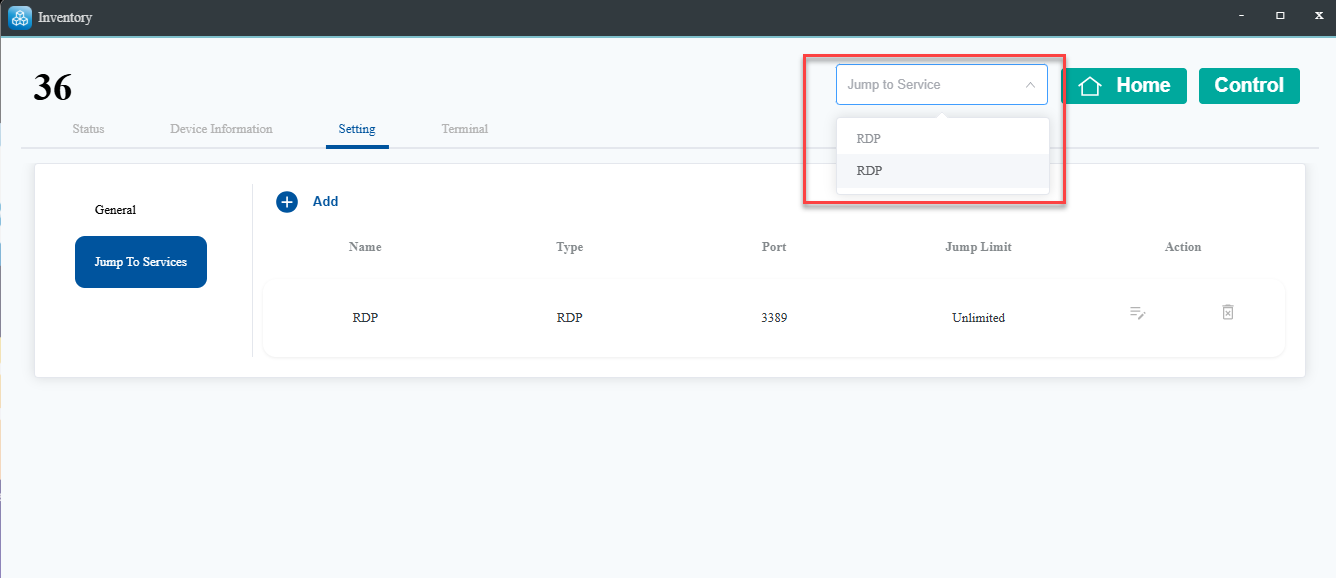
- Launch Service: After saving, click the Jump to Service button.
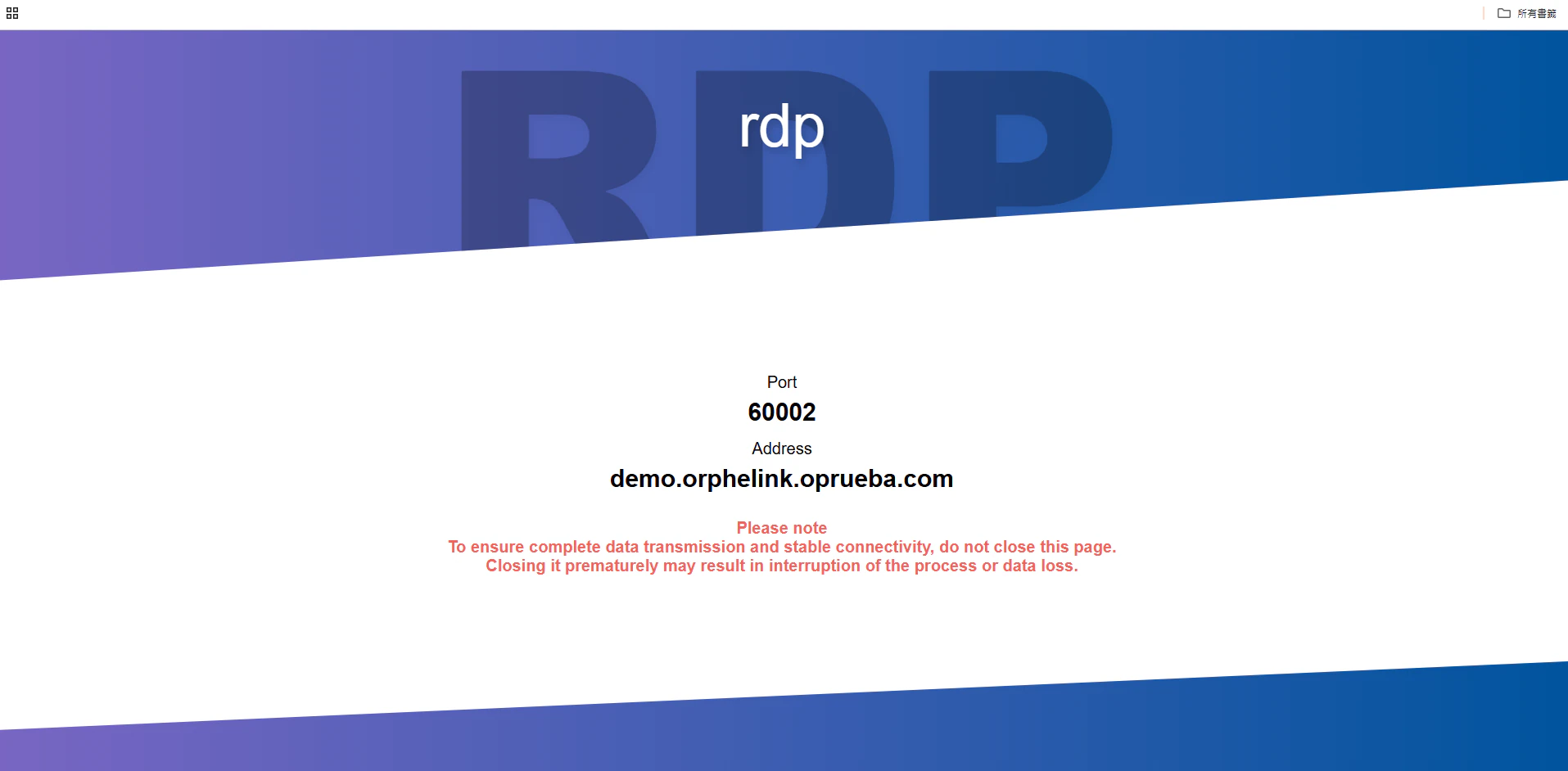
- Obtain Connection Details: The system will generate and display a URL and port for the connection.
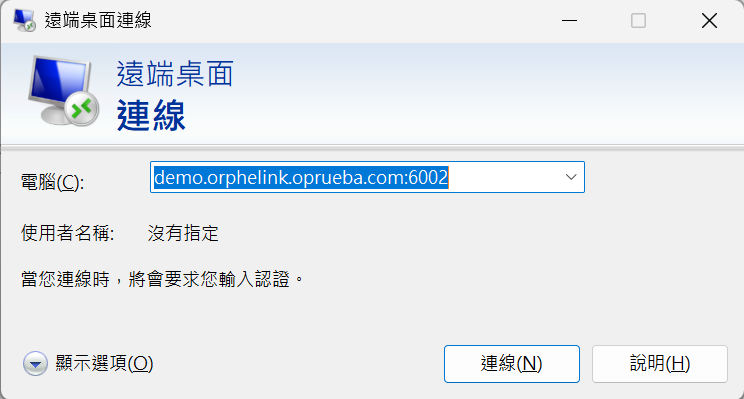
- Open Remote Desktop: On your Windows PC, open the Remote Desktop Connection application.
- Enter Details: Enter the generated address and port into the application, then click Connect.
- Log In: Enter your Linux system's login username and password.
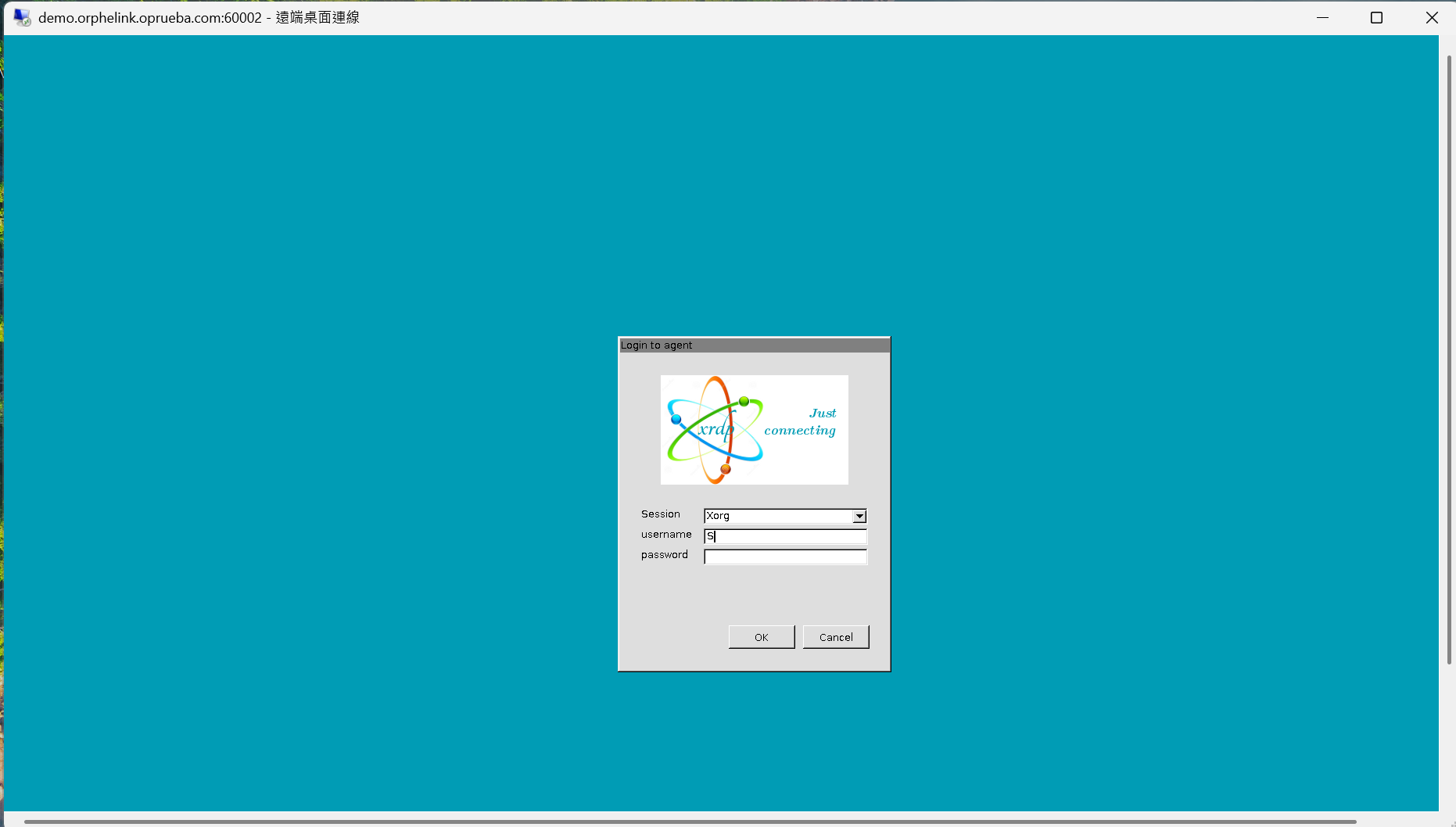
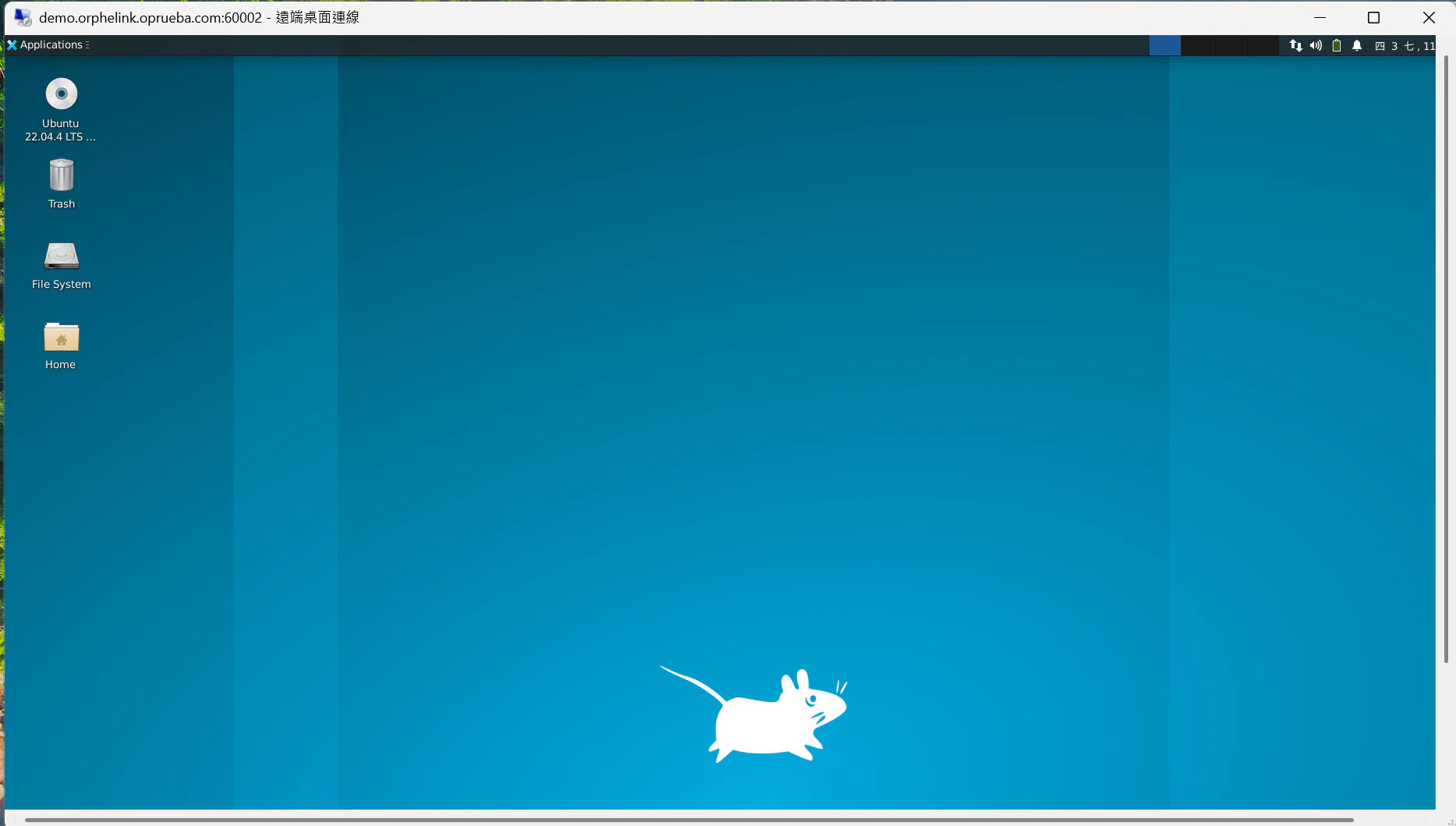
- Access Desktop: You will now see and be able to interact with the remote desktop screen of your Linux device.