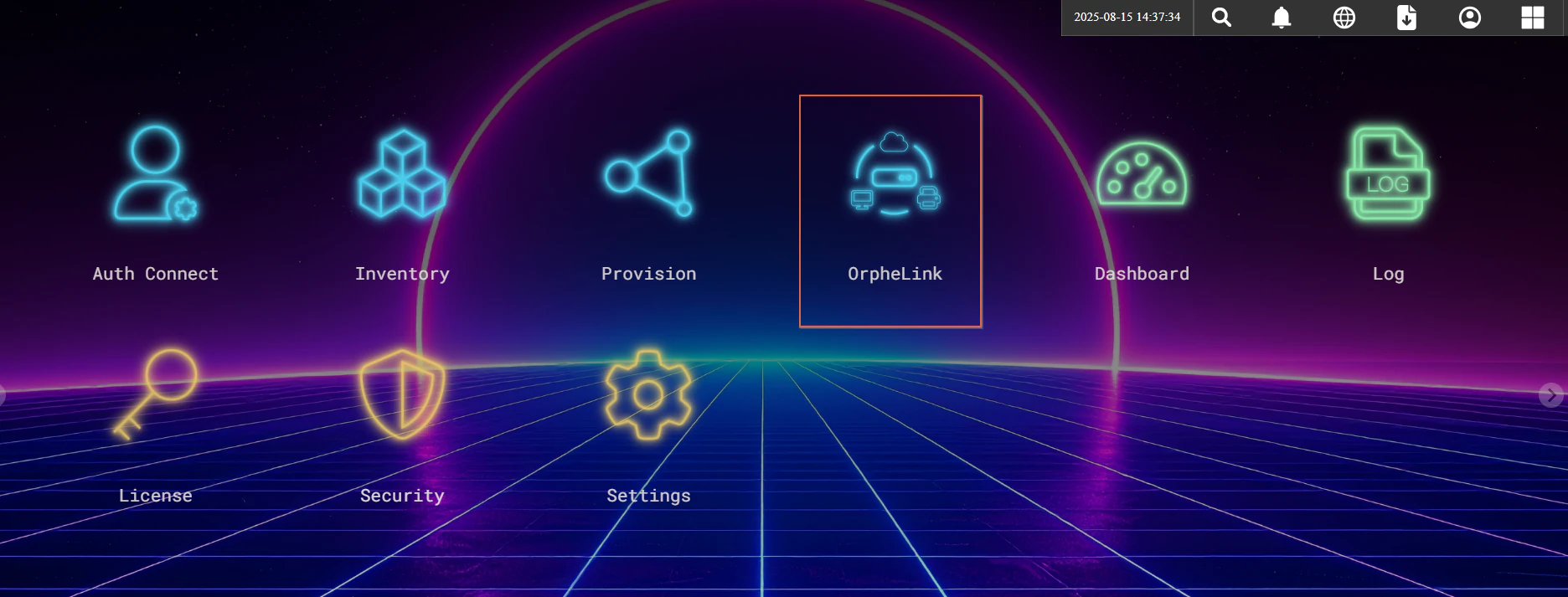
Getting Started
Getting Started
To get started with OrpheLink, please register a new account by clicking the link below:
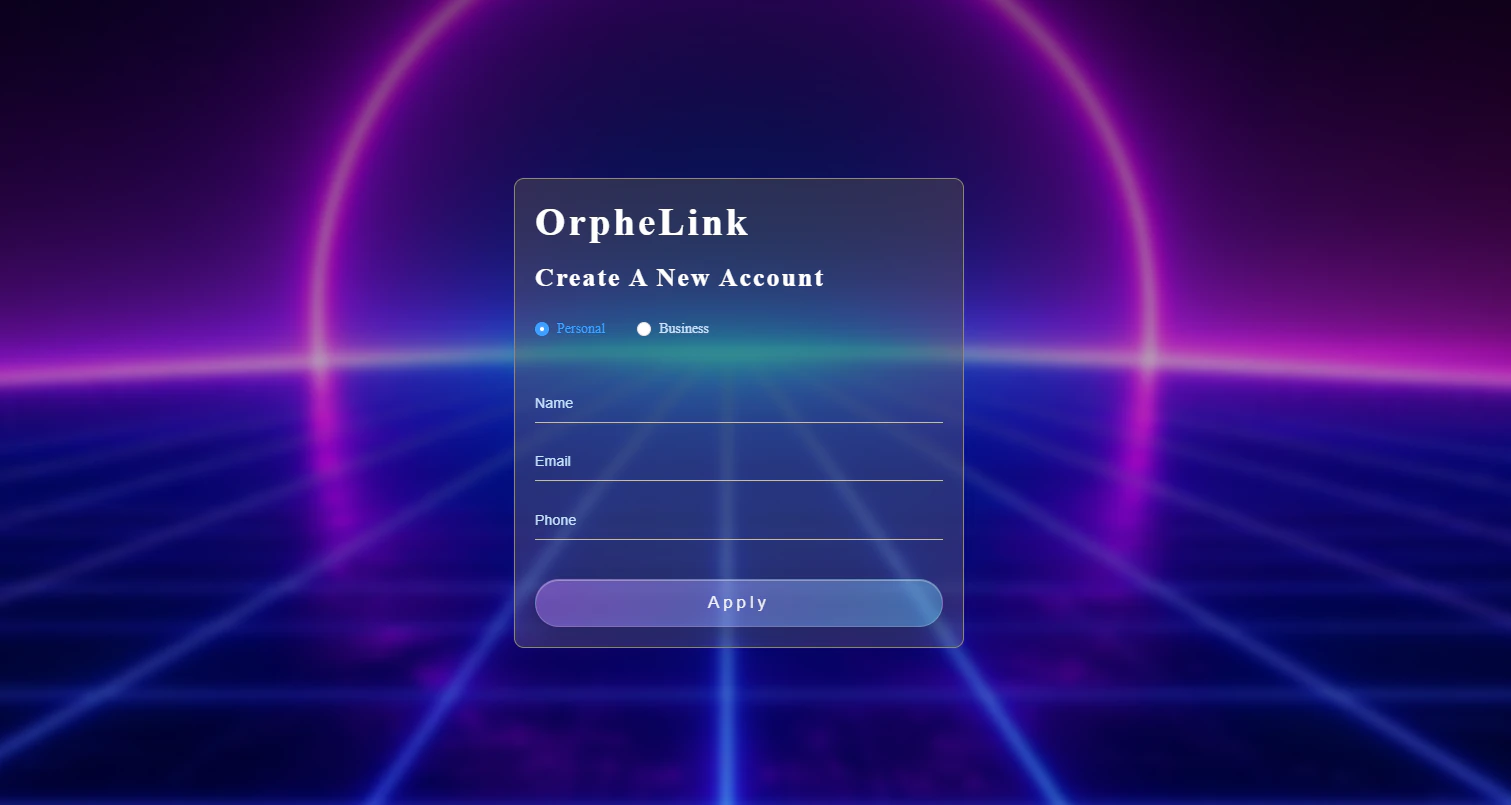
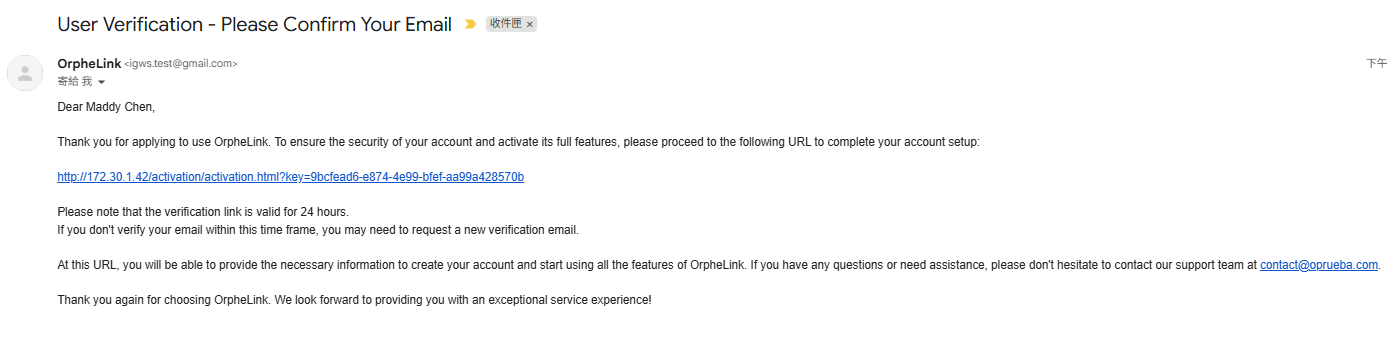
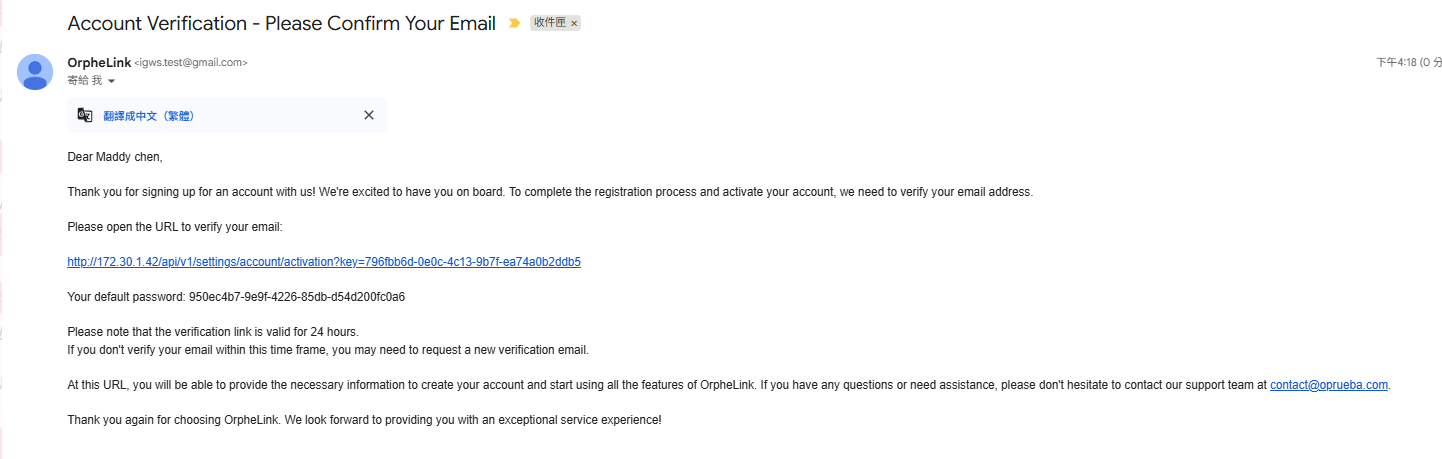
Once you've filled in the registration details for a new account, a verification email will be sent to your inbox. Click the link in the email to verify your account. Your login username is your email address, and the password is the one included in the email.
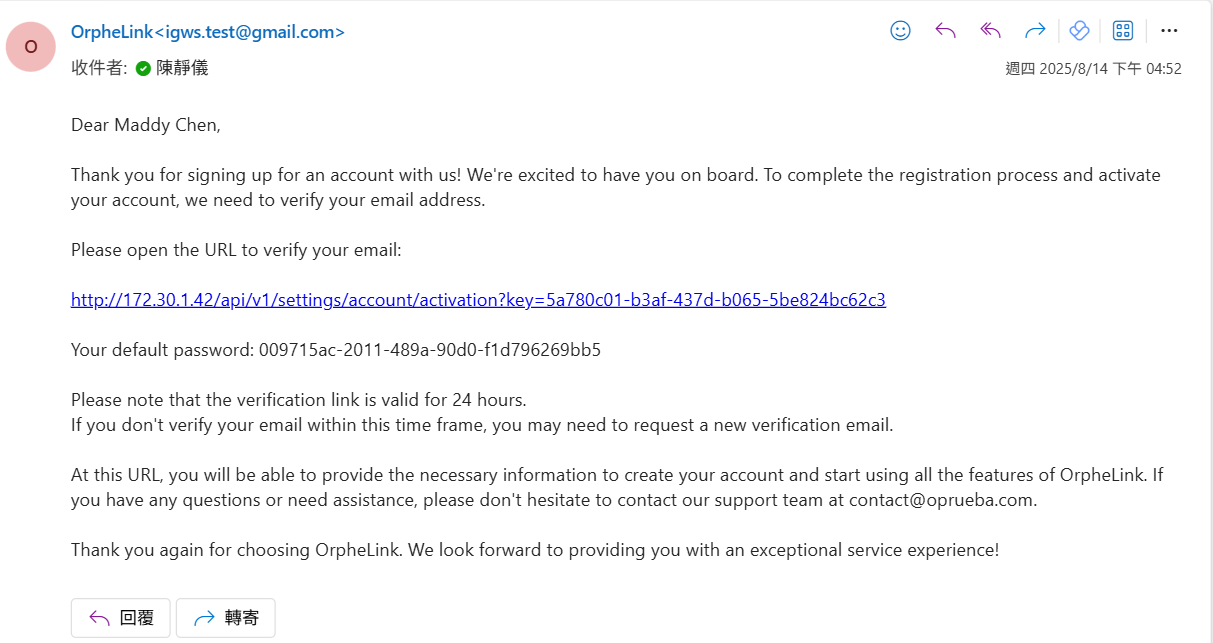
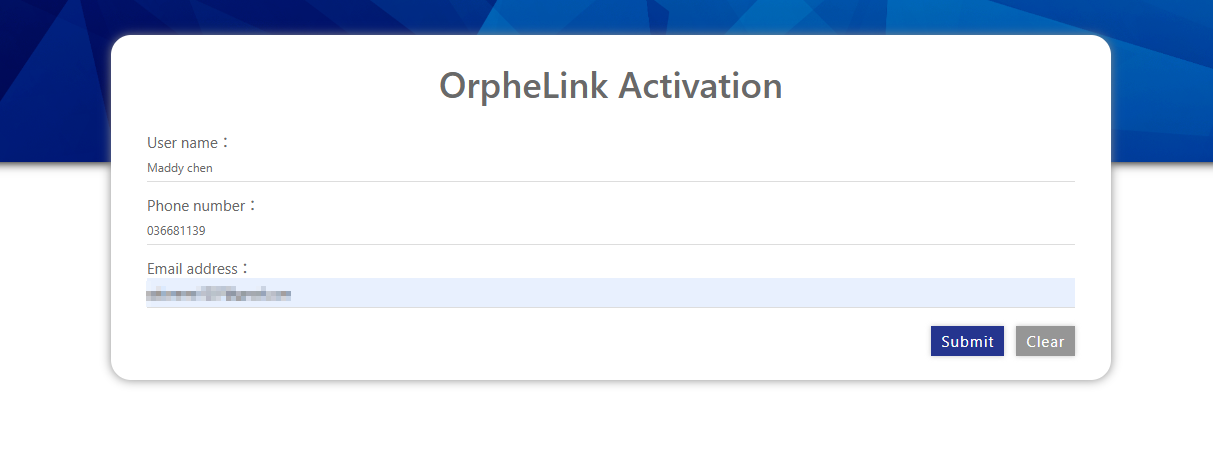
Follow the instructions in the email to activate your account by entering the primary administrator's username, phone number, and email address.
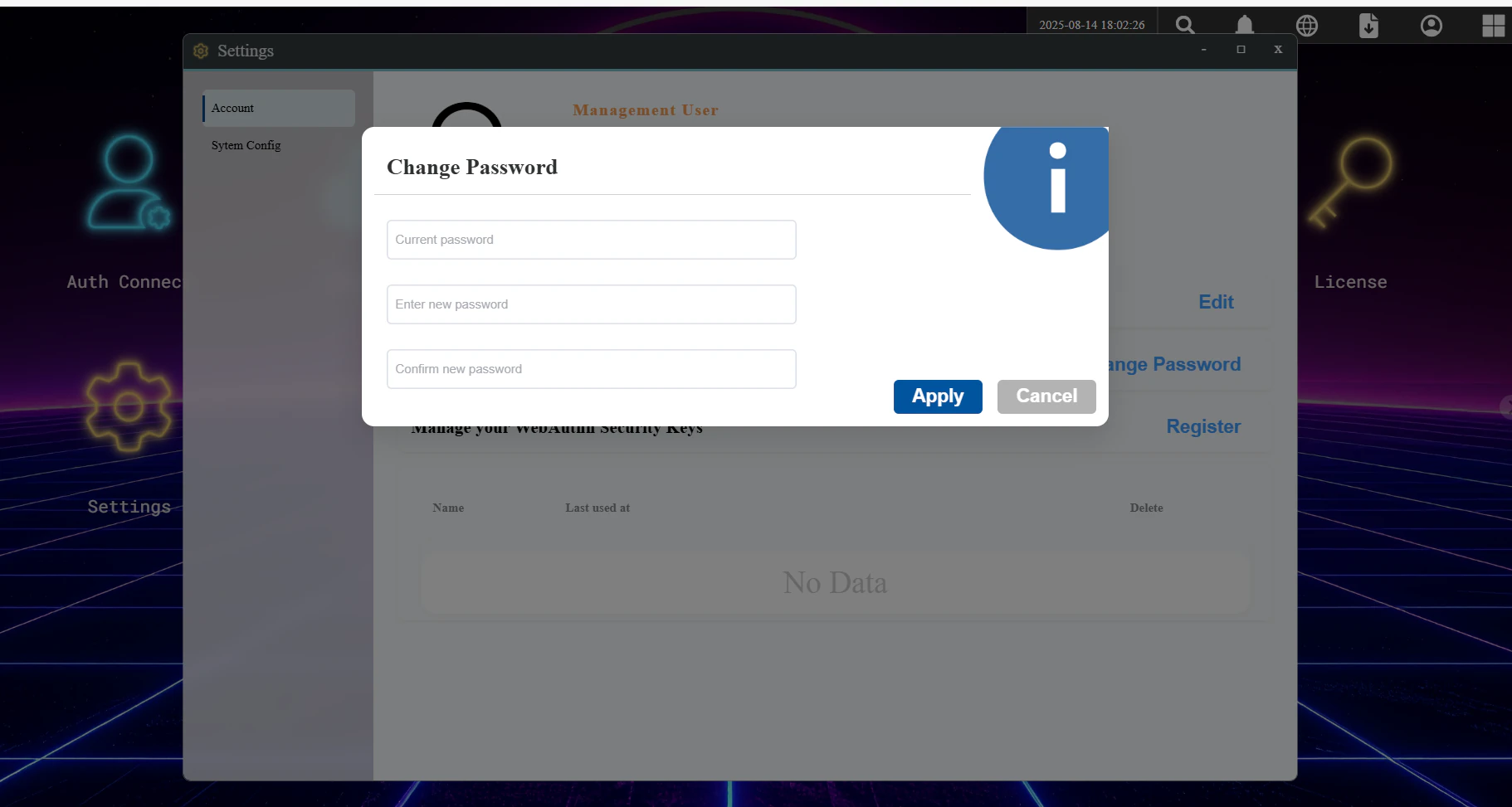
When you log in for the first time, you will be required to change your password.
Enterprise User Account Registration
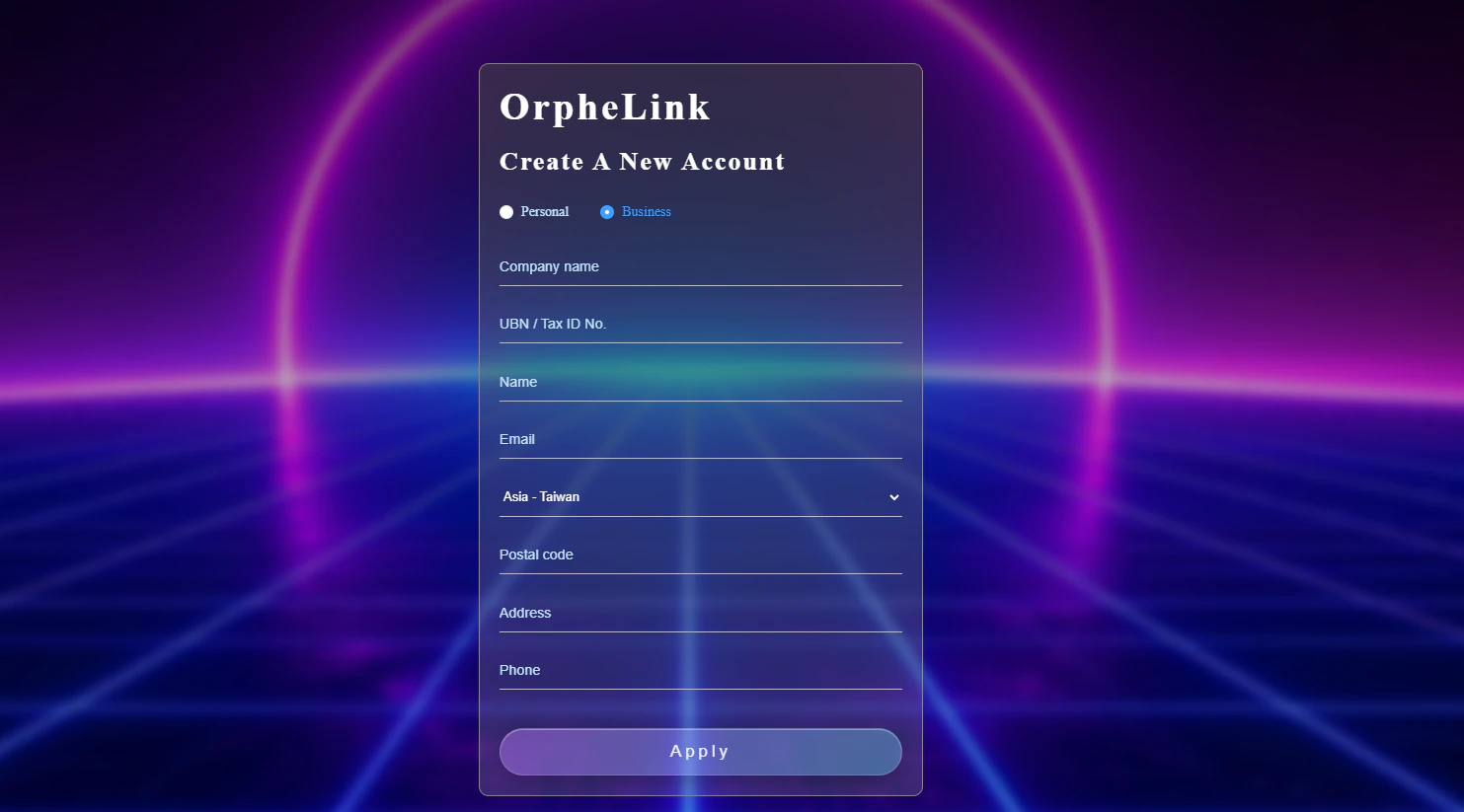
Select Business when creating a new account. You will first receive an email titled "User Verification – Please Confirm Your Email".
You will then receive an "Account Verification – Please Confirm Your Email" mail containing the initial password. Log in using your email address as the username and the password provided in the email.
On your first login, you will be prompted to change your password.
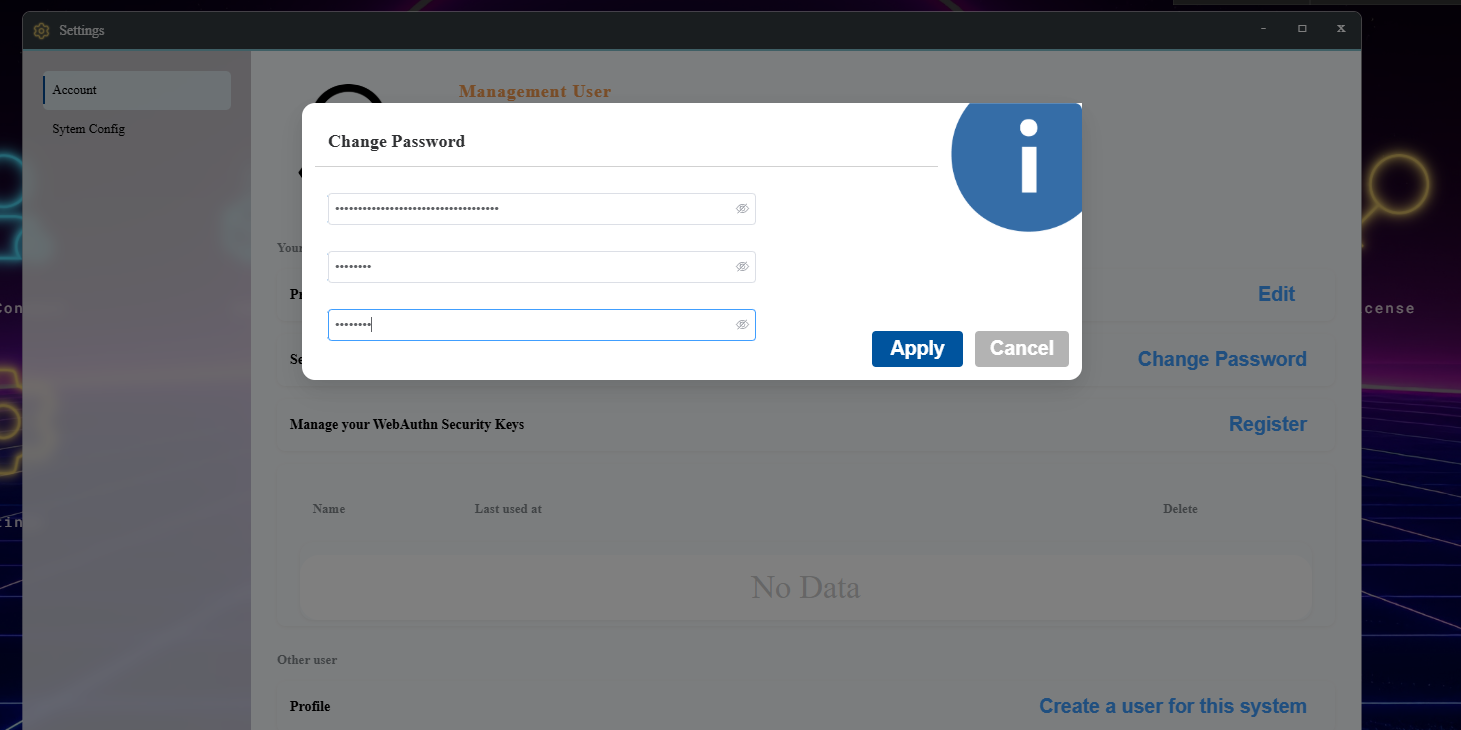
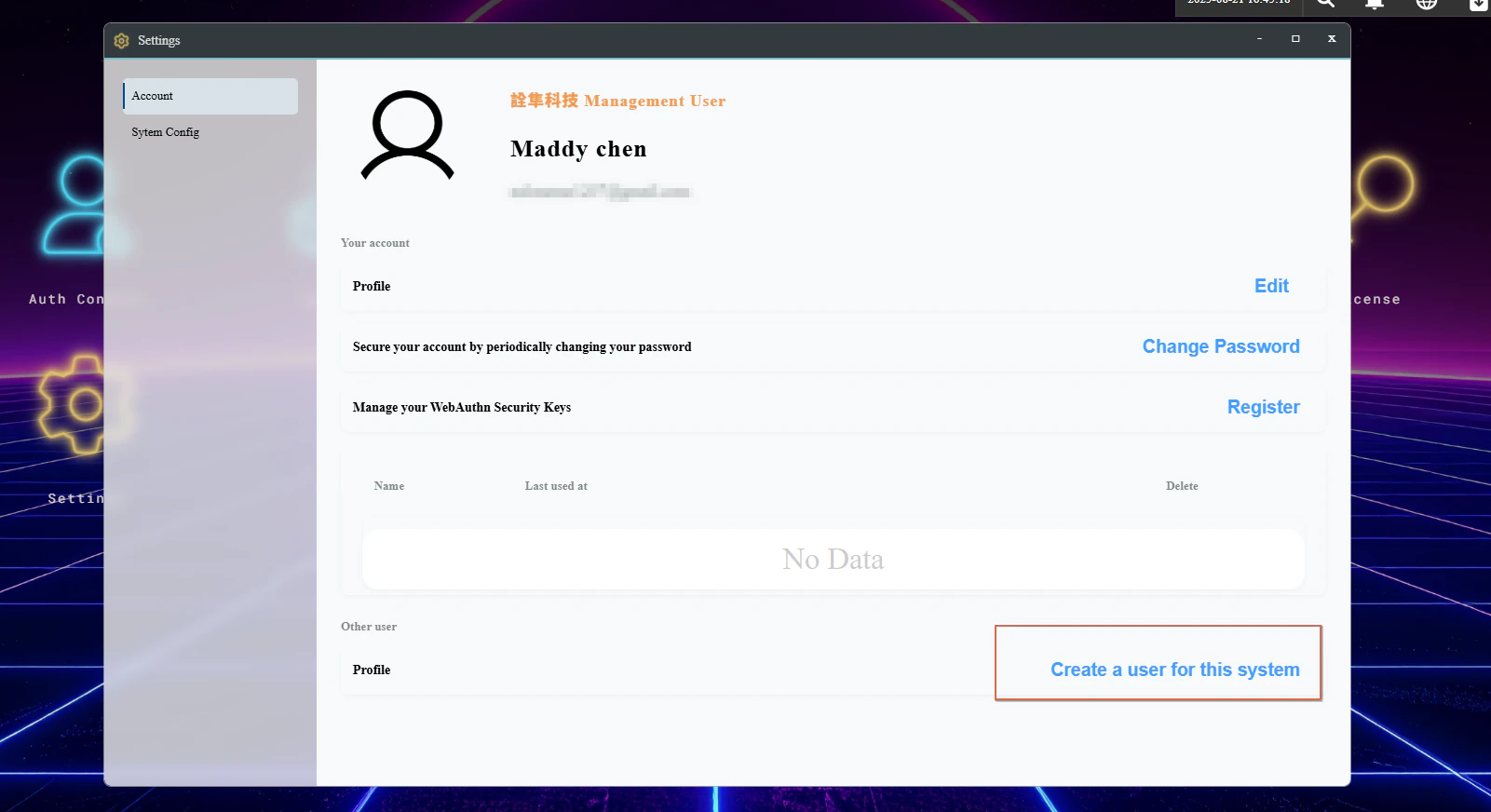
A Business account can create additional users to manage devices.
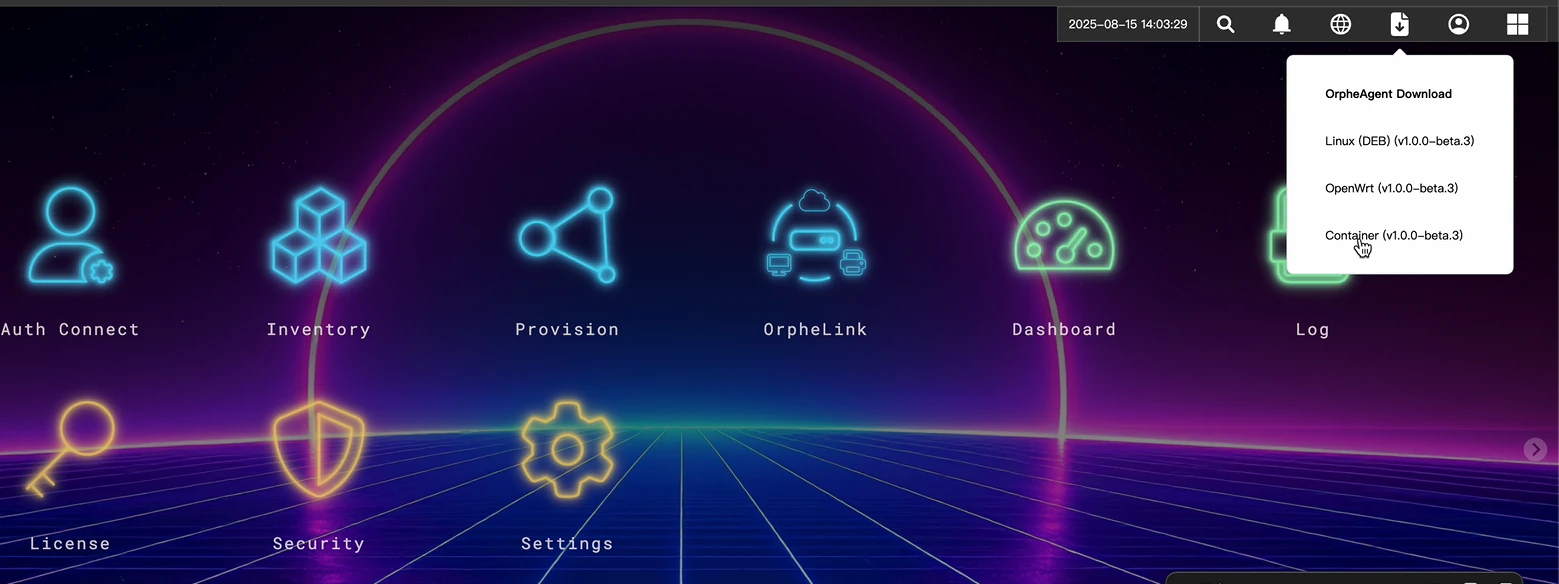
Download and install the OrpheAgent software according to your device version.
After installation, you can follow the OrpheAgent user manual for guidance. Once your device is provisioned in the OrpheLink management system, set up the P2P connection between OrpheAgents via OrpheLink. Please refer to the OrpheLink manual for detailed steps on setting up the connections.