Login to WEB GUI
Instructions on logging into the OOS WEB GUI using a web browser.
O'prueba OS (OOS) provides a user-friendly WEB GUI (Graphical User Interface) that allows easy setup and management via web browsers such as Google Chrome, Microsoft Edge, and Mozilla Firefox.
- Step 1: Connect a desktop or laptop computer to the OOS LAN port.
- Step 2: Configure the IP address and subnet of the computer to match the OOS subnet (e.g.,
192.168.0.X). - Step 3: Open a web browser and navigate to the default URL: http://192.168.0.1.
- Step 4: Select direct login or enter the OOS Controller key to connect to the controller.
- Step 5: Enter the default username (
admin) and password (password). - Step 6: Click the "Login" button to log into OOS.
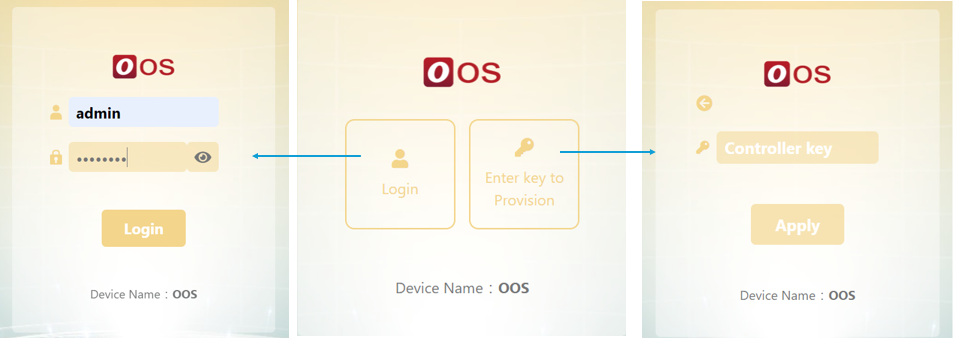
Upon logging into OOS for the first time, you will be prompted to change the default password.
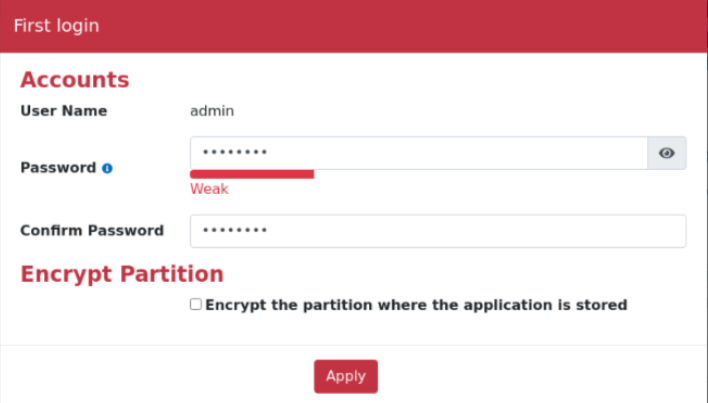
Encrypt Partition: Encrypts the application partition to prevent unauthorized data access if the hard drive is removed. When partition encryption is enabled, users can view the disk but cannot mount it, keeping container data stored on the disk protected.
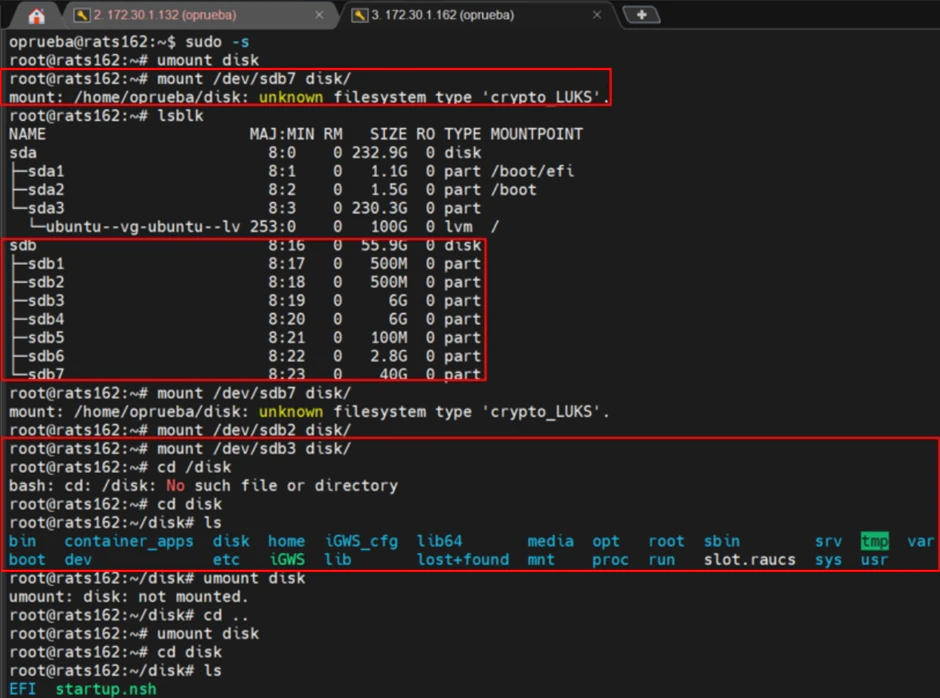
Note: To disable the partition encryption setting, reset the device to factory defaults via Settings > Backup & Restore > Reset to Factory Default. This action will erase all data stored in the application partition.