Auth Device
Device Auth restricts Data Plane connections for specific devices.
1. Feature Overview
Device Auth is used to restrict Data Plane connectivity for specific devices, primarily determining which devices are authorized to enable Data Plane access and join the network. Once an administrator specifies a Bound Email for a device in OrpheLink, that device must complete verification via the Magic Link sent to that email before it can access other Neighbor devices. Until verification is complete, the Data Plane remains Blocked, even if OrpheAgent shows an Online status.
| Role | Actions Required | Completion Criteria |
|---|---|---|
| OrpheLink Administrator | Select the device, enable Device Auth, enter the Bound Email, and click Save | The device is prompted to complete verification |
| OrpheAgent Device User | Open Device Verification and click Send Magic Link | Status changes from AWAITING_REQUEST to PENDING |
| Bound Email Recipient | Click Review Device Request, then click Verify Device | Status changes to VERIFIED, and Data Plane becomes ALLOWED |
Workflow: ① Admin Enables → ② Device Sends Request → ③ Email Confirmation → ④ Verification Completed
⚠️ Note:
Clicking Save in OrpheLink does not automatically send a verification email, nor does it mean verification is complete.
The device user must actively click Send Magic Link, and the recipient must click Verify Device for authorization to take effect.
2. Prerequisites
- The device must have OrpheAgent installed, be added to OrpheLink, and run an Agent version that supports Device Auth (unsupported devices cannot be selected).
- An accessible Bound Email inbox must be prepared, and the recipient must have the authority to verify whether the device should join the network.
- The device must maintain an active Control Plane connection with the Controller.
3. Step-by-Step Instructions
Step 1: Enable Device Auth in OrpheLink
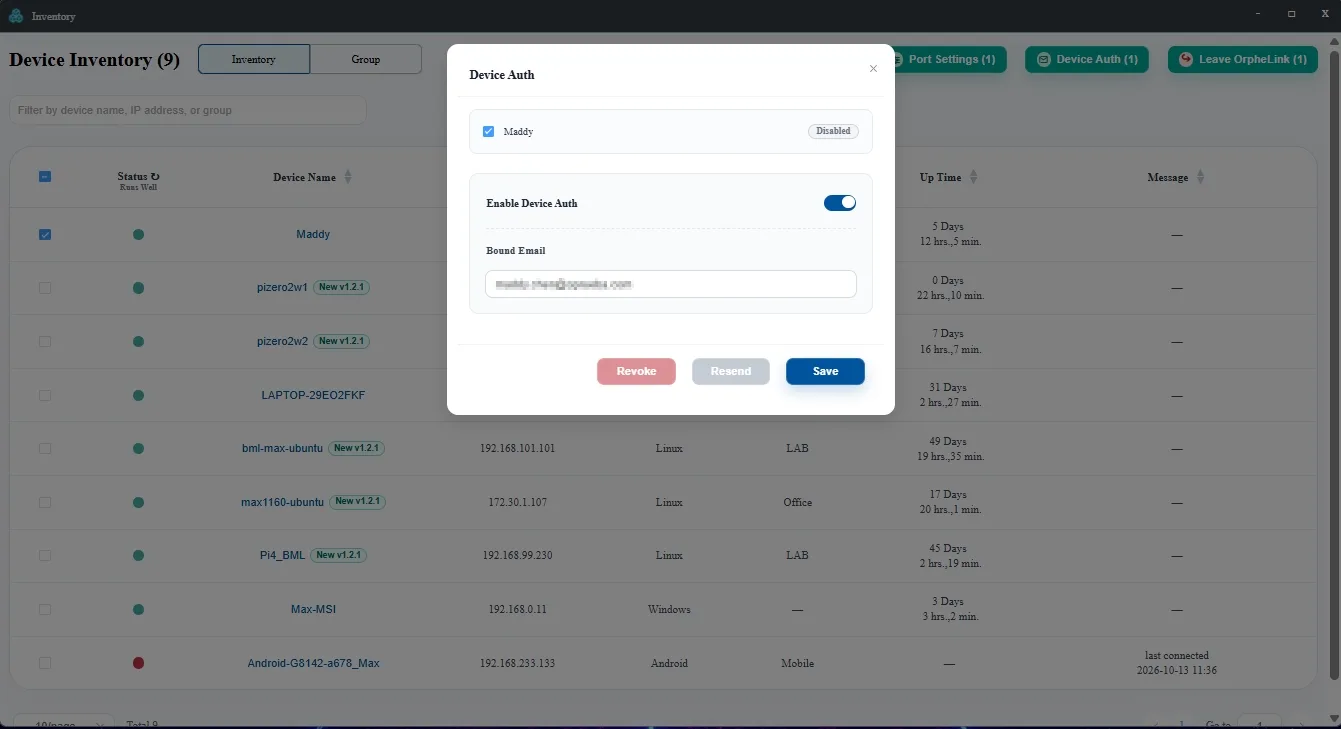
- Log in to OrpheLink, navigate to Inventory, check the target device(s) (supports multi-selection), and click Device Auth in the top-right corner.
- Confirm the devices and their statuses listed in the dialog (initially set to Disabled).
- Toggle on Enable Device Auth and enter the recipient email address in Bound Email. When configuring in bulk, this email will apply to all selected devices.
- Click Save. (⚠️ Note: Verification is not yet complete at this point.)
Step 2: Request Verification on the OrpheAgent Device
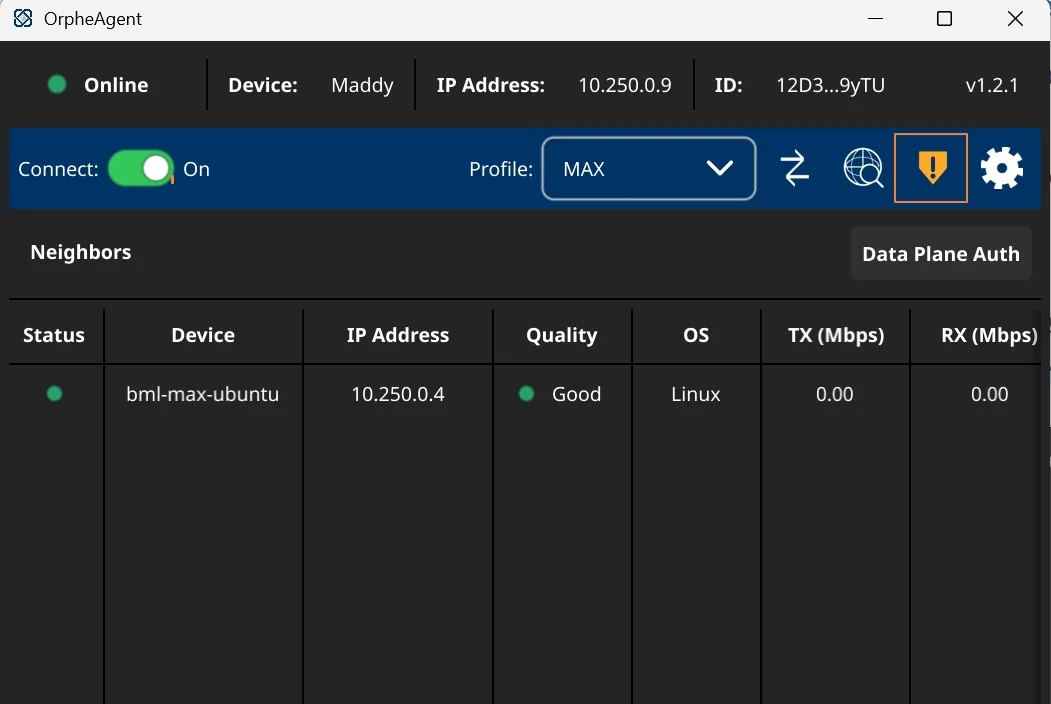
- Open OrpheAgent on the target device and confirm that the expected device name is displayed at the top.
- Click the Device Verification icon (displays as a yellow warning shield prior to verification).
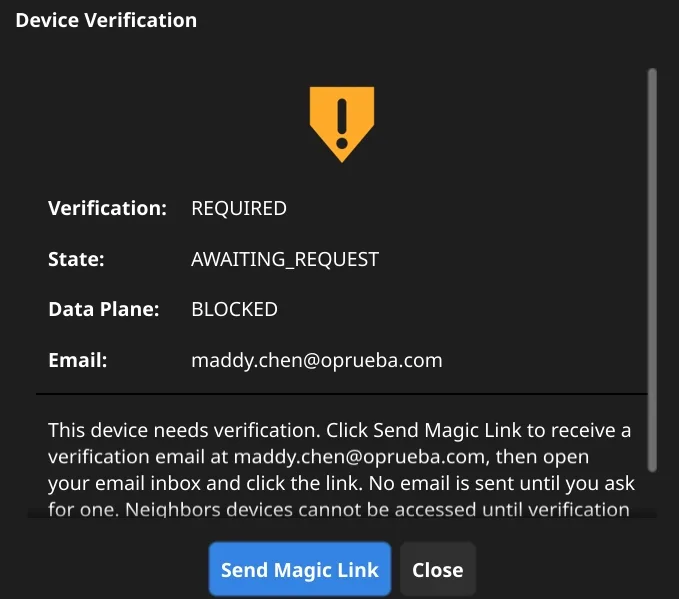
- Confirm that the dialog displays Verification:
REQUIRED, State:AWAITING_REQUEST, and Data Plane:BLOCKED. - Verify that the Email field is correct, then click Send Magic Link.
Step 3: Confirm Transition to PENDING State
- After sending, reopen Device Verification. The State should now display
PENDING, while Data Plane remainsBLOCKED.
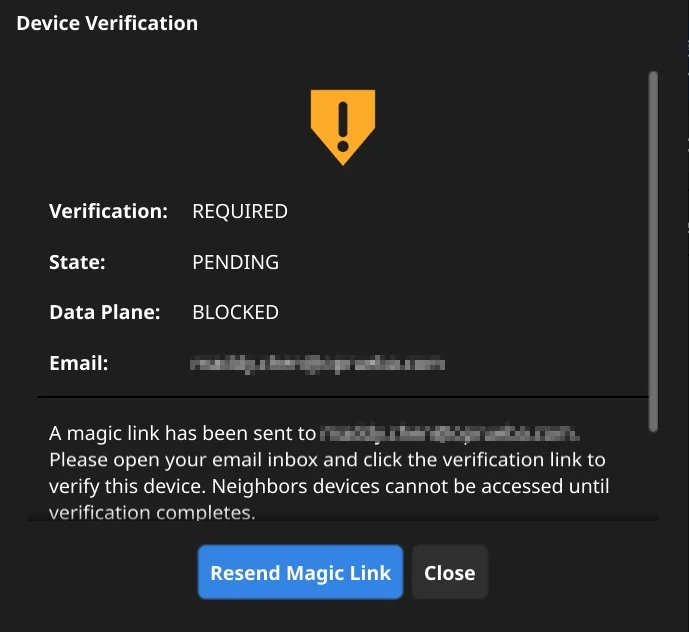
- A countdown displaying Resend available in… will appear on the device; emails cannot be sent repeatedly during this cooldown period.
- The administrator can return to OrpheLink → Inventory → Device Auth, where the device status will now show Waiting for verification.
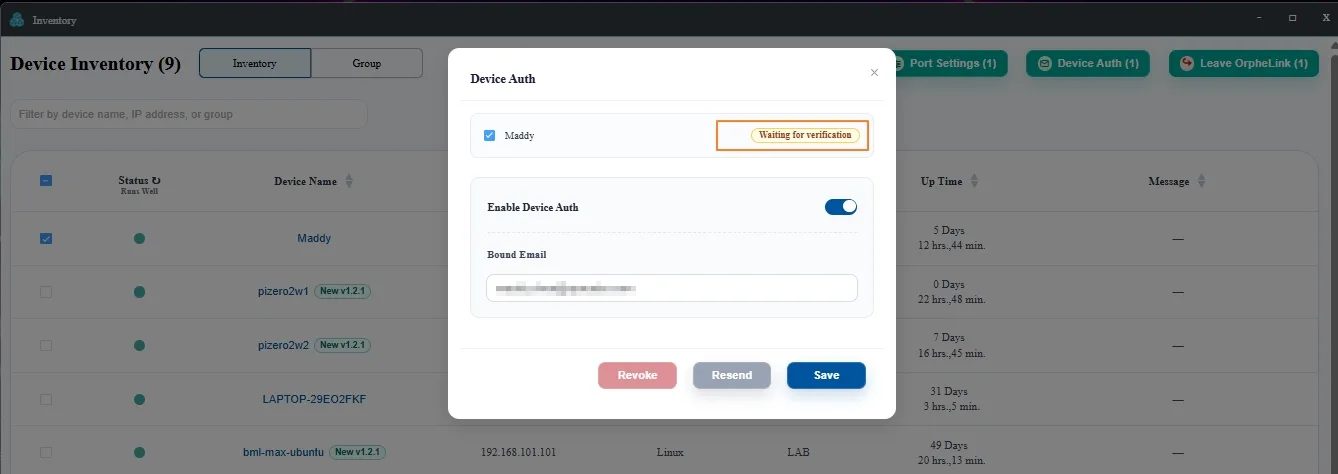
Step 4: Approve the Device via Bound Email
- Open the Bound Email inbox and locate the email with a subject similar to "OrpheLink Device Verification: Device Name" (check the spam folder if not received).
- Review the device name and Controller URL in the email to ensure the request originated from the intended device.
- Click the blue Review Device Request button to proceed to the confirmation page.
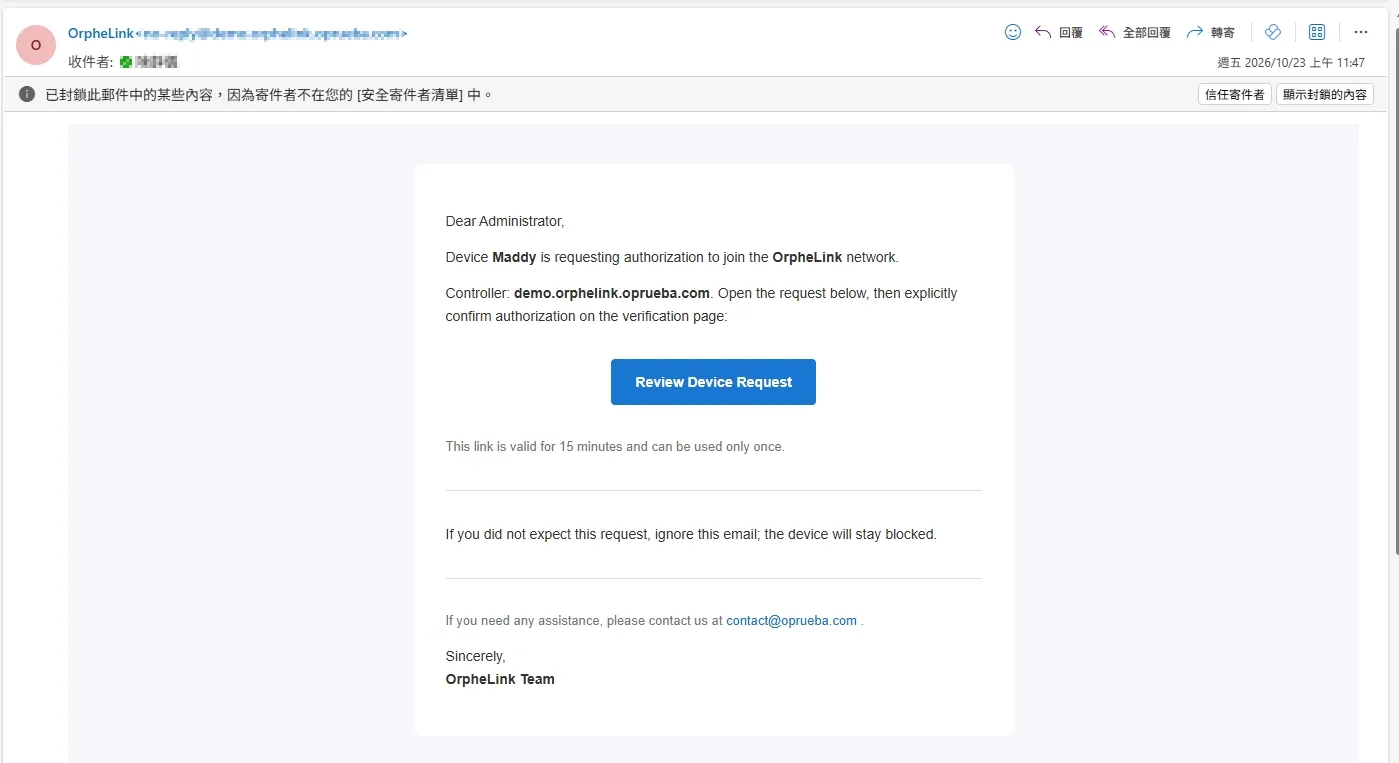
- On the Confirm device authorization page, verify the device name once more and click Verify Device. Merely opening the page does not grant authorization.
- Once you see Device verified and the message "Device verified successfully", the process is complete and you may close the browser window.
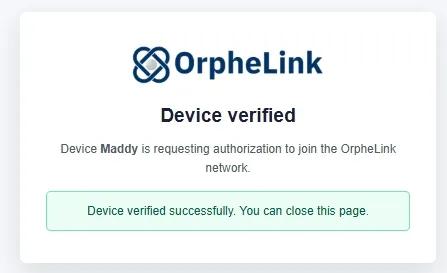
⚠️ Link Security:
The Magic Link is valid for 15 minutes after issuance and can only be used once. Requesting a new link invalidates any previous links.
If you receive an unexpected verification email, do not click Verify Device, and report it to your OrpheLink administrator immediately.
Step 5: Verify Completion
- In OrpheAgent, Device Verification should now display State:
VERIFIEDand Data Plane:ALLOWED.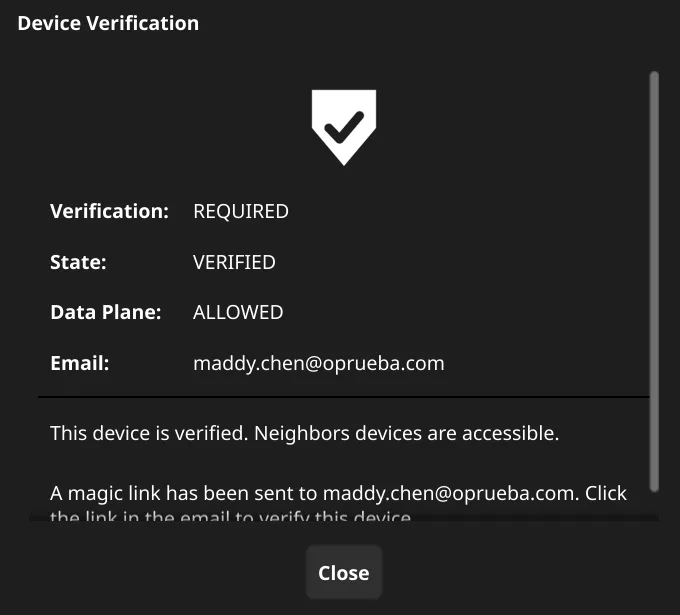
- In OrpheLink → Inventory → Device Auth, the device will show a green Verified status.
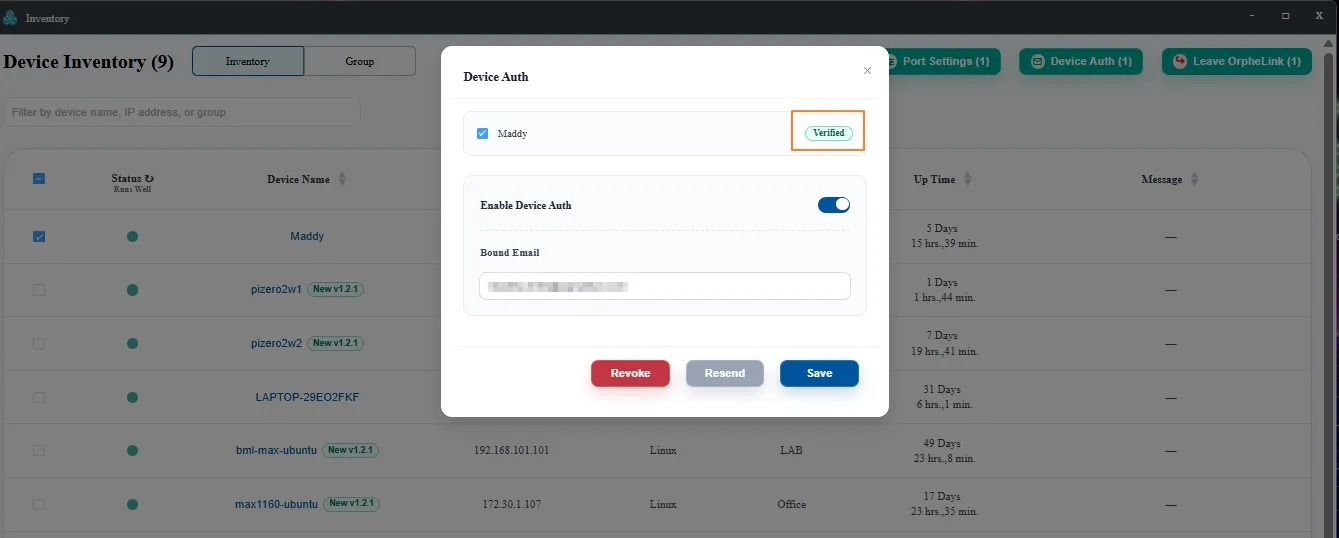
Test network connectivity to Neighbors directly from the authorized device.
✅ Always rely on State: VERIFIED and Data Plane: ALLOWED as the true indicators of completion, rather than earlier status notices.
ℹ️ When Device Auth is enabled, the device must complete email verification again after a reboot to restore Data Plane connectivity.
4. Buttons and Status Definitions
| Button / Status | When to Use | Effect |
|---|---|---|
| Send Magic Link (OrpheAgent) | State is AWAITING_REQUEST, initial verification email has not been requested | Instructs the Controller to send the first verification email to the Bound Email address |
| Resend Magic Link (OrpheAgent) | State is PENDING or EXPIRED, and resending is permitted | Resends the verification email and invalidates previous links; subject to a cooldown timer |
| Resend (OrpheLink) | The device has Device Auth enabled and meets resend conditions | Allows administrators to trigger a resend; grayed out if conditions are not met |
| Revoke (OrpheLink) | The device is verified, but access needs to be rescinded | Revokes authorization; Data Plane access to protected Neighbors will be blocked |
| Save (OrpheLink) | Updating Enable Device Auth or Bound Email | Saves configuration changes; does not grant verification authorization |
Revoke and disabling Enable Device Auth are distinct actions: Revoke withdraws authorization from a verified device. To restore access after revocation, Device Auth must be re-enabled and re-verified.
5. Frequently Asked Questions (FAQ)
| Issue | Recommended Action |
|---|---|
| Settings were saved in OrpheLink, but no email was received | Open Device Verification in OrpheAgent. If the status is AWAITING_REQUEST, click Send Magic Link. |
| Verification email was requested but not received | Verify that the Bound Email address is correct, check spam folders and mail filter policies, and resend if necessary. |
Status shows PENDING and Data Plane is BLOCKED | Wait for the recipient to open the latest email and click Verify Device. Neighbor access is blocked until confirmed. |
| Send button is not visible | Ensure Device Auth is enabled for the device, the Control Plane is connected, and the installed Agent version supports this feature. |
| Resend button is grayed out | The button may still be on cooldown, resend conditions are not met, or the device is already verified. |
| Verification link fails to open or is expired | Resend a new Magic Link and use the link provided in the most recent email. |
Status remains BLOCKED after clicking Verify Device | Ensure the web page confirmed successful verification, OrpheAgent is online, and the agent has synchronized the latest state. |
Device is Verified, but Neighbor connectivity fails | Device Auth is only one layer of security. Please verify Neighbor reachability, routing, Service Whitelist rules, and Data Plane service status. |